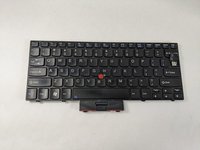
Lenovo ThinkPad x120e Keyboard Replacement

What you need

  1. Lenovo ThinkPad x120e Keyboard Replacement, Battery: step 1, image 1 of 2 Lenovo ThinkPad x120e Keyboard Replacement, Battery: step 1, image 2 of 2
    • Flip the laptop upside down and locate the battery latches under the battery.

    • Place your thumbs on both latches and push the latch inwards.

    • With your thumbs still on the latches, slide the battery out of the laptop.

    • To install a new battery, simply slide the battery back in the slot. Then, check if both battery latches are locked

  2. Lenovo ThinkPad x120e Keyboard Replacement, Back Cover: step 2, image 1 of 3 Lenovo ThinkPad x120e Keyboard Replacement, Back Cover: step 2, image 2 of 3 Lenovo ThinkPad x120e Keyboard Replacement, Back Cover: step 2, image 3 of 3
    • Using the Phillips #0 screwdriver, remove the three 4 mm screws that are securing the bottom cover.

    • Remove the backplate carefully, making sure not to bend the cover.

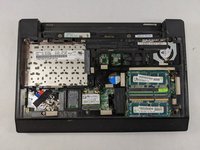
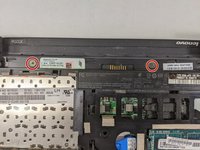
  3. Lenovo ThinkPad x120e Keyboard Replacement, Keyboard: step 3, image 1 of 2 Lenovo ThinkPad x120e Keyboard Replacement, Keyboard: step 3, image 2 of 2
    • Using the Phillips #0 screwdriver, remove the two 4 mm retaining screws located on the battery slot.

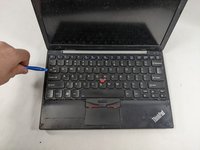
  4. Lenovo ThinkPad x120e Keyboard Replacement: step 4, image 1 of 3 Lenovo ThinkPad x120e Keyboard Replacement: step 4, image 2 of 3 Lenovo ThinkPad x120e Keyboard Replacement: step 4, image 3 of 3
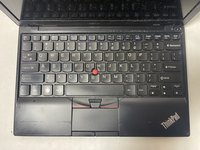
    • Flip the laptop back over, showing the keyboard.

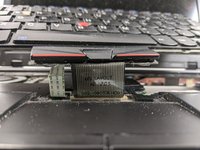
    • Using an opening tool, pry open the keyboard starting from the top left. Work your way around until you are able to loosely lift the keyboard.

    • You should see two ribbon wires located beneath the keyboard once you are done.

  5. Lenovo ThinkPad x120e Keyboard Replacement: step 5, image 1 of 2 Lenovo ThinkPad x120e Keyboard Replacement: step 5, image 2 of 2
    Tool used on this step:
    Tweezers
    $4.99
    Buy
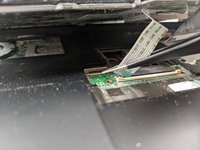
    • Pull on the black tabs above both ribbon wires using tweezers upwards.

    • For more information on Zero Insertion Force (ZIF) connectors, please visit this guide.

    • Remove both ribbon wires.

    • Remove the keyboard from the laptop.

Conclusion

To reassemble your device, follow these instructions in reverse order.

Jacob Fronzaglia

Member since: 10/25/21

787 Reputation

6 Guides authored

Team

0 Guide Comments

Add Comment

View Statistics:

Past 24 Hours: 1

Past 7 Days: 6

Past 30 Days: 24

All Time: 637