Free Shipping on Domestic Orders $75+

Lenovo ThinkPad X1 Extreme Docking Station Replacement

Views: 1.5K

View statistics:

Past 24 Hours:
1
Past 7 Days:
22
Past 30 Days:
70
All Time:
1,523
Comments: 22

22 comments on steps.

Completed: 0

No one has marked this guide "completed." Will you be the first?

Favorites: 0

No one has favorited (and subscribed to) this guide. Will you be the first?

Time Required: 25 minutes
Difficulty: Moderate
Needs Better Images

Better photos will improve this guide. Help out by taking, editing, or uploading new ones!

Lenovo ThinkPad X1 Extreme Docking Station Replacement

Introduction

Go to step 1 ↓

Before beginning this guide, you must complete the battery, fan, and motherboard guide.

In this tutorial, you will be handling the motherboard and its components. For this reason, it is important to be sure that your hands are not wet or oily. Moisture could cause unwanted damage to your device.

Indications of a faulty or broken docking station include,

  • Not registering inputs
  • Loses connection randomly
  • Moves out of place when touched

Before replacing the battery, refer to the troubleshooting page for the Lenovo ThinkPad Gen 1 Extreme to see if the problem is fixable without purchasing and installing another battery.

The docking station is the port where you might plug in a USB or a cable to charge your phone. These ports are susceptible to debris and other foreign materials that could damage it.

What you need

Tools

  • iFixit Precision 4 mm Screwdriver Bit
    5
  • Phillips #00 Screwdriver
    4.9
  • Tweezers
    $4.99
    4.9
    1. Lenovo ThinkPad X1 Extreme Docking Station Replacement, Back Cover: step 1, image 1 of 3 Lenovo ThinkPad X1 Extreme Docking Station Replacement, Back Cover: step 1, image 2 of 3 Lenovo ThinkPad X1 Extreme Docking Station Replacement, Back Cover: step 1, image 3 of 3
      • Power off and unplug your device before you begin.

      • Orient the laptop so that it is bottom up, and the trackpad is closest to you.

      • Unscrew the seven captive screws with a Phillips #00 screwdriver.

      • These screws will loosen, but stay attached to the cover. Do not attempt to completely remove them.

      • Slide a blue opening pick in the gap between the bottom panel and chassis, and pry off the one clip on each side.

      • Remove the back cover from the device.

      Ask FixBot

      Add Comment

    1. Lenovo ThinkPad X1 Extreme Docking Station Replacement, Speakers: step 2, image 1 of 1
      • Use a Phillips #00 head screwdriver to remove the four 4 mm screws above the battery.

      Ask FixBot

      Add Comment

    2. Lenovo ThinkPad X1 Extreme Docking Station Replacement: step 3, image 1 of 1
      • Lift the speaker modules on either side of the battery out of its pegs, and unwind the cable from the front of the battery.

      • Set the speaker modules out of the way.

      Ask FixBot

      Add Comment

    1. Lenovo ThinkPad X1 Extreme Docking Station Replacement, Battery: step 4, image 1 of 3 Lenovo ThinkPad X1 Extreme Docking Station Replacement, Battery: step 4, image 2 of 3 Lenovo ThinkPad X1 Extreme Docking Station Replacement, Battery: step 4, image 3 of 3
      Tool used on this step:
      Tweezers
      $4.99
      Buy
      • Use tweezers to peel the plastic cover off the connector.

      • Use a plastic spudger or your fingernail to pry up the battery connector straight up from the motherboard.

      Ask FixBot

      Add Comment

    2. Lenovo ThinkPad X1 Extreme Docking Station Replacement: step 5, image 1 of 1
      • Lift the battery out of the frame and remove it from the device.

      Ask FixBot

      Add Comment

    1. Lenovo ThinkPad X1 Extreme Docking Station Replacement, Fan: step 6, image 1 of 3 Lenovo ThinkPad X1 Extreme Docking Station Replacement, Fan: step 6, image 2 of 3 Lenovo ThinkPad X1 Extreme Docking Station Replacement, Fan: step 6, image 3 of 3
      Tool used on this step:
      Phillips #00 Screwdriver
      $5.49
      Buy
      • Unscrew the 3mm screw holding down the wireless adapter using a Phillips #00 screwdriver.

      • Slide the adapter out of its connector.

      • Detach the black and gray cables and separate them from the frame of the fan by gently pulling upwards.

      Ask FixBot

      Add Comment

    2. Lenovo ThinkPad X1 Extreme Docking Station Replacement: step 7, image 1 of 2 Lenovo ThinkPad X1 Extreme Docking Station Replacement: step 7, image 2 of 2
      • Unlatch and remove the cable connecting to the frame of the fan by flipping the thin black tab up.

      • Separate the cable from the frame of the fan.

      Ask FixBot

      Add Comment

    3. Lenovo ThinkPad X1 Extreme Docking Station Replacement: step 8, image 1 of 2 Lenovo ThinkPad X1 Extreme Docking Station Replacement: step 8, image 2 of 2
      • Loosen the five screws connecting the fan to the motherboard using a Philips #00 head screwdriver.

      • These screws will not come out and will stay connected to the fan.

      Ask FixBot

      Add Comment

    4. Lenovo ThinkPad X1 Extreme Docking Station Replacement: step 9, image 1 of 3 Lenovo ThinkPad X1 Extreme Docking Station Replacement: step 9, image 2 of 3 Lenovo ThinkPad X1 Extreme Docking Station Replacement: step 9, image 3 of 3
      • Gently disconnect the two cables located on right and left side of the fan.

      • To identify these, they are labeled "FANR1" and FANL2" on the motherboard.

      • Lift the fan up and out and remove it from the device.

      Ask FixBot

      Add Comment

    1. Lenovo ThinkPad X1 Extreme Docking Station Replacement, Motherboard: step 10, image 1 of 3 Lenovo ThinkPad X1 Extreme Docking Station Replacement, Motherboard: step 10, image 2 of 3 Lenovo ThinkPad X1 Extreme Docking Station Replacement, Motherboard: step 10, image 3 of 3
      • Use a Phillips #00 screwdriver to remove the five 4 mm screws below the charging port.

      • Use a Phillips #00 screwdriver to remove the two 3 mm screws.

      • Use a Phillips #00 screwdriver to remove the two 5 mm screws securing a silver plate on the charging port, in the top-right.

      • Remove the silver plate on top of the charging port.

      Ask FixBot

      Add Comment

    2. Lenovo ThinkPad X1 Extreme Docking Station Replacement: step 11, image 1 of 3 Lenovo ThinkPad X1 Extreme Docking Station Replacement: step 11, image 2 of 3 Lenovo ThinkPad X1 Extreme Docking Station Replacement: step 11, image 3 of 3
      • Disconnect all the ribbon wires from the motherboard.

      • All ribbon wires can be disconnected by flipping up the thin black tab at their connection points, and pulling the ribbon out.

      Ask FixBot

      Add Comment

    3. Lenovo ThinkPad X1 Extreme Docking Station Replacement: step 12, image 1 of 3 Lenovo ThinkPad X1 Extreme Docking Station Replacement: step 12, image 2 of 3 Lenovo ThinkPad X1 Extreme Docking Station Replacement: step 12, image 3 of 3
      • Disconnect the black attachment at the top right corner of the motherboard.

      • Insert the SIM eject bit into the small hole on the top and apply a small amount of pressure to release the clip.

      • While maintaining pressure, gently pull on the wire that is connected to it to remove it.

      Ask FixBot

      Add Comment

    4. Lenovo ThinkPad X1 Extreme Docking Station Replacement: step 13, image 1 of 1
      • Gently lift the motherboard out of the computer.

      Ask FixBot

      Add Comment

    1. Lenovo ThinkPad X1 Extreme Docking Station Replacement, Docking Station: step 14, image 1 of 1
      • Once you have the motherboard removed, you now have access to the docking stations.

      Ask FixBot

      Add Comment

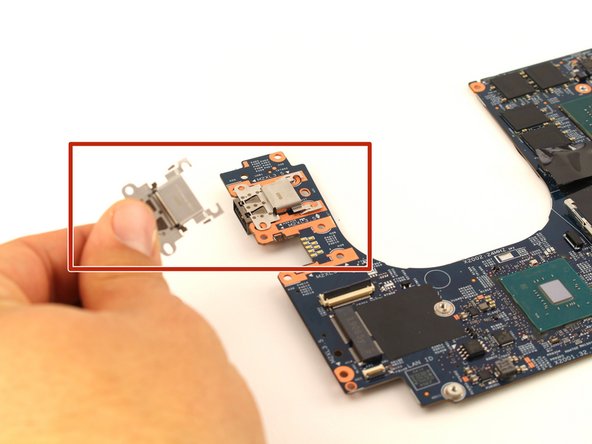
    2. Lenovo ThinkPad X1 Extreme Docking Station Replacement: step 15, image 1 of 2 Lenovo ThinkPad X1 Extreme Docking Station Replacement: step 15, image 2 of 2
      • Gently push the docking station towards the center of the motherboard, lift up to release a lock, then pull it out to remove it from the device.

      Ask FixBot

      Add Comment

Conclusion

To reassemble your device, follow these instructions in reverse order.

Cancel: I did not complete this guide.

Beckham Richmond

Member since: 02/10/20

530 Reputation

3 Guides authored

Team

Cal Poly, Team S7-G3, Regan Winter 2020 Member of Cal Poly, Team S7-G3, Regan Winter 2020

CPSU-REGAN-W20S7G3

4 Members

60 Guides authored

0 Guide Comments

Add Comment

View Statistics:

Past 24 Hours: 1

Past 7 Days: 22

Past 30 Days: 70

All Time: 1,523