Shop the Holiday Gift Guide
Free Shipping on Domestic Orders $75+

Lenovo ThinkPad X1 Carbon 7th Gen Daughterboard Replacement

Views: 4K

View statistics:

Past 24 Hours:
6
Past 7 Days:
25
Past 30 Days:
105
All Time:
4,042
Comments: 5

5 comments on steps.

Completed: 1

1 person has marked this guide "completed." Will you be next?

Favorites: 0

No one has favorited (and subscribed to) this guide. Will you be the first?

Time Required: 40 minutes
Difficulty: Moderate
Lenovo ThinkPad X1 Carbon 7th Gen Daughterboard Replacement

Introduction

Go to step 1 ↓

This guide will show you how to replace the daughterboard in your Lenovo ThinkPad X1 Carbon 7th Generation laptop. The daughterboard is home to the right-side USB port, so if this port goes bad, a daughterboard replacement will likely alleviate the issue.

What you need

Parts

Tools

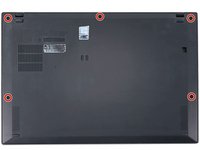
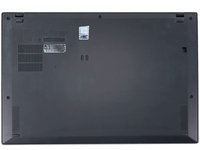
    1. Lenovo ThinkPad X1 Carbon 7th Gen Daughterboard Replacement, Back cover removal: step 1, image 1 of 2 Lenovo ThinkPad X1 Carbon 7th Gen Daughterboard Replacement, Back cover removal: step 1, image 2 of 2
      • Use a Phillips #1 screwdriver to loosen the five captive screws securing the back cover.

      Ask FixBot

      Add Comment

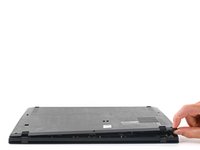
    2. Lenovo ThinkPad X1 Carbon 7th Gen Daughterboard Replacement, Insert an opening pick: step 2, image 1 of 3 Lenovo ThinkPad X1 Carbon 7th Gen Daughterboard Replacement, Insert an opening pick: step 2, image 2 of 3 Lenovo ThinkPad X1 Carbon 7th Gen Daughterboard Replacement, Insert an opening pick: step 2, image 3 of 3
      • Insert an opening pick at a 45Ëš angle between the back cover and frame near the rear middle screw.

      • Pry up on the pick to release the clips securing the back cover to the frame.

      • You will hear several clicks while prying up.

      Ask FixBot

      Add Comment

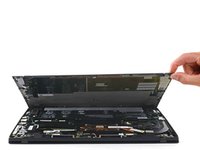
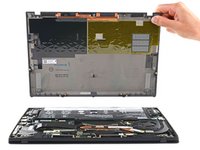
    3. Lenovo ThinkPad X1 Carbon 7th Gen Daughterboard Replacement, Remove the back cover: step 3, image 1 of 3 Lenovo ThinkPad X1 Carbon 7th Gen Daughterboard Replacement, Remove the back cover: step 3, image 2 of 3 Lenovo ThinkPad X1 Carbon 7th Gen Daughterboard Replacement, Remove the back cover: step 3, image 3 of 3
      • Lift the back cover up and remove it from the chassis.

      • You will hear several clicks while lifting up.

      • During reassembly, this is a good point to power on your laptop and test all functions before sealing it up. Be sure to power your laptop back down before you continue working.

      Ask FixBot

      Add Comment

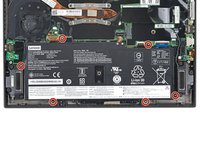
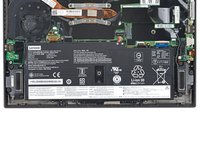
    1. Lenovo ThinkPad X1 Carbon 7th Gen Daughterboard Replacement, Unfasten the battery: step 4, image 1 of 2 Lenovo ThinkPad X1 Carbon 7th Gen Daughterboard Replacement, Unfasten the battery: step 4, image 2 of 2
      • Use a Phillips #0 screwdriver to remove the six 4.9 mm-long screws securing the battery.

      Ask FixBot

      Add Comment

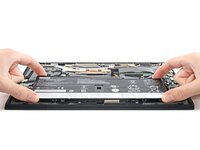
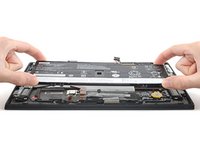
    2. Lenovo ThinkPad X1 Carbon 7th Gen Daughterboard Replacement, Remove the battery: step 5, image 1 of 3 Lenovo ThinkPad X1 Carbon 7th Gen Daughterboard Replacement, Remove the battery: step 5, image 2 of 3 Lenovo ThinkPad X1 Carbon 7th Gen Daughterboard Replacement, Remove the battery: step 5, image 3 of 3
      • Lift the battery straight out of its recess and remove it.

      Ask FixBot

      Add Comment

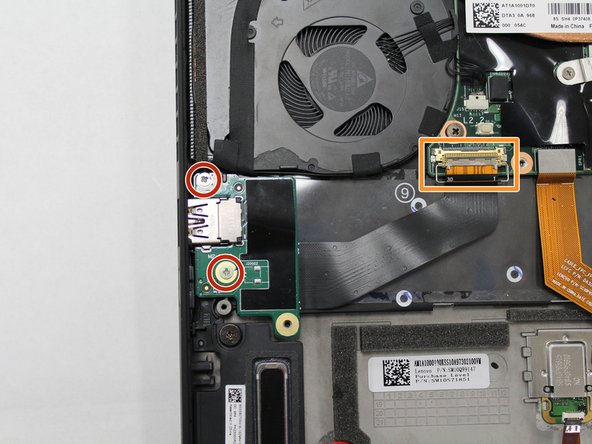
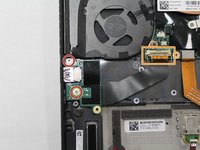
    1. Lenovo ThinkPad X1 Carbon 7th Gen Daughterboard Replacement, Daughterboard: step 6, image 1 of 2 Lenovo ThinkPad X1 Carbon 7th Gen Daughterboard Replacement, Daughterboard: step 6, image 2 of 2
      • Remove the two 1.3 mm screws with a Phillips #0 screwdriver.

      • Disconnect the interconnect cable from the motherboard by flipping up the locking lever and pulling out the ribbon cable.

      Ask FixBot

      Add Comment

    2. Lenovo ThinkPad X1 Carbon 7th Gen Daughterboard Replacement: step 7, image 1 of 1
      • Lift the right side of the daughterboard up, then slide the daughterboard to the right to remove it from the computer.

      Ask FixBot

      Add Comment

Conclusion

To reassemble your device, follow these instructions in reverse order.

Cancel: I did not complete this guide.

One other person completed this guide.

0 Guide Comments

Add Comment

View Statistics:

Past 24 Hours: 6

Past 7 Days: 25

Past 30 Days: 105

All Time: 4,042