Free Shipping on Domestic Orders $75+

Lenovo Legion 5 Pro 16ACH6H Right SSD Replacement

What you need

  1. Lenovo Legion 5 Pro 16ACH6H Right SSD Replacement, Back cover removal: step 1, image 1 of 2 Lenovo Legion 5 Pro 16ACH6H Right SSD Replacement, Back cover removal: step 1, image 2 of 2
    • Use a Phillips screwdriver to remove the following ten screws securing the back cover to frame:

    • Six 12.7 mm PH00 screws

    • Four 4.2 mm PH00 screws

  2. Lenovo Legion 5 Pro 16ACH6H Right SSD Replacement, Release the front clips: step 2, image 1 of 3 Lenovo Legion 5 Pro 16ACH6H Right SSD Replacement, Release the front clips: step 2, image 2 of 3 Lenovo Legion 5 Pro 16ACH6H Right SSD Replacement, Release the front clips: step 2, image 3 of 3
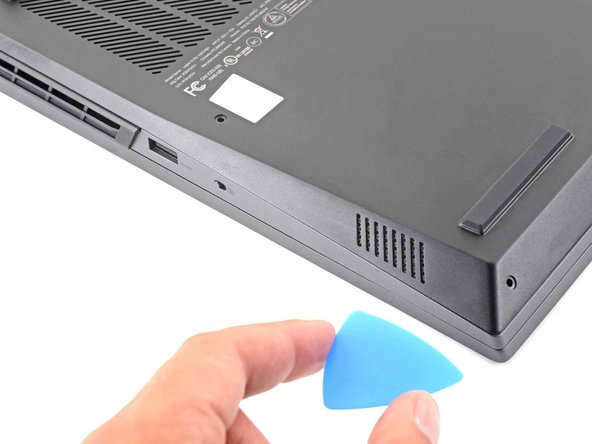
    • Insert the rounded edge of an opening pick between the back cover and the frame in the lower right corner.

  3. Lenovo Legion 5 Pro 16ACH6H Right SSD Replacement: step 3, image 1 of 3 Lenovo Legion 5 Pro 16ACH6H Right SSD Replacement: step 3, image 2 of 3 Lenovo Legion 5 Pro 16ACH6H Right SSD Replacement: step 3, image 3 of 3
    • Angle the pick to about 45˚.

    • Slide the pick along the front edge to release the clips securing the back cover to the frame.

  4. Lenovo Legion 5 Pro 16ACH6H Right SSD Replacement, Release the right clips: step 4, image 1 of 3 Lenovo Legion 5 Pro 16ACH6H Right SSD Replacement, Release the right clips: step 4, image 2 of 3 Lenovo Legion 5 Pro 16ACH6H Right SSD Replacement, Release the right clips: step 4, image 3 of 3
    • Insert the rounded edge of an opening pick between the back cover and the frame on the right edge.

    • Angle the pick to about 30˚ and slide down the right edge until you reach the plastic vents on the side.

  5. Lenovo Legion 5 Pro 16ACH6H Right SSD Replacement, Release the left clips: step 5, image 1 of 3 Lenovo Legion 5 Pro 16ACH6H Right SSD Replacement, Release the left clips: step 5, image 2 of 3 Lenovo Legion 5 Pro 16ACH6H Right SSD Replacement, Release the left clips: step 5, image 3 of 3
    • Repeat the same procedure on the left edge to release the clips.

  6. Lenovo Legion 5 Pro 16ACH6H Right SSD Replacement, Release the right vent clips: step 6, image 1 of 3 Lenovo Legion 5 Pro 16ACH6H Right SSD Replacement, Release the right vent clips: step 6, image 2 of 3 Lenovo Legion 5 Pro 16ACH6H Right SSD Replacement, Release the right vent clips: step 6, image 3 of 3
    • Position the laptop vertically so you can easily access the plastic vents.

    • Slide the rounded edge of an opening pick between the frame and the plastic vents on the right side near the USB-A port.

    • Rotate the pick so that it is positioned on top of the plastic vents.

  7. Lenovo Legion 5 Pro 16ACH6H Right SSD Replacement: step 7, image 1 of 2 Lenovo Legion 5 Pro 16ACH6H Right SSD Replacement: step 7, image 2 of 2
    • Push the pick between the frame and plastic vents.

    • Slide the pick along the top edge of the plastic vents to release the clips.

  8. Lenovo Legion 5 Pro 16ACH6H Right SSD Replacement, Release the left vent clips: step 8, image 1 of 3 Lenovo Legion 5 Pro 16ACH6H Right SSD Replacement, Release the left vent clips: step 8, image 2 of 3 Lenovo Legion 5 Pro 16ACH6H Right SSD Replacement, Release the left vent clips: step 8, image 3 of 3
    • Slide the rounded edge of an opening pick between the frame and the plastic vents on the left side near the USB-C port.

    • Rotate the pick so that it is positioned on top of the plastic vents.

  9. Lenovo Legion 5 Pro 16ACH6H Right SSD Replacement: step 9, image 1 of 2 Lenovo Legion 5 Pro 16ACH6H Right SSD Replacement: step 9, image 2 of 2
    • Push the pick between the frame and plastic vents.

    • Slide the pick along the top edge of the plastic vents to release the clips.

  10. Lenovo Legion 5 Pro 16ACH6H Right SSD Replacement, Remove the back cover: step 10, image 1 of 3 Lenovo Legion 5 Pro 16ACH6H Right SSD Replacement, Remove the back cover: step 10, image 2 of 3 Lenovo Legion 5 Pro 16ACH6H Right SSD Replacement, Remove the back cover: step 10, image 3 of 3
    • Lift the back cover up and remove it from the chassis.

    • During reassembly, this is a good point to power on your laptop and test all functions before sealing it up. Be sure to power your laptop back down before you continue working.

  11. Lenovo Legion 5 Pro 16ACH6H Right SSD Replacement, Disconnect the battery: step 11, image 1 of 3 Lenovo Legion 5 Pro 16ACH6H Right SSD Replacement, Disconnect the battery: step 11, image 2 of 3 Lenovo Legion 5 Pro 16ACH6H Right SSD Replacement, Disconnect the battery: step 11, image 3 of 3
    • Use the pointed end of a spudger to push each side of the battery connector to loosen it.

  12. Lenovo Legion 5 Pro 16ACH6H Right SSD Replacement: step 12, image 1 of 2 Lenovo Legion 5 Pro 16ACH6H Right SSD Replacement: step 12, image 2 of 2
    • Use the flat end of a spudger to push out and disconnect battery cable.

  13. Lenovo Legion 5 Pro 16ACH6H Right SSD Replacement, Right SSD removal: step 13, image 1 of 2 Lenovo Legion 5 Pro 16ACH6H Right SSD Replacement, Right SSD removal: step 13, image 2 of 2
    • Use a Phillips screwdriver to remove the three 5.1 mm PH00 screws securing the right SSD shield to the motherboard.

    • During reassembly, make sure the hole on the top of the shield aligns with the post on the chassis.

  14. Lenovo Legion 5 Pro 16ACH6H Right SSD Replacement, Remove the SSD shield: step 14, image 1 of 3 Lenovo Legion 5 Pro 16ACH6H Right SSD Replacement, Remove the SSD shield: step 14, image 2 of 3 Lenovo Legion 5 Pro 16ACH6H Right SSD Replacement, Remove the SSD shield: step 14, image 3 of 3
    • Grab the SSD shield and lift up to remove it.

  15. Lenovo Legion 5 Pro 16ACH6H Right SSD Replacement: step 15, image 1 of 2 Lenovo Legion 5 Pro 16ACH6H Right SSD Replacement: step 15, image 2 of 2
    • Use a Phillips screwdriver to remove the 2.6 mm PH1 screw securing the SSD to the motherboard.

    • The SSD will spring up to about 30˚ when the screw is removed.

  16. Lenovo Legion 5 Pro 16ACH6H Right SSD Replacement, Remove the right SSD: step 16, image 1 of 3 Lenovo Legion 5 Pro 16ACH6H Right SSD Replacement, Remove the right SSD: step 16, image 2 of 3 Lenovo Legion 5 Pro 16ACH6H Right SSD Replacement, Remove the right SSD: step 16, image 3 of 3
    • Grip the edges of the SSD near the screw indent.

    • Gently pull to remove the SSD.

Conclusion

To reassemble your device, follow these instructions in reverse order.

Take your e-waste to an R2 or e-Stewards certified recycler.

Repair didn’t go as planned? Try some basic troubleshooting, or ask our Lenovo Legion answers community for help.

9 other people completed this guide.

Chayton Ritter

Member since: 08/21/20

25,898 Reputation

105 Guides authored

4 Guide Comments

Warning! There are PCI Express 1.3 and PCI Express 1.4. 3.5 mm is max for SSD for PCI Express 1.3, ~2.5 mm is for PCI Express 1.4. SSD for PCI Express 1.4 must not have chips on the bottom due to there is no space to place SSD.

Oleg Dmitrochenko - Reply Share

nice .... thank you.

mohamed ahmed - Reply Share

А могу ли установить дополнительный диск M.2 NVMe PCIe 4.0 и влезет ли туда радиатор охлаждения диска? он нужен?

Владимир - Reply Share

The metal plate is the radiator, be sure to purchase adhesive thermal pads for the ssd. If your using the right size insert it shouldn’t matter if it’s double sided ssd or not.

opuscontinuum - Share

Add Comment

View Statistics:

Past 24 Hours: 2

Past 7 Days: 48

Past 30 Days: 235

All Time: 21,269