Free Shipping on Domestic Orders $75+

Lenovo Ideapad Yoga 2 11 Battery Replacement

What you need

    1. Lenovo Ideapad Yoga 2 11 Battery Replacement, Back Panel: step 1, image 1 of 1
      • Begin by turning your closed laptop so that you are looking at the bottom panel.

      Ask FixBot

      Add Comment

    2. Lenovo Ideapad Yoga 2 11 Battery Replacement: step 2, image 1 of 2 Lenovo Ideapad Yoga 2 11 Battery Replacement: step 2, image 2 of 2
      • Locate the 10 screws (6mm) around the border of the panel.

      • Using the Torx T5 Screwdriver, remove the screws.

      Ask FixBot

      Add Comment

    3. Lenovo Ideapad Yoga 2 11 Battery Replacement: step 3, image 1 of 1
      • Now that the screws are removed, gently lift the back panel upwards to detach it from the rest of your laptop.

      Ask FixBot

      Add Comment

    1. Lenovo Ideapad Yoga 2 11 Battery Replacement, Battery: step 4, image 1 of 2 Lenovo Ideapad Yoga 2 11 Battery Replacement, Battery: step 4, image 2 of 2
      • Locate the battery in the bottom right corner.

      • Using a Phillips #000, remove the 6 screws (3.5mm) on the border of the battery and the 7th screw (6.5mm) that is in the center of the battery.

      Ask FixBot

      Add Comment

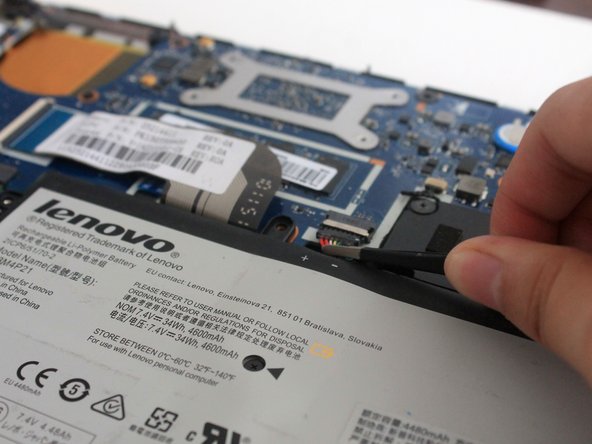
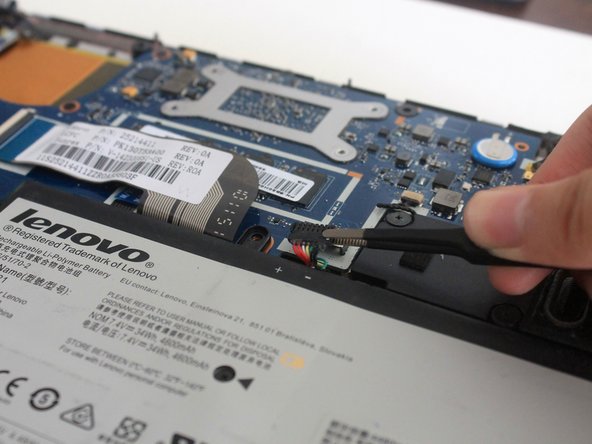
    2. Lenovo Ideapad Yoga 2 11 Battery Replacement: step 5, image 1 of 3 Lenovo Ideapad Yoga 2 11 Battery Replacement: step 5, image 2 of 3 Lenovo Ideapad Yoga 2 11 Battery Replacement: step 5, image 3 of 3
      Tool used on this step:
      Tweezers
      $4.99
      Buy
      • Locate the cable connecting to the battery. It is located at the top-center of the battery.

      • Use a pair of tweezers and place it so that the tweezer is around the cables. Gently pull the cables towards the battery to disconnect the cable.

      Ask FixBot

      Add Comment

    3. Lenovo Ideapad Yoga 2 11 Battery Replacement: step 6, image 1 of 2 Lenovo Ideapad Yoga 2 11 Battery Replacement: step 6, image 2 of 2
      • There may be tape around the edge of the battery to secure some wires. Use a pair of tweezers to remove the tape so that the wires are no longer attached to the battery.

      Ask FixBot

      Add Comment

    4. Lenovo Ideapad Yoga 2 11 Battery Replacement: step 7, image 1 of 2 Lenovo Ideapad Yoga 2 11 Battery Replacement: step 7, image 2 of 2
      • After you have unscrewed the screws, unplugged the cable, and removed the tape and wires, you can remove the battery from your laptop.

      Ask FixBot

      Add Comment

Conclusion

To reassemble your device, follow these instructions in reverse order.

Cancel: I did not complete this guide.

2 other people completed this guide.

Andria Chen

Member since: 10/17/17

624 Reputation

5 Guides authored

Team

1 Guide Comment

Excellent instructions makes it easy even for novice

bhimanagouda patil - Reply Share

Add Comment

View Statistics:

Past 24 Hours: 2

Past 7 Days: 7

Past 30 Days: 27

All Time: 2,250