Free Shipping on Domestic Orders $75+

Lenovo IdeaPad Flex 4-1470 Touchpad Replacement

What you need

    1. Lenovo IdeaPad Flex 4-1470 Touchpad Replacement, Lower Case: step 1, image 1 of 1
      • Ensure your computer is completely OFF before starting this guide.

      • Remove the eight 6 mm screws using a Phillips #0 screwdriver.

      • Remove the two 11 mm screws using a Phillips #0 screwdriver.

      Ask FixBot

      Add Comment

    2. Lenovo IdeaPad Flex 4-1470 Touchpad Replacement: step 2, image 1 of 2 Lenovo IdeaPad Flex 4-1470 Touchpad Replacement: step 2, image 2 of 2
      • Pry the back cover off by inserting the plastic opening tool at the hinges and wedging it between the Back cover and the body.

      • Follow along the back edge with the plastic opening tool, lifting the cover off as you go. It is normal to hear snapping/clicking sounds as the back cover is held on by clips.

      • Remove the cover.

      Ask FixBot

      Add Comment

    1. Lenovo IdeaPad Flex 4-1470 Touchpad Replacement, Battery: step 3, image 1 of 2 Lenovo IdeaPad Flex 4-1470 Touchpad Replacement, Battery: step 3, image 2 of 2
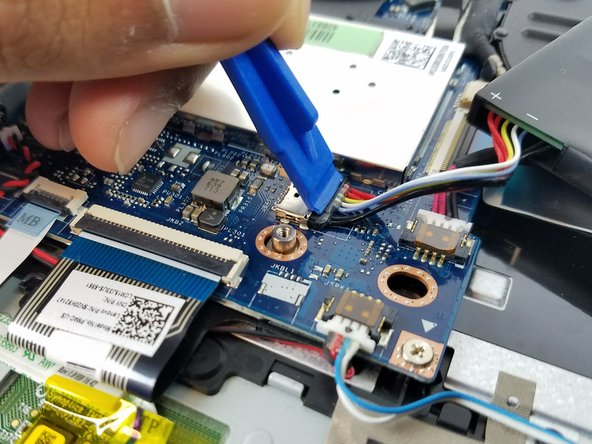
      • Disconnect the battery connector by using a plastic pry tool or your fingers to push the cable right towards the battery.

      • Do not pry or push on the socket itself or you risk damaging the motherboard.

      Ask FixBot

      Add Comment

    2. Lenovo IdeaPad Flex 4-1470 Touchpad Replacement: step 4, image 1 of 1
      • Remove the three 4 mm Phillips #0 screws holding the battery in place.

      Ask FixBot

      Add Comment

    3. Lenovo IdeaPad Flex 4-1470 Touchpad Replacement: step 5, image 1 of 1
      • Lift the battery up and out of the laptop.

      Ask FixBot

      Add Comment

    1. Lenovo IdeaPad Flex 4-1470 Touchpad Replacement, Touchpad: step 6, image 1 of 1
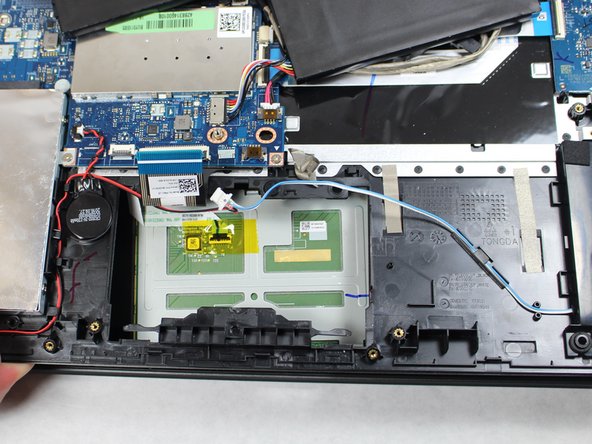
      • Locate the touchpad.

      Ask FixBot

      Add Comment

    2. Lenovo IdeaPad Flex 4-1470 Touchpad Replacement: step 7, image 1 of 2 Lenovo IdeaPad Flex 4-1470 Touchpad Replacement: step 7, image 2 of 2
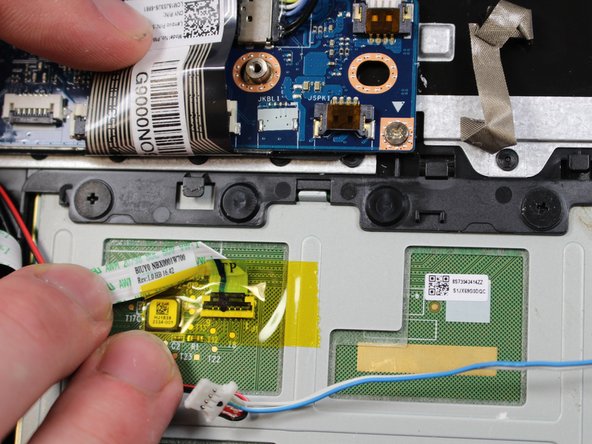
      • Remove the three ribbon cables surrounding the touch pad.

      Ask FixBot

      Add Comment

    3. Lenovo IdeaPad Flex 4-1470 Touchpad Replacement: step 8, image 1 of 1
      • Lift the base of the laptop from the screen and gently push the touchpad to remove.

      Ask FixBot

      Add Comment

Conclusion

To reassemble your device, follow these instructions in reverse order.

Cancel: I did not complete this guide.

2 other people completed this guide.

Elijah Ellis

Member since: 11/08/18

637 Reputation

5 Guides authored

Team

2 Guide Comments

do you know where to find this part? i have been looking everywhere haha.

Hanna Tafete - Reply Share

Can any body repair lenovo idea pad 1470. Touch screen ...tia

jgonzales - Reply Share

Add Comment

View Statistics:

Past 24 Hours: 9

Past 7 Days: 17

Past 30 Days: 43

All Time: 1,633