Shop the Holiday Gift Guide
Free Shipping on Domestic Orders $75+

Lenovo 14e Chromebook Speakers Replacement

Views: 222

View statistics:

Past 24 Hours:
2
Past 7 Days:
11
Past 30 Days:
47
All Time:
222
Comments: 0

No one has left comments on this guide. Will you be first?

Go to guide comments
Completed: 0

No one has marked this guide "completed." Will you be the first?

Favorites: 0

No one has favorited (and subscribed to) this guide. Will you be the first?

Time Required: No estimate
Difficulty: Moderate
Lenovo 14e Chromebook Speakers Replacement

What you need

Tools

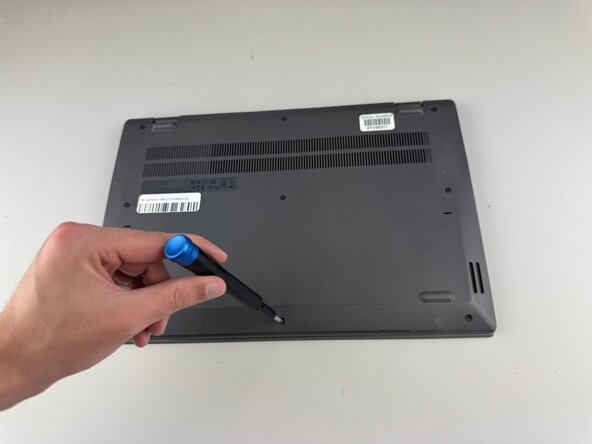
    1. Lenovo 14e Chromebook Speakers Replacement, Battery: step 1, image 1 of 2 Lenovo 14e Chromebook Speakers Replacement, Battery: step 1, image 2 of 2
      • Use a Phillips #0 screwdriver to remove the nine 8.6 mm screws from the back cover.

      Ask FixBot

      Add Comment

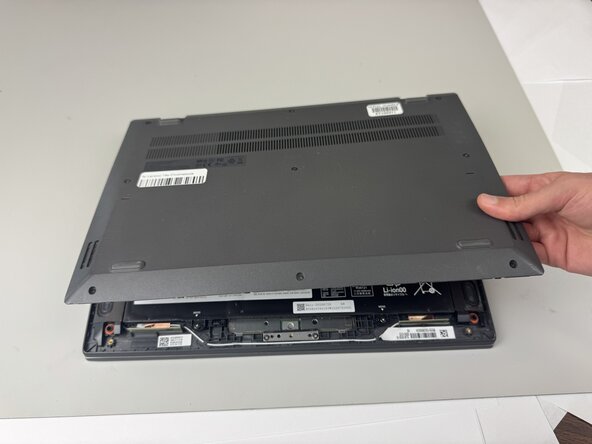
    2. Lenovo 14e Chromebook Speakers Replacement: step 2, image 1 of 2 Lenovo 14e Chromebook Speakers Replacement: step 2, image 2 of 2
      • Carefully remove the back cover from the Chromebook.

      • You may hear clicking sounds as the cover becomes detached from the frame.

      Ask FixBot

      Add Comment

    3. Lenovo 14e Chromebook Speakers Replacement: step 3, image 1 of 2 Lenovo 14e Chromebook Speakers Replacement: step 3, image 2 of 2
      • Use a Phillips #0 screwdriver to remove the four 5.5 mm screws holding the battery in place.

      • Do not apply too much downward pressure when unscrewing the screws, as the interior contains many vital and fragile components.

      Ask FixBot

      Add Comment

    4. Lenovo 14e Chromebook Speakers Replacement: step 4, image 1 of 2 Lenovo 14e Chromebook Speakers Replacement: step 4, image 2 of 2
      • Gently disconnect the power interface using a pair of tweezers.

      • Lift the battery out of the Chromebook.

      Ask FixBot

      Add Comment

    1. Lenovo 14e Chromebook Speakers Replacement, Daughterboard: step 5, image 1 of 2 Lenovo 14e Chromebook Speakers Replacement, Daughterboard: step 5, image 2 of 2
      • Use a Phillips #0 screwdriver to remove the three screws from the daughterboard bracket.

      • Remove the bracket.

      Ask FixBot

      Add Comment

    2. Lenovo 14e Chromebook Speakers Replacement: step 6, image 1 of 2 Lenovo 14e Chromebook Speakers Replacement: step 6, image 2 of 2
      • Use a Phillips #0 screwdriver to remove the two screws from the daughterboard.

      Ask FixBot

      Add Comment

    3. Lenovo 14e Chromebook Speakers Replacement: step 7, image 1 of 2 Lenovo 14e Chromebook Speakers Replacement: step 7, image 2 of 2
      • Detach the two ribbon cables from the daughterboard and remove it from the laptop.

      Ask FixBot

      Add Comment

    1. Lenovo 14e Chromebook Speakers Replacement, Speakers: step 8, image 1 of 1
      • Detach the white speaker cable connector from the bottom of the motherboard.

      Ask FixBot

      Add Comment

    2. Lenovo 14e Chromebook Speakers Replacement: step 9, image 1 of 1
      • Remove the left speaker in order to access and remove the wire.

      Ask FixBot

      Add Comment

    3. Lenovo 14e Chromebook Speakers Replacement: step 10, image 1 of 2 Lenovo 14e Chromebook Speakers Replacement: step 10, image 2 of 2
      • Remove the tape keeping the wire in place.

      Ask FixBot

      Add Comment

    4. Lenovo 14e Chromebook Speakers Replacement: step 11, image 1 of 1
      • Remove the speakers and connecting wire from the laptop.

      Ask FixBot

      Add Comment

Conclusion

To reassemble your device, follow these instructions in reverse order.

Cancel: I did not complete this guide.

Kristen Gismondi

Member since: 11/12/14

110,159 Reputation

271 Guides authored

0 Guide Comments

Add Comment

View Statistics:

Past 24 Hours: 2

Past 7 Days: 11

Past 30 Days: 47

All Time: 222