Shop the Holiday Gift Guide
Free Shipping on Domestic Orders $75+

Lenovo 14e Chromebook Front Facing Camera Replacement

Views: 335

View statistics:

Past 24 Hours:
1
Past 7 Days:
11
Past 30 Days:
57
All Time:
335
Comments: 0

No one has left comments on this guide. Will you be first?

Go to guide comments
Completed: 1

1 person has marked this guide "completed." Will you be next?

Favorites: 0

No one has favorited (and subscribed to) this guide. Will you be the first?

Time Required: 10 - 20 minutes
Difficulty: Difficult
Lenovo 14e Chromebook Front Facing Camera Replacement

Introduction

Go to step 1 ↓

If your Lenovo 14e Chromebook's (model 81MH) front facing camera isn't producing clear video quality - blurry, laggy, or not working at all - use this guide to replace the front facing camera.

The front facing camera provides important functions such as video calls and recordings. A faulty front facing camera will transmit distorted video quality or none at all.

Before using this guide, inspect the front facing camera for dust or an object that may be interfering with or blocking the camera. Typically a small buildup of dust can be removed with a an ESD-safe brush or small dust blower.

Before beginning, make sure you power off your Chromebook and disconnect from any external power source.

What you need

Tools

    1. Lenovo 14e Chromebook Front Facing Camera Replacement, Front Facing Camera: step 1, image 1 of 1
      • Use a Jimmy to pry open the seal between the bezel and the screen.

      Ask FixBot

      Add Comment

    2. Lenovo 14e Chromebook Front Facing Camera Replacement: step 2, image 1 of 1
      • Continue sliding the Jimmy around the entire bezel to remove it from the screen.

      • You will hear clicking sounds as the bezel detaches from the screen.

      Ask FixBot

      Add Comment

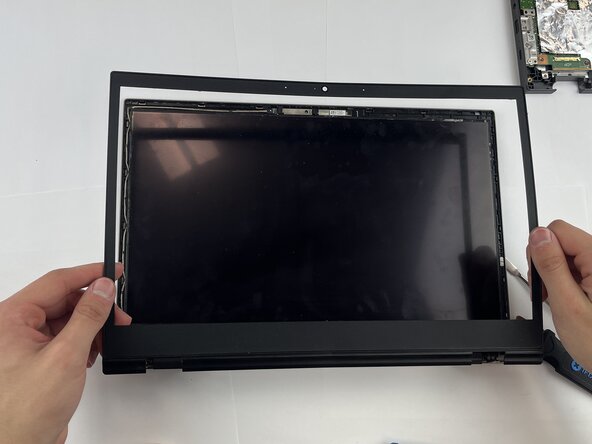
    3. Lenovo 14e Chromebook Front Facing Camera Replacement: step 3, image 1 of 1
      • Carefully remove the bezel from the Chromebook.

      Ask FixBot

      Add Comment

    4. Lenovo 14e Chromebook Front Facing Camera Replacement: step 4, image 1 of 1
      • Remove the nine 8.3 mm screws using a Phillips #0 screwdriver.

      Ask FixBot

      Add Comment

    5. Lenovo 14e Chromebook Front Facing Camera Replacement: step 5, image 1 of 1
      • Lift back cover off.

      • You may hear clicking noises during this step.

      Ask FixBot

      Add Comment

    6. Lenovo 14e Chromebook Front Facing Camera Replacement: step 6, image 1 of 2 Lenovo 14e Chromebook Front Facing Camera Replacement: step 6, image 2 of 2
      • Use a Phillips #0 screwdriver to remove the 5.5mm hinge screws.

      Ask FixBot

      Add Comment

    7. Lenovo 14e Chromebook Front Facing Camera Replacement: step 7, image 1 of 1
      • Lift the bottom of the Chromebook off.

      Ask FixBot

      Add Comment

    8. Lenovo 14e Chromebook Front Facing Camera Replacement: step 8, image 1 of 1
      • Use your hands to pinch the adhesive tab.

      Ask FixBot

      Add Comment

    9. Lenovo 14e Chromebook Front Facing Camera Replacement: step 9, image 1 of 1
      • Gently pull the adhesive strip out.

      • There are two adhesive strips; repeat the above steps for the second strip.

      Ask FixBot

      Add Comment

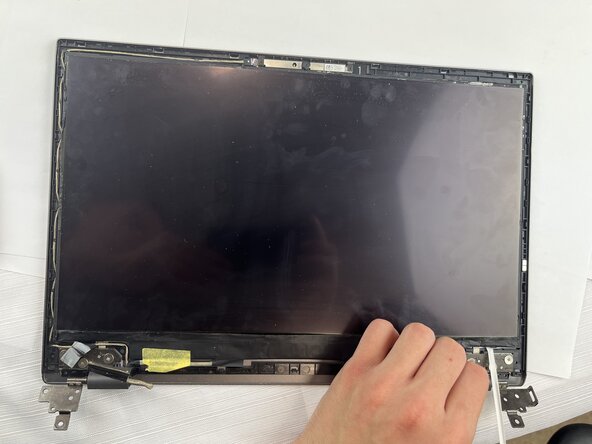
    10. Lenovo 14e Chromebook Front Facing Camera Replacement: step 10, image 1 of 1
      • Lift up the yellow tape and remove the screen.

      Ask FixBot

      Add Comment

    11. Lenovo 14e Chromebook Front Facing Camera Replacement: step 11, image 1 of 1
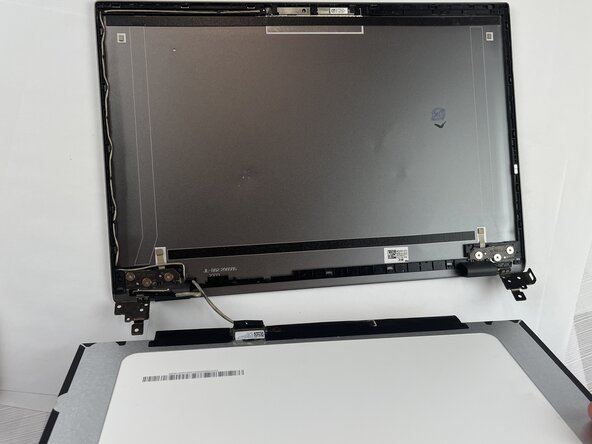
      • Lay the screen face down on the table.

      • There is no need to remove the wire attaching the screen to the frame.

      Ask FixBot

      Add Comment

    12. Lenovo 14e Chromebook Front Facing Camera Replacement: step 12, image 1 of 1
      • Using a metal spudger, pry off the front facing camera.

      Ask FixBot

      Add Comment

    13. Lenovo 14e Chromebook Front Facing Camera Replacement: step 13, image 1 of 1
      • Lift the camera out.

      Ask FixBot

      Add Comment

Conclusion

To reassemble your device, follow these instructions in reverse order.

Cancel: I did not complete this guide.

One other person completed this guide.

Author

with

Isaac Hoke

Member since: 09/24/25

217 Reputation

1 Guide authored

Team

Texas Tech, Team 2-4, Johansen Fall 2025 Member of Texas Tech, Team 2-4, Johansen Fall 2025

TTU-JOHANSEN-F25S2G4

5 Members

60 Guides authored

0 Guide Comments

Add Comment

View Statistics:

Past 24 Hours: 1

Past 7 Days: 11

Past 30 Days: 57

All Time: 335