Free Shipping on Domestic Orders $75+

Hipstreet Titan 2 HD Speaker Replacement

Views: 818

View statistics:

Past 24 Hours:
1
Past 7 Days:
17
Past 30 Days:
99
All Time:
818
Comments: 0

No one has left comments on this guide. Will you be first?

Go to guide comments
Completed: 2

2 people have marked this guide "completed." Will you be next?

Favorites: 0

No one has favorited (and subscribed to) this guide. Will you be the first?

Time Required: No estimate
Difficulty: Difficult
Needs Better Images

Better photos will improve this guide. Help out by taking, editing, or uploading new ones!

Hipstreet Titan 2 HD Speaker Replacement

Introduction

Go to step 1 ↓

Use this guide to replace the speaker. First you'll need to remove the rear cover. This can be a difficult process.

What you need

Tools

    1. Hipstreet Titan 2 HD Speaker Replacement, Rear Case: step 1, image 1 of 1
      • Using the PH#00 screwdriver, remove the two 0.145 inch Phillips head screws.

      • The screws are located on the bottom face of the device, near the power and volume controls.

      Ask FixBot

      Add Comment

    2. Hipstreet Titan 2 HD Speaker Replacement: step 2, image 1 of 1
      • Place the small suction cup on your screen.

      • Moisturize the bottom of the suction cup to ensure a proper seal.

      • If the screen is cracked, the suction cup may not seal correctly; too much pressure may crack or damage the screen.

      Ask FixBot

      Add Comment

    3. Hipstreet Titan 2 HD Speaker Replacement: step 3, image 1 of 1
      • Insert the plastic opening tool between the screen cover and rear cover of the tablet.

      • Grasp the small suction cup.

      Ask FixBot

      Add Comment

    4. Hipstreet Titan 2 HD Speaker Replacement: step 4, image 1 of 2 Hipstreet Titan 2 HD Speaker Replacement: step 4, image 2 of 2
      • Slide the plastic opening tool along device edge to separate the screen cover from the rear cover.

      • Pull upward on the small suction cup handle while sliding the opening tool.

      • When sliding the plastic opening tool, avoid sliding the tool too far into the cover. This could damage the speaker connector on the back cover.

      Ask FixBot

      Add Comment

    5. Hipstreet Titan 2 HD Speaker Replacement: step 5, image 1 of 2 Hipstreet Titan 2 HD Speaker Replacement: step 5, image 2 of 2
      • Use the plastic opening tool to remove the speaker from the rear cover.

      • The speaker is held in place with adhesive and is easily removed.

      • Do not pull on the speaker wires. This could damage the soldering connections.

      Ask FixBot

      Add Comment

    6. Hipstreet Titan 2 HD Speaker Replacement: step 6, image 1 of 1
      • Once the speaker is disconnected, the cover removal is complete.

      Ask FixBot

      Add Comment

    1. Hipstreet Titan 2 HD Speaker Replacement, Speaker: step 7, image 1 of 1
      • Remove the black placement tape.

      Ask FixBot

      Add Comment

    2. Hipstreet Titan 2 HD Speaker Replacement: step 8, image 1 of 1
      • Using a #PH000 screwdriver, remove the three 0.145in circuit board placement screws.

      Ask FixBot

      Add Comment

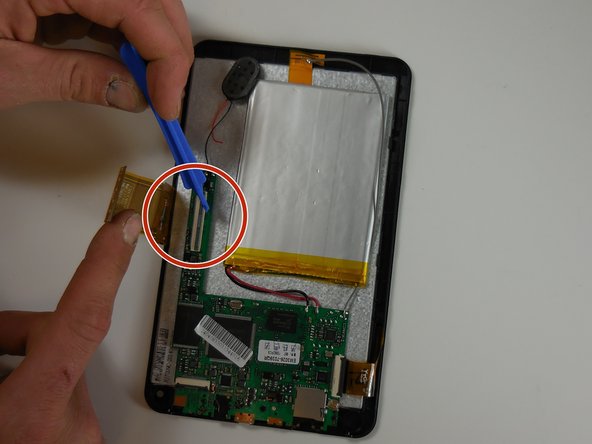
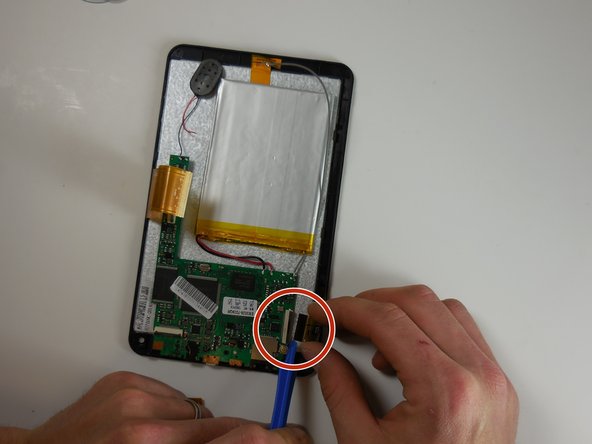
    3. Hipstreet Titan 2 HD Speaker Replacement: step 9, image 1 of 3 Hipstreet Titan 2 HD Speaker Replacement: step 9, image 2 of 3 Hipstreet Titan 2 HD Speaker Replacement: step 9, image 3 of 3
      • Lift the hinge locks on the three ribbon connectors and disconnect the ribbon connectors.

      Ask FixBot

      Add Comment

    4. Hipstreet Titan 2 HD Speaker Replacement: step 10, image 1 of 1
      • Identify the two soldered connectors for the speaker.

      Ask FixBot

      Add Comment

    5. Hipstreet Titan 2 HD Speaker Replacement: step 11, image 1 of 1
      • Using a solder removal tool, remove the speaker soldered connectors.

      • Solder the new speaker wire connections to circuit board.

      • First solder the red wire on the left, then the black wire on the right.

      • Solder can burn you. Use caution.

      Ask FixBot

      Add Comment

Conclusion

To reassemble your device, follow these instructions in reverse order.

Cancel: I did not complete this guide.

2 other people completed this guide.

Jeffrey

Member since: 03/11/15

766 Reputation

5 Guides authored

Team

0 Guide Comments

Add Comment

View Statistics:

Past 24 Hours: 1

Past 7 Days: 17

Past 30 Days: 99

All Time: 818