Introduction
Use this guide to replace a display that is broken, cracked, or has dead pixels on your HP EliteBook 845 G8.
This guide is for the display panel on its own, not the full assembly (including the display panel, top shell, bezel, hinges, sensors, and camera). Click here for that procedure.
Still under warranty? Contact HP to learn your warranty status, receive a repair under warranty if eligible, or for further warranty information.
What you need
-
-
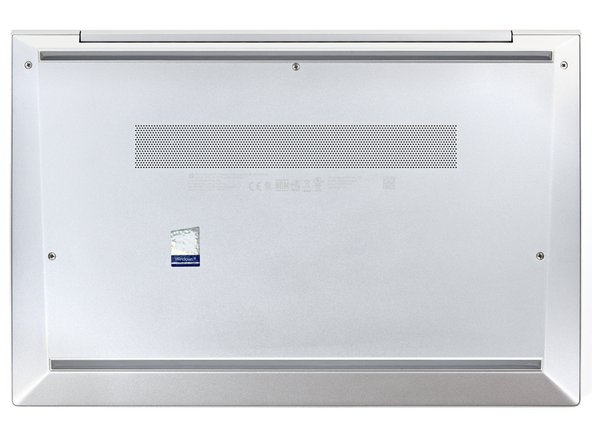
Use a Phillips screwdriver to fully loosen (but not remove) the five captive screws securing the bottom cover.
-
-
-
Position your laptop so the rear edge (with the screen hinge) is closest to you.
-
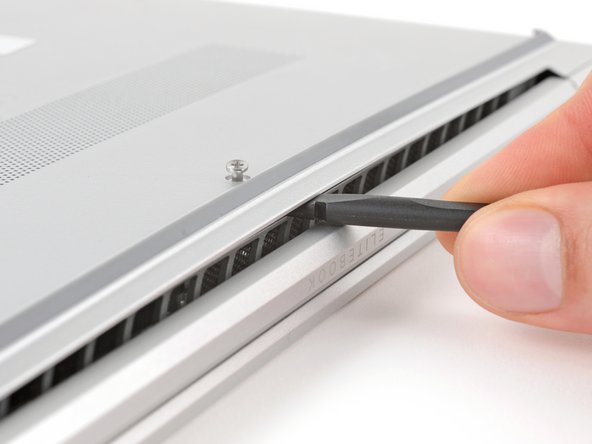
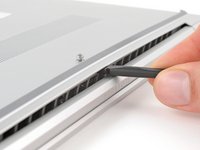
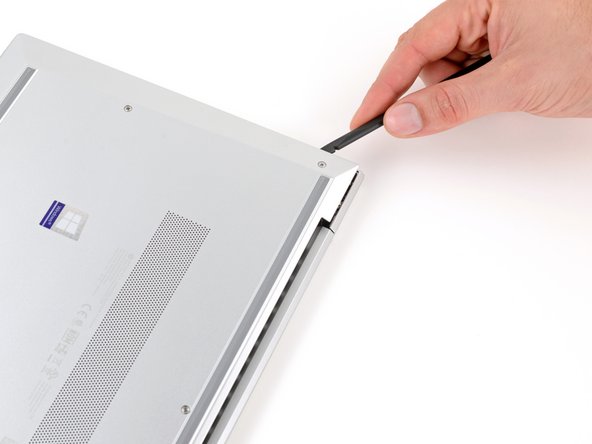
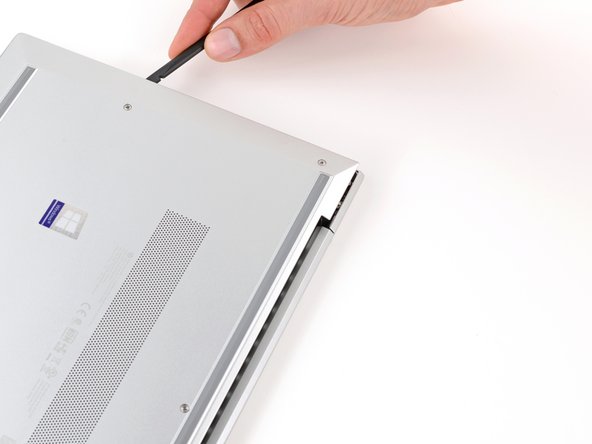
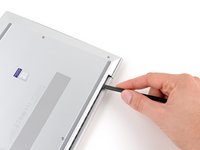
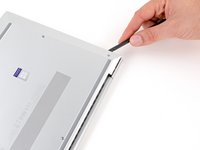
Insert the flat end of a spudger between the rear edge of the bottom cover and the frame, near the middle screw and ELITEBOOK text.
-
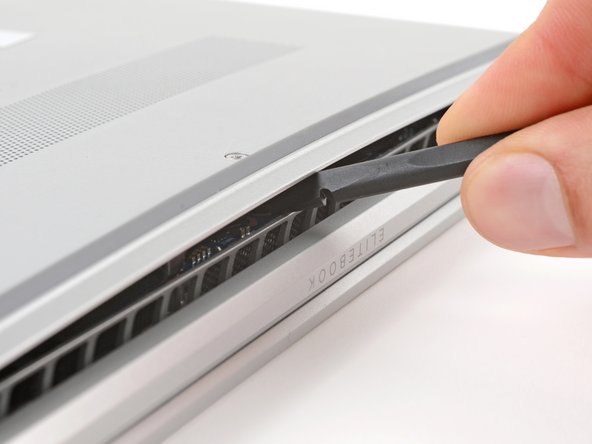
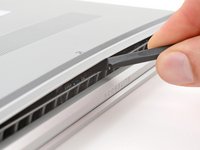
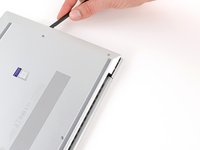
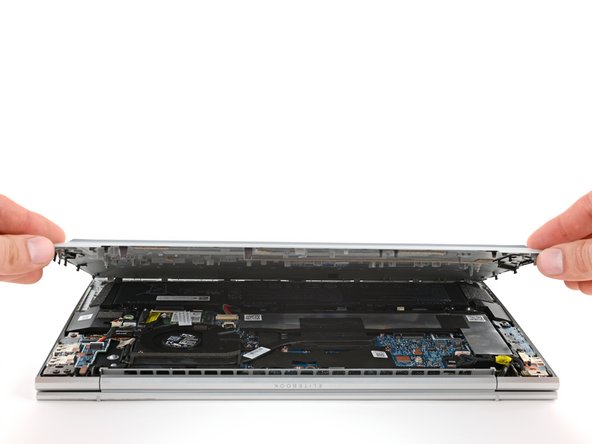
Use your spudger to pry up the cover to release the clip securing it.
-
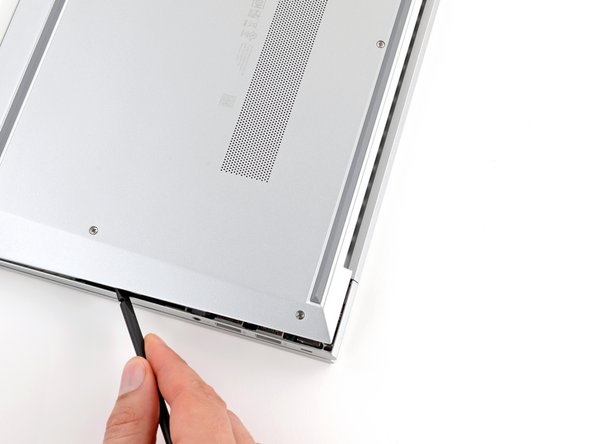
Leave the spudger inserted under the bottom cover for the next step.
-
-
-
Position your laptop so the front edge (opposite the screen hinges) is closest to you.
-
Use the point of a spudger or your fingernail to push on alternating sides of the battery's sliding connector to walk it completely out of its socket.
-
-
-
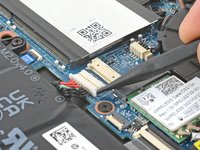
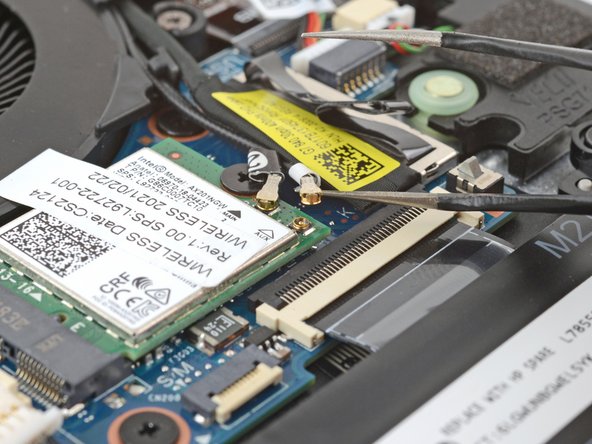
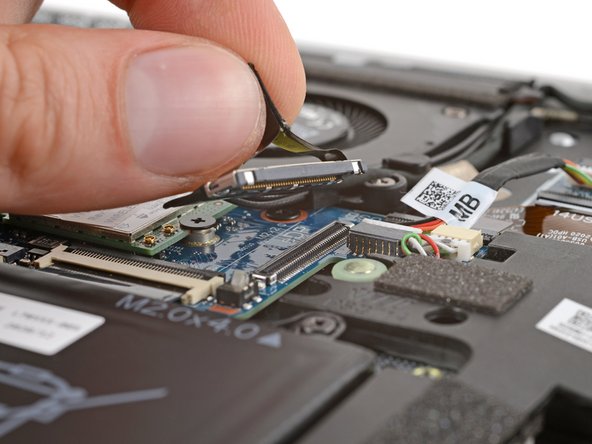
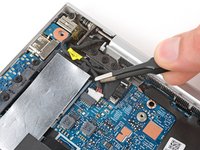
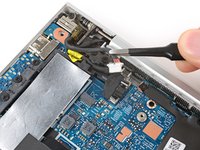
Slide an arm of a pair of angled tweezers under the metal neck of one of the coaxial connectors on the WLAN (Wi-Fi) module, located just below the fan.
-
Lift straight up to disconnect the cable.
-
Repeat to disconnect the second connector.
-
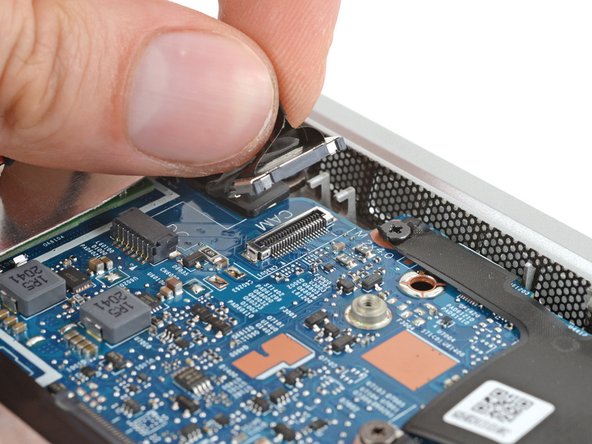
Use tweezers to hold a connector in place over its socket and gently press down with your finger or a spudger—the connector should "snap" into place. If you're having trouble, reposition the head and try again. Don't use excessive force.
-
-
-
Use your fingers to grip the plastic pull tab on the right display cable press connector, below the fan.
-
Pull straight up to disconnect the connector.
-
-
-
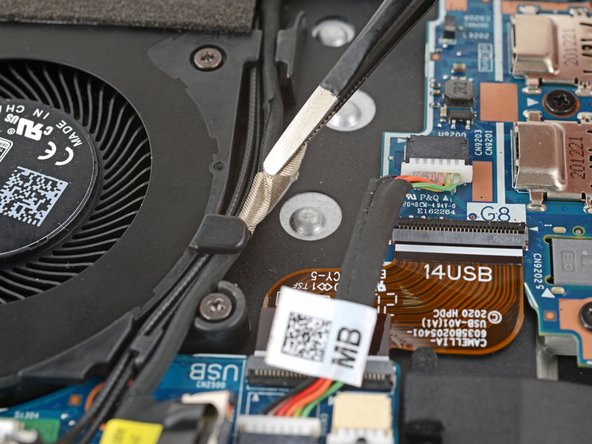
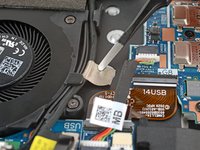
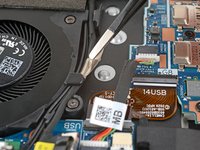
Use tweezers or your fingers to peel up the cable tape near the right side of the fan.
-
-
-
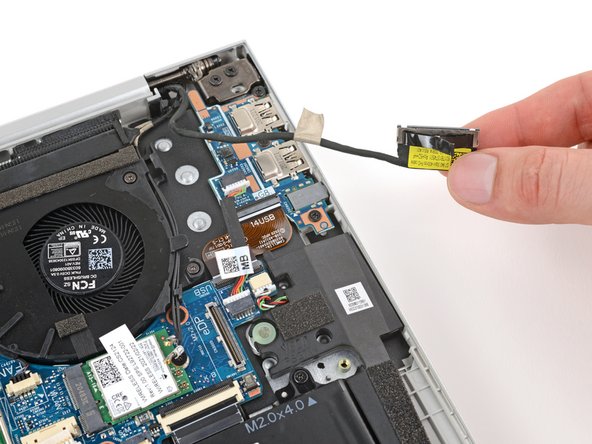
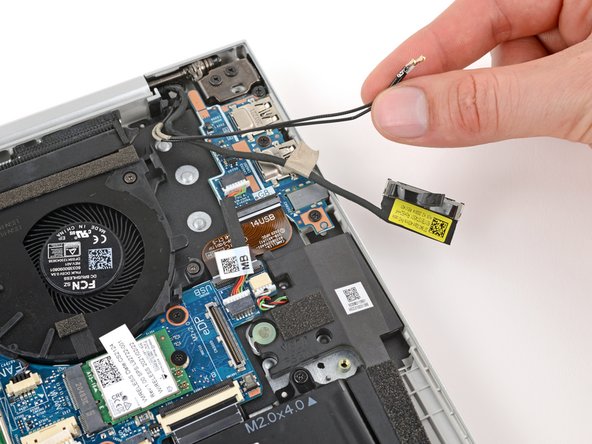
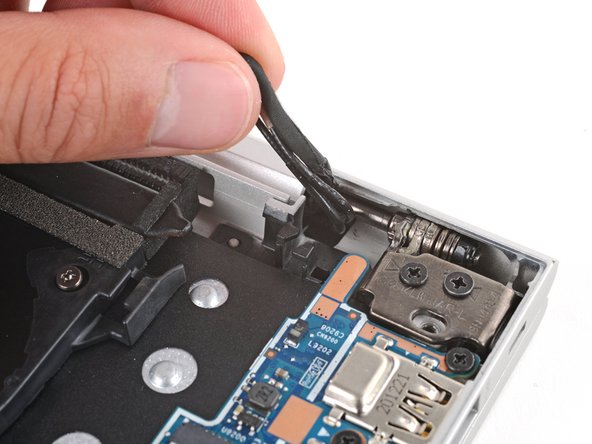
Use your fingers to pull the display cable and two coaxial cables out from their clips on the right side of the fan.
-
-
-
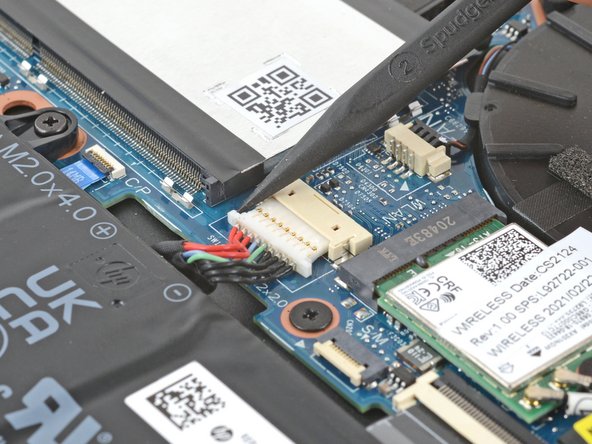
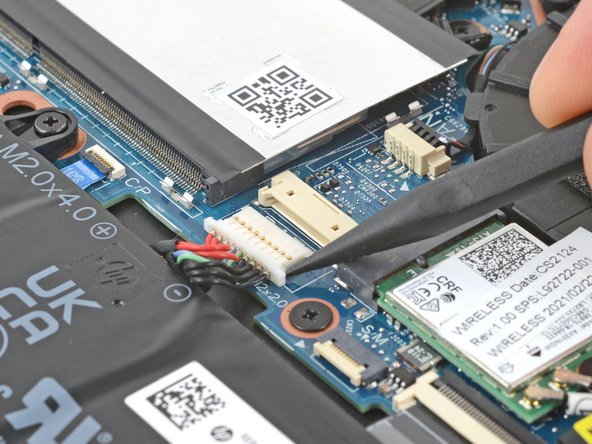
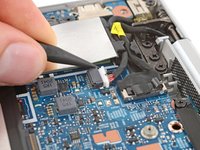
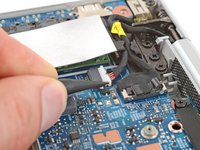
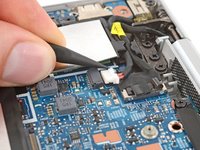
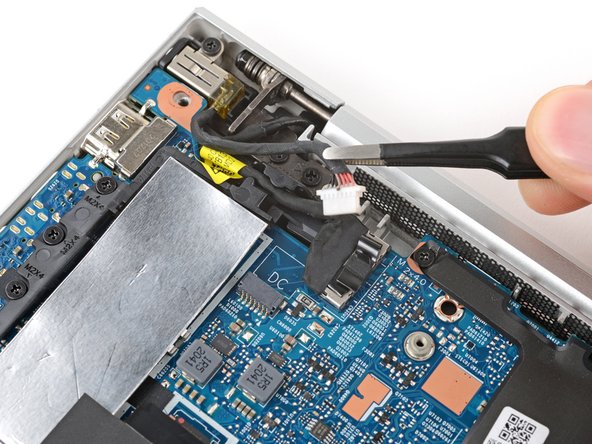
Use the point of a spudger or your fingernail to push on alternating sides of the power connector's sliding connector to walk it completely out of its socket near the left hinge.
-
-
-
-
Use your fingers to grip the plastic pull tab on the left display cable press connector, near the left hinge.
-
Pull straight up to disconnect the connector.
-
-
-
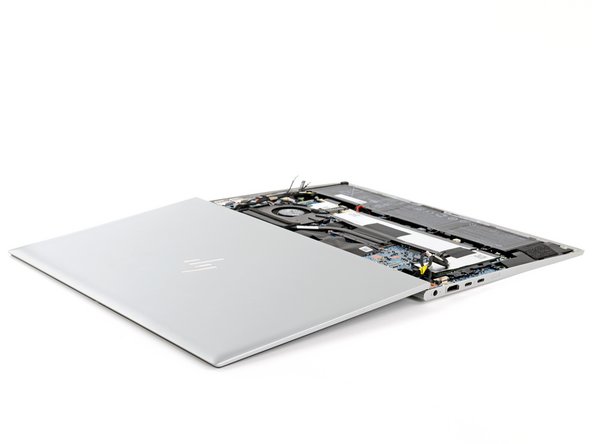
Fully open your laptop and set it keyboard-side down on a flat, clean work surface, with the display closest you.
-
-
-
Use a Phillips screwdriver to remove the six 4.6 mm‑long hinge screws—four in one hinge and two in the other.
-
Before installing any hinge screws, make sure the display is properly aligned.
-
Tighten the hinge screws in ascending order based on the number stamped next to each screw hole.
-
-
-
Grip the display assembly near the hinges and lift straight up to remove it.
-
-
-
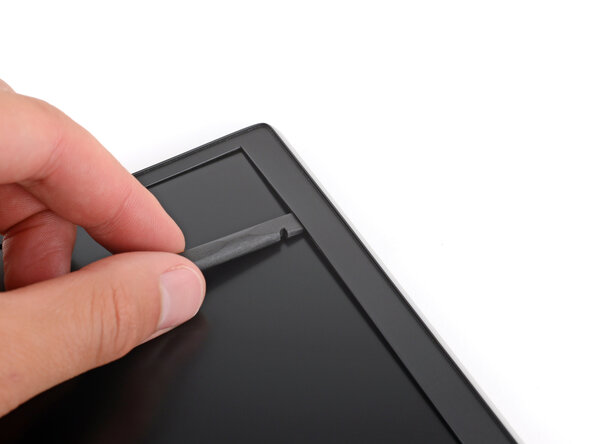
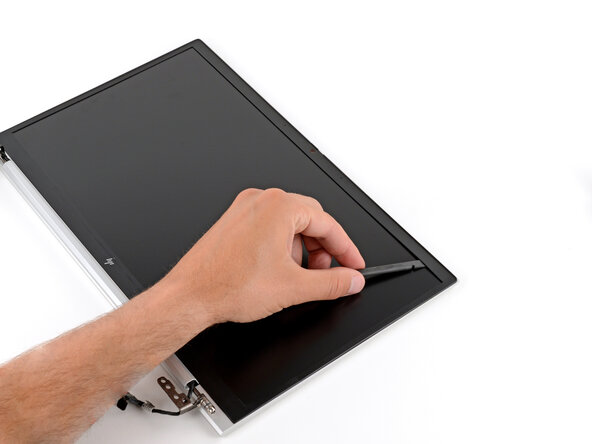
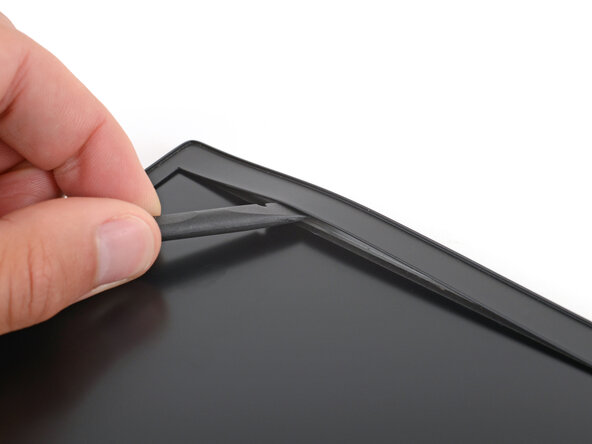
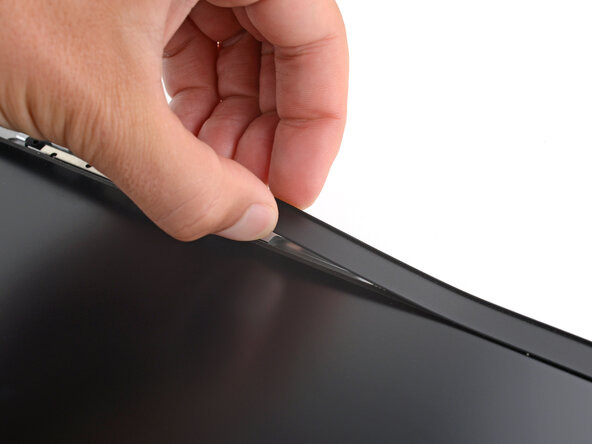
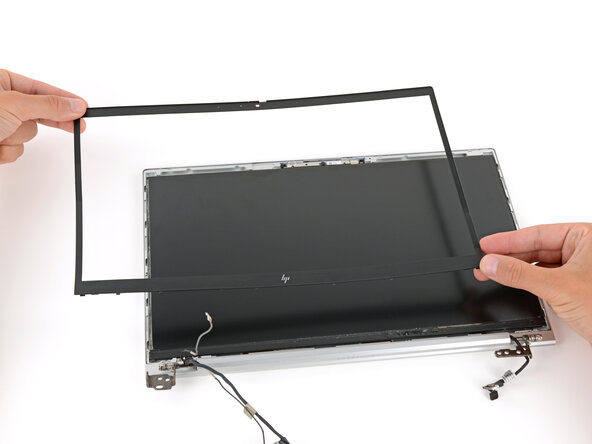
Push the flat end of a spudger underneath the top edge of the display's plastic bezel, near the top left corner.
-
-
-
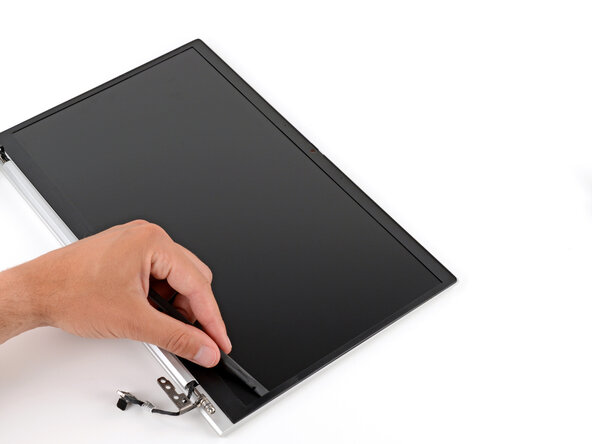
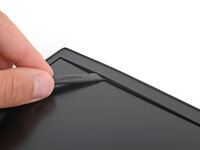
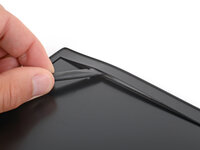
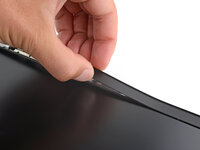
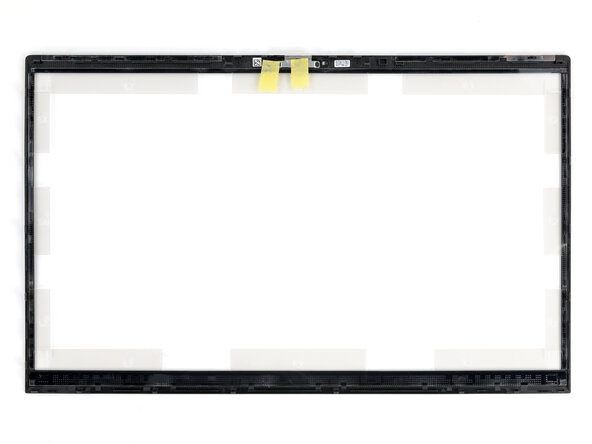
Once a portion of the bezel lifts to where you can grip it with your fingers, peel the bezel up around the entire perimeter, using the spudger to separate any sections still adhered.
-
Remove the plastic bezel.
-
-
-
Use a Phillips screwdriver to remove the 2.0 mm-long screw securing the chin cover.
-
-
-
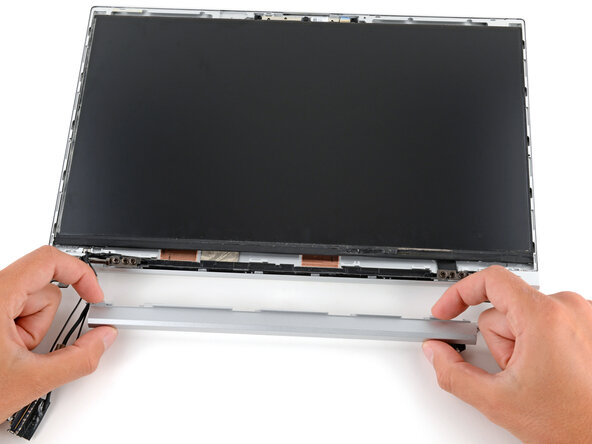
Rotate the chin cover down and away from the display.
-
Remove the chin cover.
-
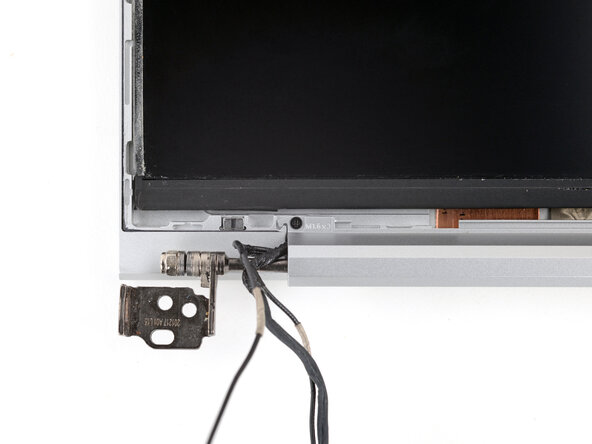
Before reinstalling the chin cover, make sure all of the cables along the bottom of the screen are tucked into their recess and over the screen hinges. Use this photo as a reference.
-
-
-
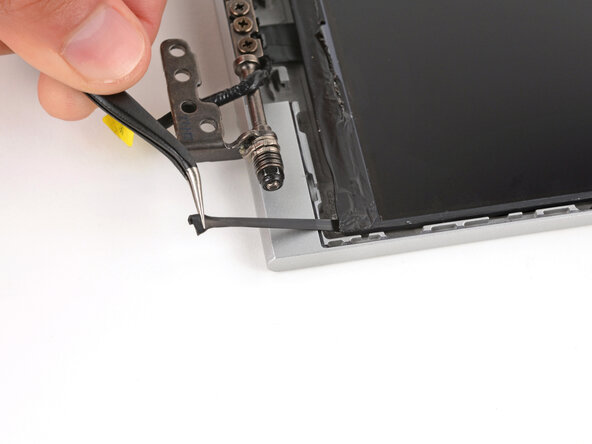
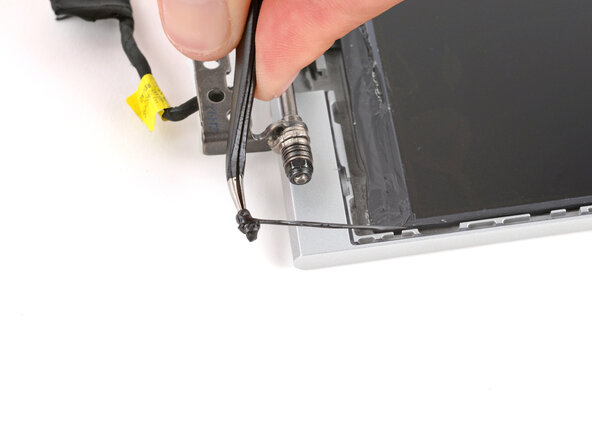
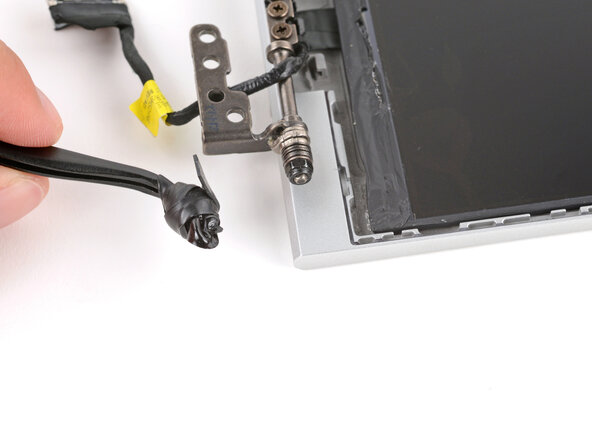
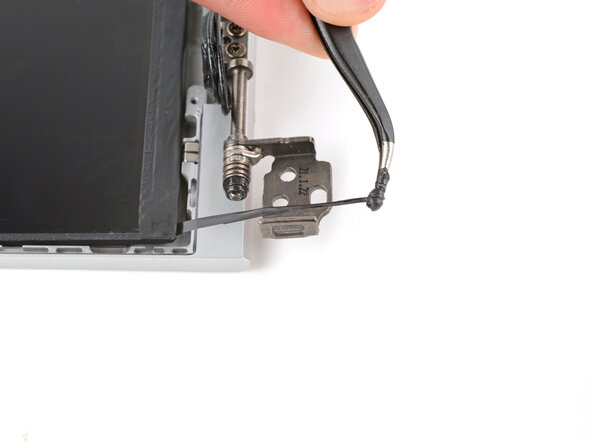
Near the bottom right side of the screen, use a pair of tweezers to peel back the black pull tab on the stretch-release adhesive strip until you can grip it with your fingers.
-
-
-
Pull the display cable out from underneath its routing tab on the shell.
-
-
-
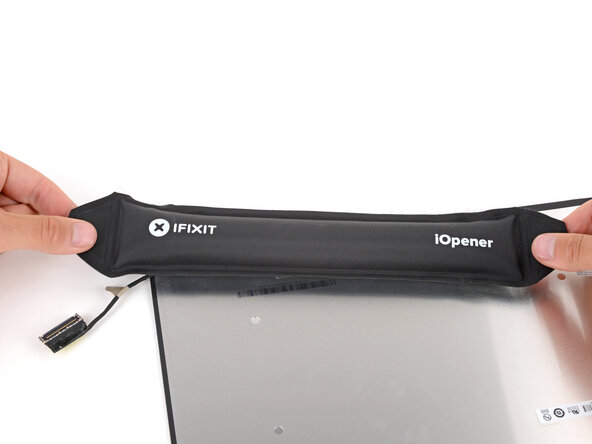
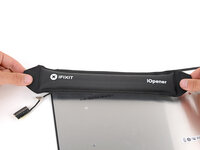
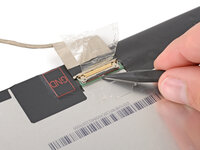
Prepare an iOpener and apply it to the screen-side display connector tape for one minute to soften the adhesive.
-
-
-
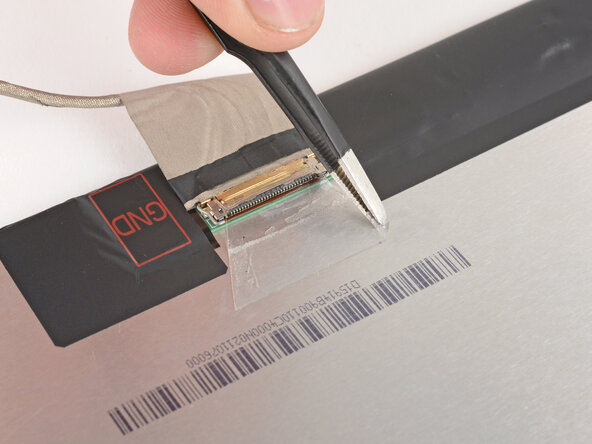
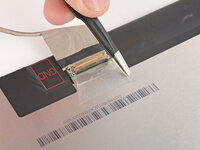
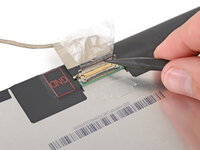
Use the flat end of a spudger to push up a corner of the tape until you can grip it with a pair of tweezers.
-
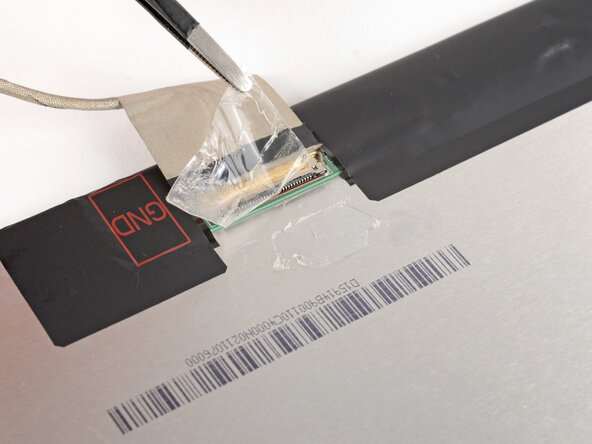
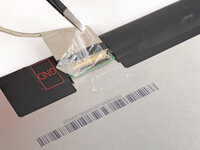
Use a pair of tweezers to peel the tape back, over the connector.
-
-
-
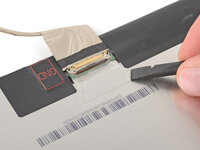
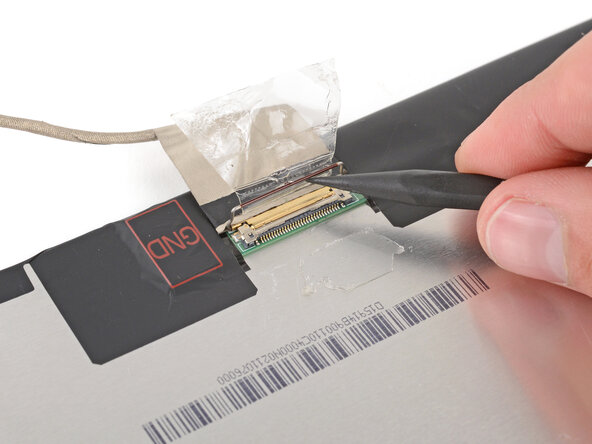
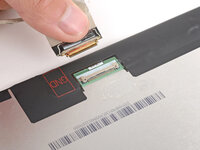
Use the point of a spudger to lift up the thin metal locking bar on the display connector.
-
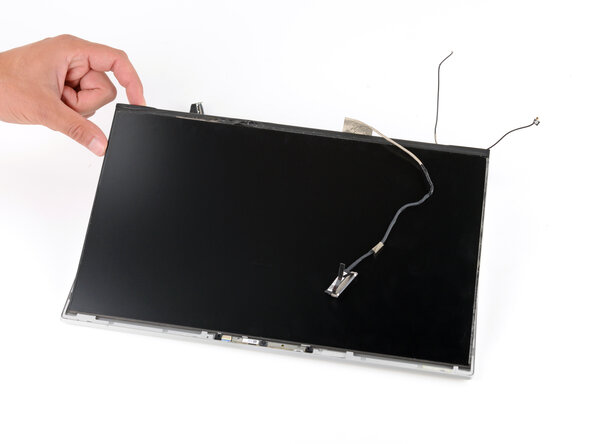
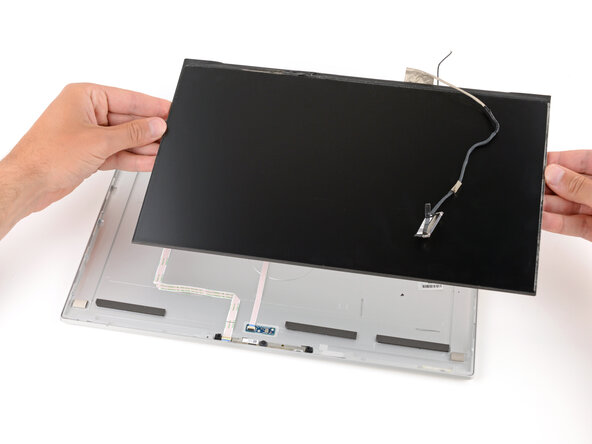
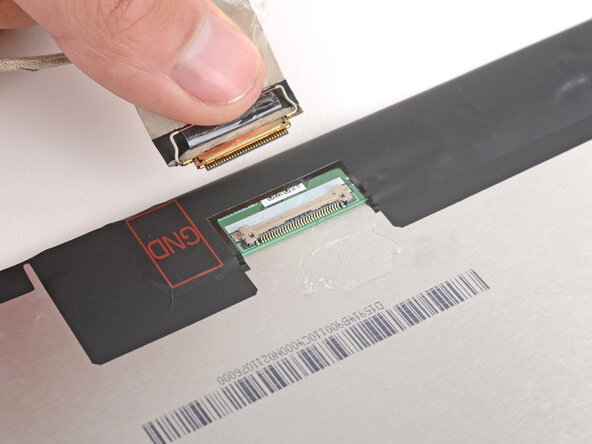
Use your fingers to slide the display cable out of its connector.
-








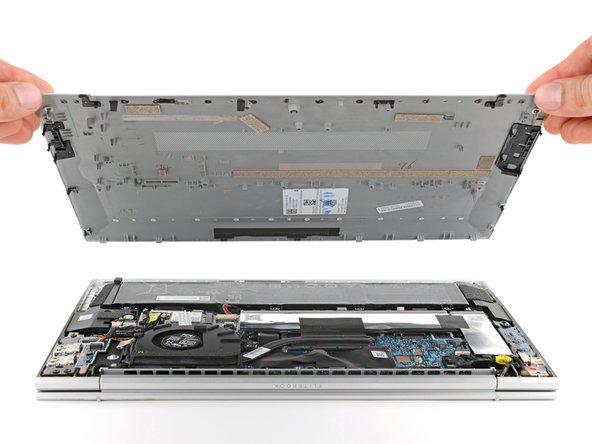







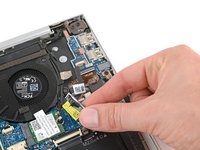

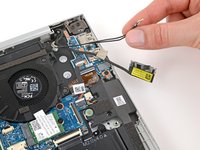

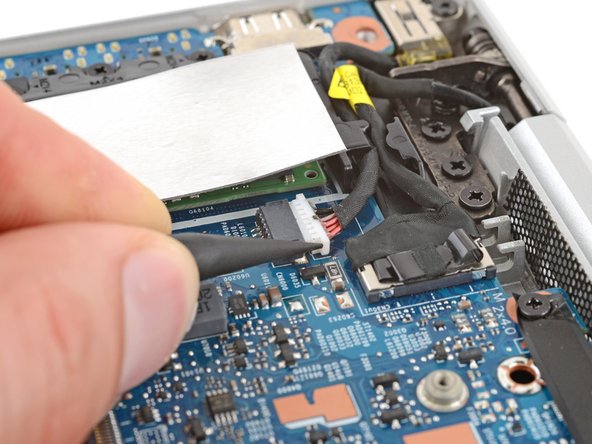
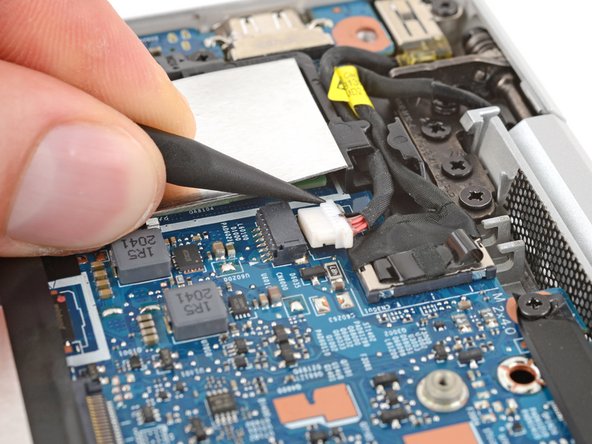





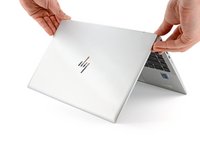
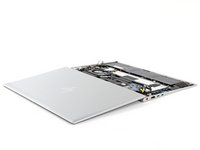

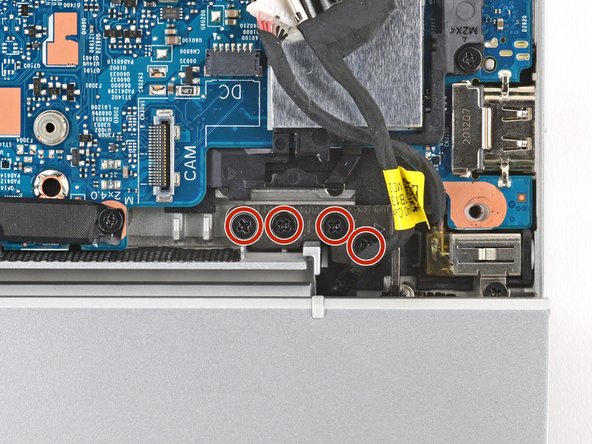
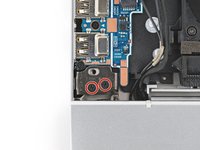
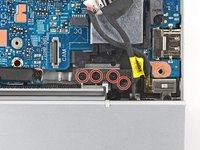

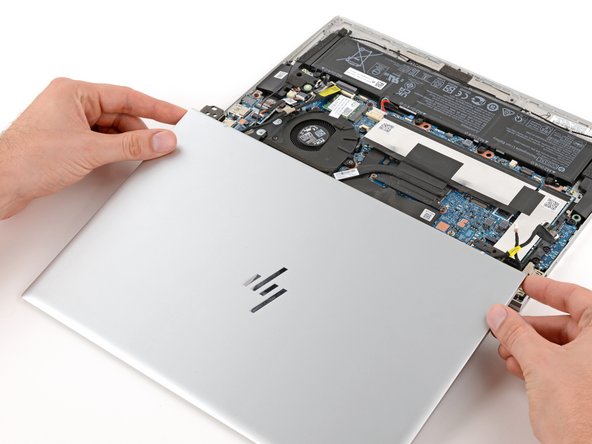
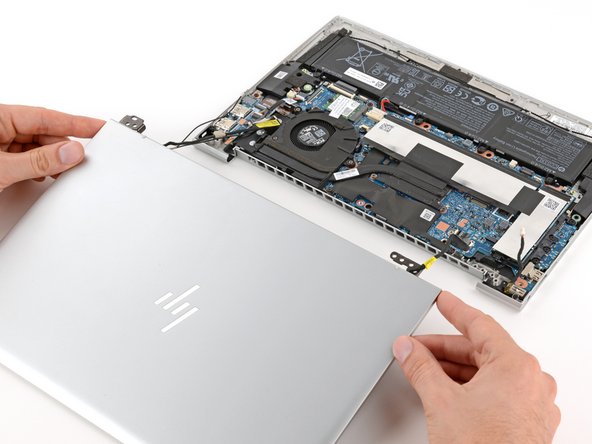



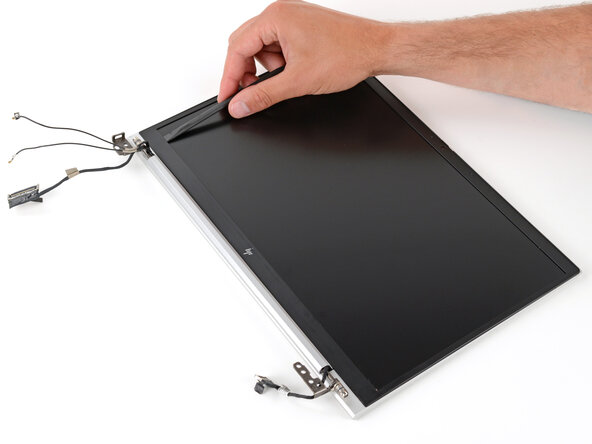
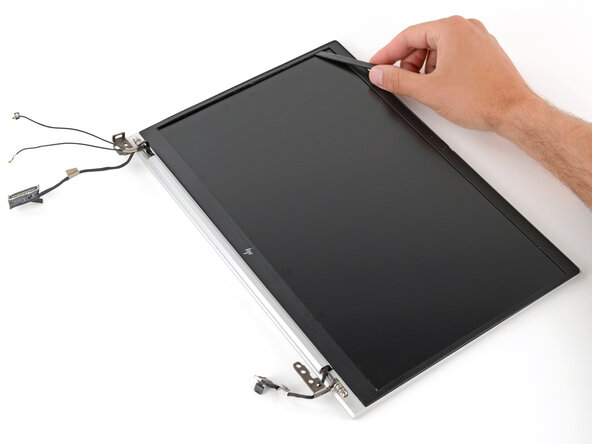
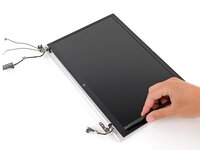
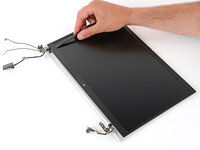
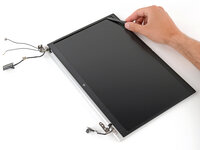




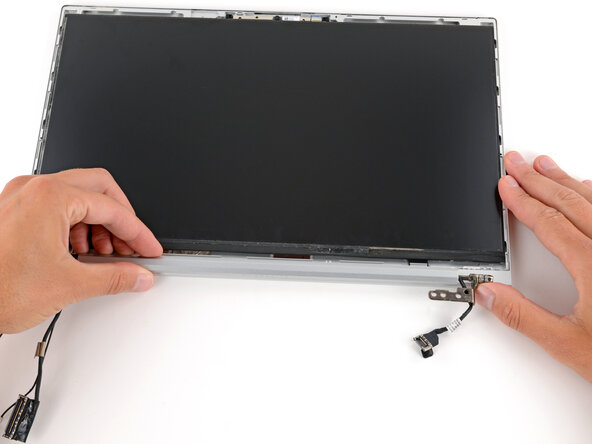

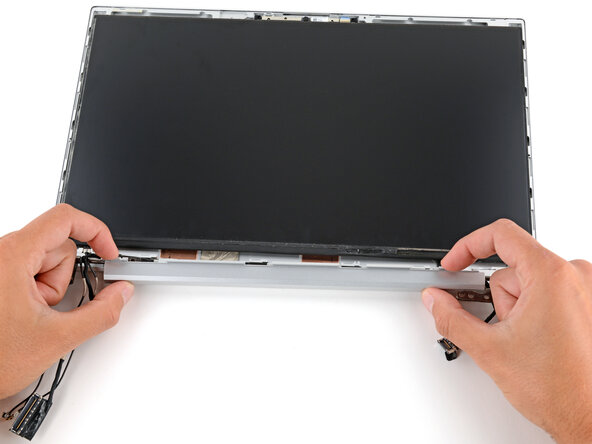




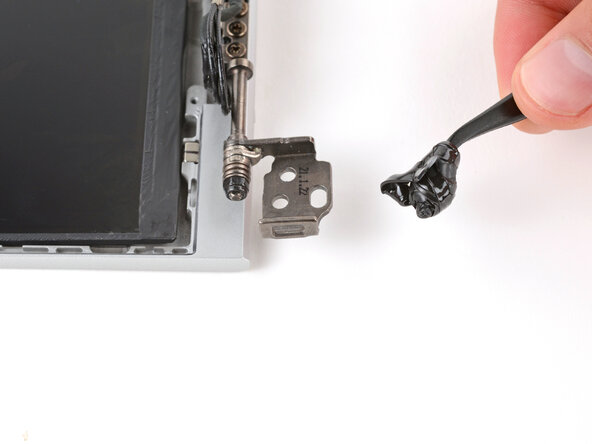
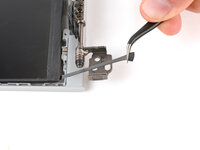
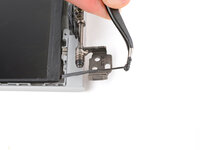
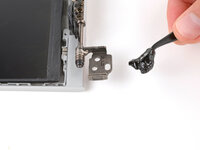

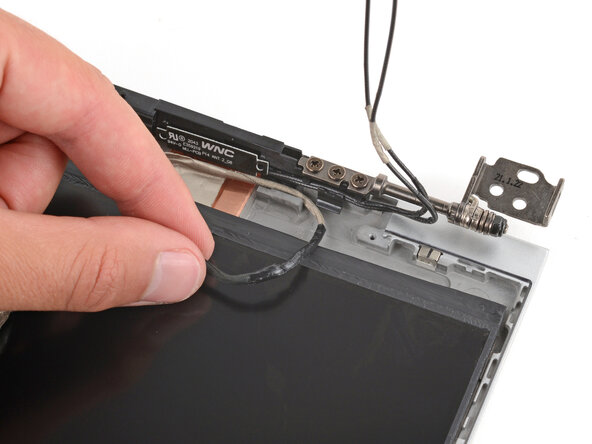
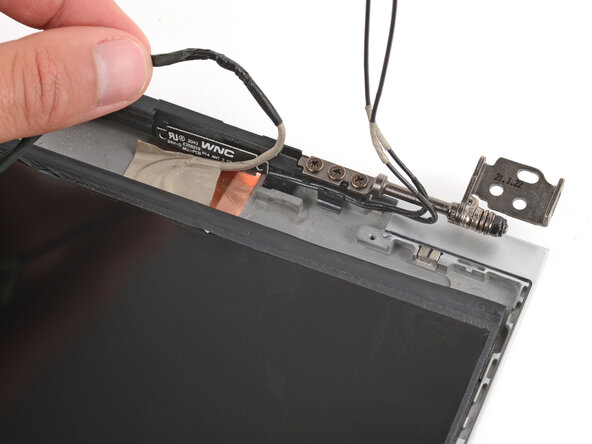




To reassemble your device, follow these instructions in reverse order.
Take your e-waste to an R2 or e-Stewards certified recycler. Depending on your region, used HP devices and parts can be returned for reuse or recycling through the HP Planet Partners program.
Repair didn’t go as planned? Try some basic troubleshooting, or ask our Answers community for help.
Cancel: I did not complete this guide.
One other person completed this guide.