Introduction
This guide can be used for both missing keys and broken keys. Make sure that when you add a new key(s) to replace the missing/broken key(s) that the new key(s) matches the one you want to replace.
Turn off the Chromebook to avoid potential issues when replacing the keys. If you are only replacing a missing key and not a damaged one, skip the first step as it only applies to damaged keys.
What you need
-
-
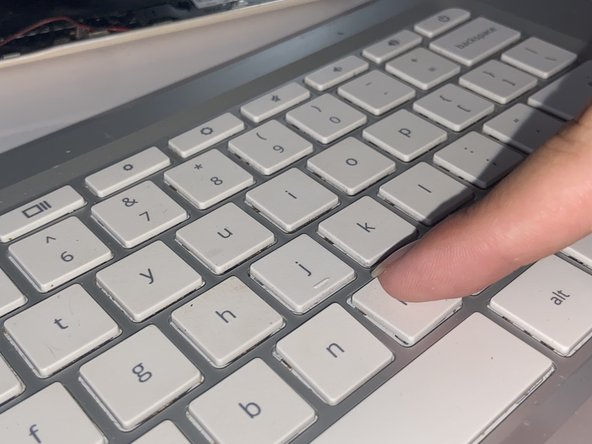
Press on a key above the key you want to replace.
-
Place a flat object, like an iFixit opening tool in this case, under the broken key and lift upwards to remove it.
-
-






To reassemble your device, follow these steps in reverse order.



Team

University of North Texas, Team 3-4, Saru Jimmy Fall 2022 Member of University of North Texas, Team 3-4, Saru Jimmy Fall 2022
UNT-SARU JIMMY-F22S3G4
5 Members
6 Guides authored
