Casio CZ-1000 Power Switch Replacement

What you need

  1. Casio CZ-1000 Power Switch Replacement, Backplate: step 1, image 1 of 2 Casio CZ-1000 Power Switch Replacement, Backplate: step 1, image 2 of 2
    • Use a Phillips #1 screwdriver to remove the eleven 7.5 mm screws securing the back plate.

  2. Casio CZ-1000 Power Switch Replacement: step 2, image 1 of 3 Casio CZ-1000 Power Switch Replacement: step 2, image 2 of 3 Casio CZ-1000 Power Switch Replacement: step 2, image 3 of 3
    • Using a Phillips #1 screwdriver, remove all 14 5.5 mm screws from the two motherboards.

    • These screws secure the motherboards to the keyboard assembly and the dial on the right side.

  3. Casio CZ-1000 Power Switch Replacement: step 3, image 1 of 3 Casio CZ-1000 Power Switch Replacement: step 3, image 2 of 3 Casio CZ-1000 Power Switch Replacement: step 3, image 3 of 3
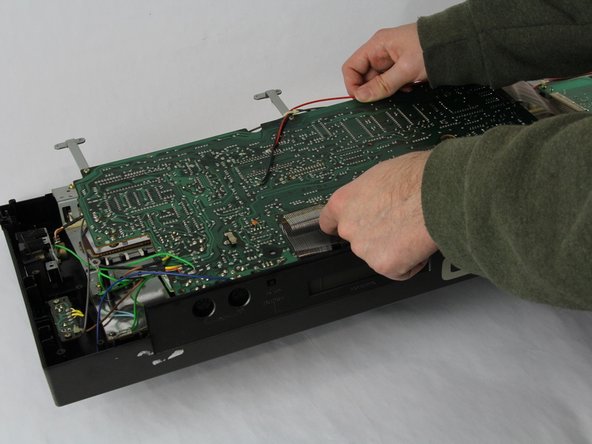
    • Carefully cut the zip tie located in the right-hand corner using a pair of scissors or wire cutters.

    • Be sure to avoid cutting any nearby wires or components.

    • Gently slide all the plugs out of their sockets.

    • This will prevent them from catching on anything or damaging the connectors as you lift.

  4. Casio CZ-1000 Power Switch Replacement, Power Switch: step 4, image 1 of 1
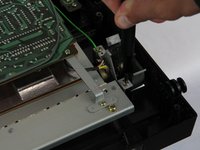
    • Remove the two 5.5 mm screws holding the power switch to the case using a Phillips #1 screwdriver.

  5. Casio CZ-1000 Power Switch Replacement: step 5, image 1 of 3 Casio CZ-1000 Power Switch Replacement: step 5, image 2 of 3 Casio CZ-1000 Power Switch Replacement: step 5, image 3 of 3
    • Heat the soldering iron and use a desoldering braid or pump to remove the solder from the pins of the old switch.

    • Once the solder is removed, gently pull the old switch out of its place.

    • If the replacement switch doesn’t have pre-attached leads, you’ll need to solder wires to it. If it has leads, align them with the matching holes on the PCB where the old switch was connected.

    • Position the new switch in place, ensuring the leads align correctly with the pads on the PCB. Solder the leads securely, using just enough solder to create a strong connection without any excess that might cause shorts.

Conclusion

To reassemble your device, follow these instructions in reverse order.

Luke Farmer

Member since: 11/05/24

235 Reputation

1 Guide authored

Team

Cuesta, Team 60-3, Krynen Fall 2024 Member of Cuesta, Team 60-3, Krynen Fall 2024

CUESTA-KRYNEN-F24S60G3

4 Members

5 Guides authored

0 Guide Comments

Add Comment

View Statistics:

Past 24 Hours: 0

Past 7 Days: 1

Past 30 Days: 14

All Time: 130