Free Shipping on Domestic Orders $75+

BlackBerry Curve 8900 Motherboard Replacement

Views: 4.8K

View statistics:

Past 24 Hours:
2
Past 7 Days:
15
Past 30 Days:
102
All Time:
4,810
Comments: 9

9 comments on steps.

Completed: 3

3 people have marked this guide "completed." Will you be next?

Favorites: 5

5 people have favorited (and subscribed to) this guide. Will you be next?

Time Required: 20 - 30 minutes
Difficulty: Moderate
Action Shots

Be an action hero! This guide needs images that better demonstrate how to perform specific actions.

Needs Better Images

Better photos will improve this guide. Help out by taking, editing, or uploading new ones!

BlackBerry Curve 8900 Motherboard Replacement

Introduction

Go to step 1 ↓

Follow this guide to replace the motherboard on a Blackberry Curve 8900. The motherboard is a crucial component to keep the phone functioning correctly. If the Blackberry Curve 8900 randomly powers down or unexplainably malfunctions, it might be time for a replacement. To find a replacement, it is recommended to search for the part online using the device name (Blackberry Curve 8900) and the part (motherboard). This guide requires the small iFixit opening tool, a T6 Torx Screwdriver and a gentle touch. This simple 10-step guide is beginner friendly, allowing for an easy replacement.

What you need

Tools

    1. BlackBerry Curve 8900 Motherboard Replacement, Battery: step 1, image 1 of 1
      • Remove the back cover of the phone.

      • The battery will now be visible.

      Ask FixBot

      Add Comment

    2. BlackBerry Curve 8900 Motherboard Replacement: step 2, image 1 of 2 BlackBerry Curve 8900 Motherboard Replacement: step 2, image 2 of 2
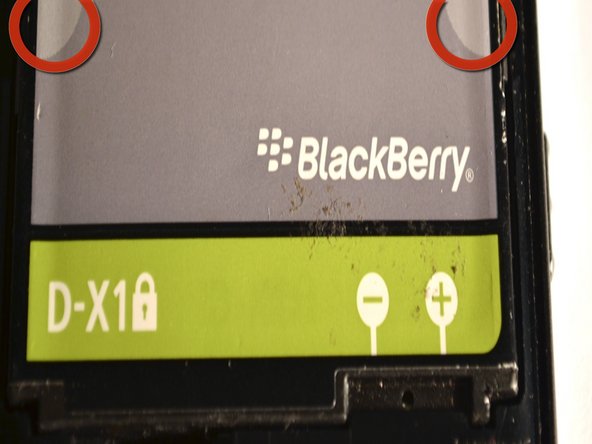
      • Pinch the battery at the grey semi-circles on the top left and top right corners of the battery using your fingers and remove it from the device.

      Ask FixBot

      Add Comment

    1. BlackBerry Curve 8900 Motherboard Replacement, Motherboard: step 3, image 1 of 1
      • Remove the lower rear cover, using a small iFixit opening tool.

      Ask FixBot

      Add Comment

    2. BlackBerry Curve 8900 Motherboard Replacement: step 4, image 1 of 1
      • Remove the six screws from the mid-frame of the device, using the T6 Torx Screwdriver.

      • Set the screws aside once they've been removed.

      Ask FixBot

      Add Comment

    3. BlackBerry Curve 8900 Motherboard Replacement: step 5, image 1 of 1
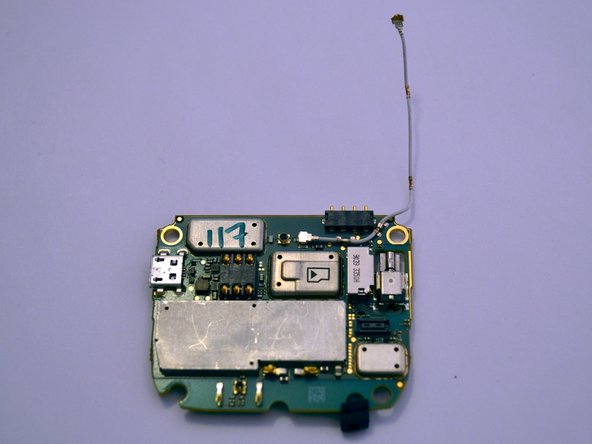
      • Gently remove the mid-frame from the phone, exposing the motherboard.

      • This is the motherboard.

      Ask FixBot

      Add Comment

    4. BlackBerry Curve 8900 Motherboard Replacement: step 6, image 1 of 2 BlackBerry Curve 8900 Motherboard Replacement: step 6, image 2 of 2
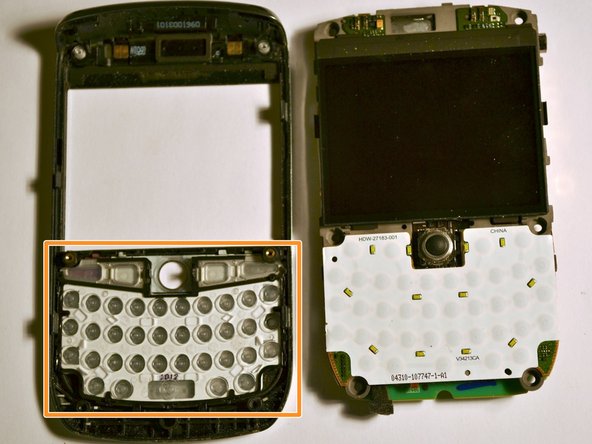
      • Gently pull back the plastic tabs that secure the motherboard to the case.

      • Slowly pull the tabs, working your way around the case, until they are lifted and the motherboard is free.

      • Remove the motherboard.

      • The keypad and navigation ball may become loose and fall off the motherboard.

      Ask FixBot

      Add Comment

    5. BlackBerry Curve 8900 Motherboard Replacement: step 7, image 1 of 2 BlackBerry Curve 8900 Motherboard Replacement: step 7, image 2 of 2
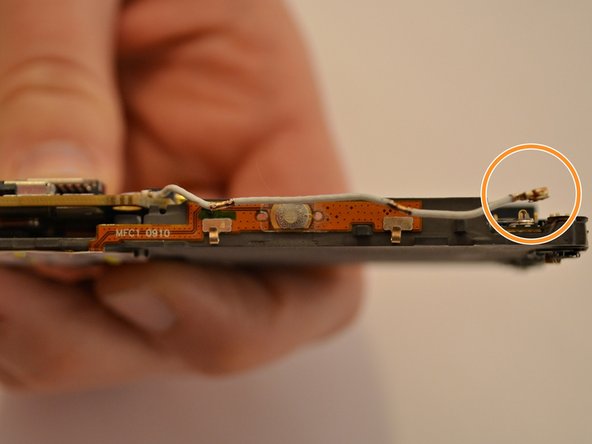
      • Carefully detach the antenna from the two clips on the side of the motherboard.

      • Disconnect the antenna from the motherboard in the same manner.

      Ask FixBot

      Add Comment

    6. BlackBerry Curve 8900 Motherboard Replacement: step 8, image 1 of 1
      • Carefully disconnect the ribbon cable located on the bottom right of the motherboard.

      Ask FixBot

      Add Comment

    7. BlackBerry Curve 8900 Motherboard Replacement: step 9, image 1 of 2 BlackBerry Curve 8900 Motherboard Replacement: step 9, image 2 of 2
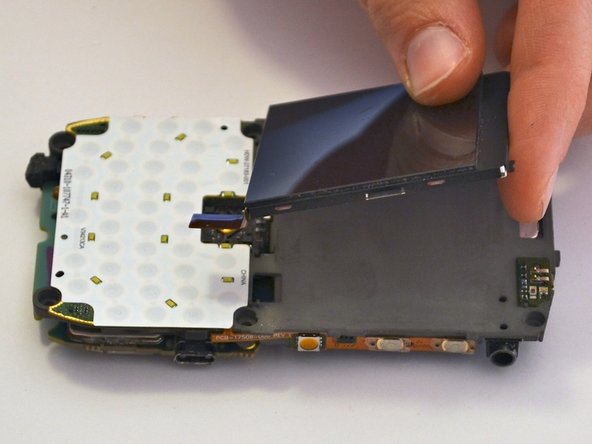
      • Locate the chip underneath the screen.

      • Gently remove the screen, without applying too much pressure, taking care not to damage it.

      Ask FixBot

      Add Comment

    8. BlackBerry Curve 8900 Motherboard Replacement: step 10, image 1 of 2 BlackBerry Curve 8900 Motherboard Replacement: step 10, image 2 of 2
      • Lift up the motherboard from the bottom edge to reveal the ribbon cables.

      • Carefully disconnect the two ribbon cables connecting the motherboard to the display on either side.

      • Remove the motherboard and place off to the side.

      Ask FixBot

      Add Comment

Conclusion

To reassemble your device, follow these instructions in reverse order.

Cancel: I did not complete this guide.

3 other people completed this guide.

Johnny Tran

Member since: 09/10/11

473 Reputation

4 Guides authored

Team

Cuesta, Team 1-3, Zipperian Fall 2011 Member of Cuesta, Team 1-3, Zipperian Fall 2011

CUESTA-ZIPPERIAN-F11S1G3

3 Members

96 Guides authored

0 Guide Comments

Add Comment

View Statistics:

Past 24 Hours: 2

Past 7 Days: 15

Past 30 Days: 102

All Time: 4,810