
Acer Chromebook C740 Battery Replacement

Flor De La Rosa and
Last updated on Mar 26, 2026
Views: 8.6K
View statistics:
- Past 24 Hours:
- 3
- Past 7 Days:
- 24
- Past 30 Days:
- 109
- All Time:
- 8,636
Comments: 1
1 comment on steps.
Completed: 8 9
8 people have marked this guide "completed." Will you be next?
9 people have marked this guide "completed." Including you — great job!
Favorites: 1 2
1 person has favorited (and subscribed to) this guide. Will you be next?
2 people have favorited (and subscribed to) this guide — including you!
Featured Student Guide
This guide has been the hard work of our awesome students and is found to be exceptionally cool by the iFixit staff.
Introduction
Go to step 1 ↓The battery replacement for the Acer Chromebook C740 requires removing several screws, prying the pack panel off, and unplugging the battery. This disassembly is required for several other replacement guides.
What you need


-
-
-
Place the chromebook bottom side up on a flat surface.
-
Remove the thirteen 7 mm screws with a Phillips #0 screwdriver.
-
-
-
-
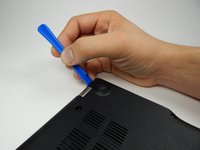
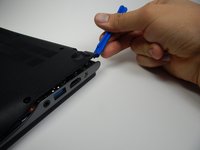
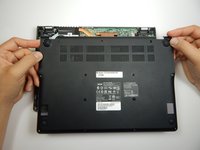
Insert the plastic opening tool into the slit near the hinges and pry upwards to lift the back panel.
-
-
-
-
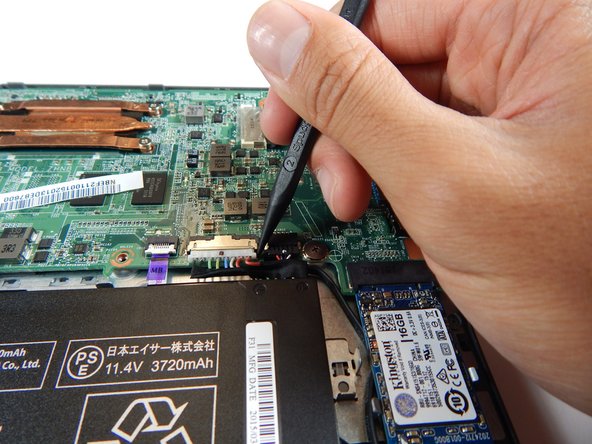
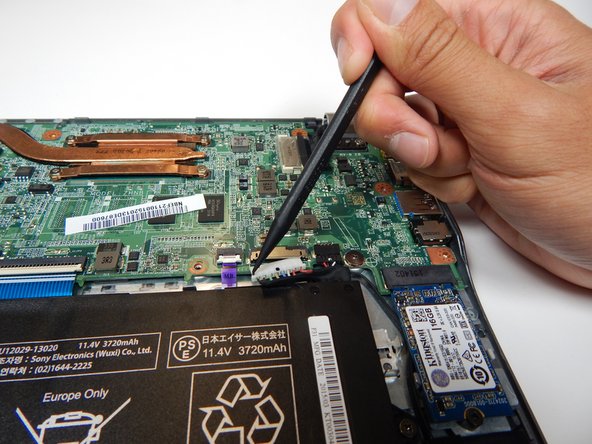
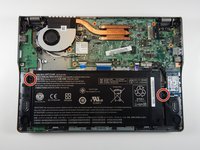
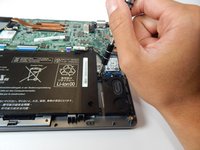
Unplug the white 8-wire battery connector from the motherboard by using a spudger to push the two L-shaped indentations towards the battery.
-
-

 Ask FixBot






To reassemble your device, follow these instructions in reverse order.
Cancel: I did not complete this guide.
8 other people completed this guide.

Team

Cal Poly, Team S22-G2, Livingston Spring 2017 Member of Cal Poly, Team S22-G2, Livingston Spring 2017
CPSU-LIVINGSTON-S17S22G2
4 Members
72 Guides authored
