
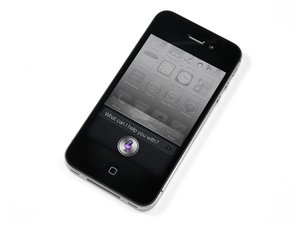
iPhone 4S glass is shattered
Oh no! Your iPhone's glass did not survive your unintentional drop test!
Broken front panel
Take a deep breath and see if your iPhone will turn on and operate normally. In most cases, the iPhone is still functional but now a cosmetic disaster. Unfortunately, the iPhone 4S' front glass and LCD are fused together and must be replaced as one piece, either in black (which can be purchased here) or white (which can be purchased here). The display assembly replacement guide can be found here.
Broken rear panel
Apple did not grace the rear panel of the iPhone 4S with the same high-strength glass as the front, so fractures are much easier to come by on the backside. If your rear panel is smashed, you must replace it with a new one. Before attempting this repair, though, make sure you have the correct screwdriver and the replacement part (available in black, white, or transparent) on hand.
iPhone is frozen or unresponsive
Even after furious button mashing and screen smashing, your iPhone 4S doesn't respond.
Restart iPhone
Sometimes all it takes is a restart for the iPhone to become responsive again. To restart your iPhone when it is unresponsive, press and hold the sleep/wake and home buttons until the Apple logo appears (~10 seconds).
Very low battery
It is possible for an iPhone to become unresponsive if the battery drops to an extremely low level. Plug the iPhone into your computer or wall charger and allow it to charge for at least 20 minutes before using it again.
iPhone 4S will not charge
Plugging in your iPhone 4S does not bring it life.
Bad cable connection
Check the USB cable for damage and dirt, especially at the ends. Then try using the wall charger, as this will provide greater power input than the computer/USB.
Broken charger or USB cord
Try using different chargers to see if you have a problem with your charger or cord.
Obstructed/bad dock connector
Inspect the 30-pin dock connector at the bottom of the iPhone for dirt, lint, and damaged pins. Clean out the dock connector very carefully with a tooth pick or soft toothbrush. If the dock connector is broken, you will have to replace it. You can find the dock connector cable part here and you can follow the replacement guide here.
iPhone will not turn on
You cannot get your beloved iPhone 4S to turn on.
Drained/dead battery
Plug your iPhone into your computer or wall adapter to charge. If it does not charge when connected to either of these, you probably have a dead battery. The battery will need to be replaced with a new one. You can purchase a new battery here, and follow the iPhone 4S replacement guide here.
Bad display
It is possible that nothing is happening because the display is bad (in this case, things are happening but the user can't see anything!). If the iPhone sounds like it is working properly but nothing is visible, it is possible the display is bad and must be replaced. If plugging your iPhone into a power source causes it to endlessly vibrate or sound the "connected to power" chime over and over while the display remains blank, you have a display problem that may require further troubleshooting.
A new display can be purchased here.
The iPhone 4S display assembly replacement guide can be found here.
Bad logic board
If nothing else works, your logic board is probably bad and needs to be replaced. You can purchase a logic board here.
The logic board replacement guide can be found here.
"This accessory is not optimized for this iPhone" message
An error message appears as if you have connected an unsupported accessory to your iPhone
Obstructed/bad dock connector
Check the 30-pin dock connector at the bottom of the iPhone for dirt, lint, and damaged pins. Clean out the dock connector very carefully with a tooth pick or soft toothbrush. High concentration isopropyl alcohol (at least 90%) and a cotton swab should be used to clean any debris that does not come off with a tooth pick or soft toothbrush. If the dock connector is broken, you will have to replace it. You can purchase a dock dock connector here. The guide to replace it can be found here.
Dirty or corroded logic board connections
After an iPhone has been submerged in a liquid, there may be some corrosion or debris on the logic board connections that cause this error message. Remove the logic board and clean all of the contacts with a soft cotton swab and high concentration isopropyl alcohol (at least 90%).
Weak or lost wireless connections
You have trouble connecting to a wireless network.
Dirty antenna grounds
If your iPhone has been disassembled before, it's possible that finger oils were left on the grounding locations for the Wi-Fi or Bluetooth antennas. These oils will cause grounding issues for the antennas, which could lead to a weak signal or no connectivity at all. Be sure to clean all grounding points with an electronics cleaning solution before reassembling your iPhone to prevent grounding issues.
No audio or distorted audio through speakers or headphones
Your iPhone 4S turns on and appears to work, but when you plug in headphones or speakers, the audio doesn't play properly.
Bad headphones/speakers
It's unlikely your headphones or external speakers are bad, but it's worthwhile to eliminate these as the source of the problem. Try your iPhone with another set of headphones or external speakers just to make sure that the problem is with the iPhone.
Bad audio jack
The most likely cause of audio output problems on iPhone 4S is a bad audio-out port (commonly referred to as the headphone jack). If you have determined that the problem does not lie in your external speakers, you should replace the headphone jack. You can find a a replacement headphone jack here. The guide to replace the headphone jack can be found here.
Restore iPhone 4S
Your iPhone is behaving erratically or displays the text "Use iTunes to restore" on startup
Corrupted software
If the phone appears to have corrupted software, it may be time to restore it. Restoring the iPhone 4S will erase everything on it, so make sure everything on the iPhone 4S is stored elsewhere prior to restoring. To restore, connect your iPhone 4S to a computer with iTunes installed. Click "Restore" on the iPhone 4S summary page (click on your iPhone icon on the left menu to find this page). Follow the directions to restore. If your iPhone 4S displays the text "Please wait. Very Low Battery," leave it plugged in. This charges the iPhone 4S enough to be able to restore. If the iPhone 4S hangs on this screen for long periods of time, you may need to to replace the battery (the guide is found here).
Force restore mode
If your iPhone 4S is hanging with an Apple logo, or exhibiting some other software problem that prevents iTunes from recognizing it, you can force it into recovery/restore mode and then use iTunes to restore the software.
If the device is powered off, plug one end of your USB cable into the iPhone 4S and leave the other end disconnected. Press down on the Home button, and keep holding it down while you plug the USB cable into your computer. After 5-10 seconds, you should see a "Please Connect to iTunes" image on the iPhone 4S, and iTunes should prompt you to restore the software; follow the prompts and the instructions given above.
If the device is powered on, hold down both the power and home buttons until the device reboots and displays the "Connect to iTunes" image (generally, 5-15 seconds).
No Power
Your iPhone will not come to life. The phone isn’t powering on or it shuts down promptly after removing it from the charger.
Unresponsive Phone
If the phone is unresponsive, try to power on the phone by holding the power button for about 2 seconds. If this does not work, then attempt to restart the iphone by holding the power button and home button simultaneously until the Apple logo appears (~10 seconds). If the phone remains dead, try to reset the phone. To do this, plug one end of your USB cable into the iPhone 4S and leave the other end disconnected. Press down on the home button, and keep holding it down while you plug the USB cable into your computer. After 5-10 seconds, you should see a "Please Connect to iTunes" image on the iPhone 4S, and iTunes should prompt you to restore the software. Reference the corrupted software section to get information on restoration.
Faulty Power Button
A broken power button can prevent the phone from powering on. This is unlikely, especially if the button feels responsive. If the phone has experienced a drop or liquid damage, however, it could affect power button functionality. Inspect both the and also check that the is connected to the the logic board.
If there is a problem with the power button, you can find the part here. The guide to replace the button can be found here.
If there is a problem with the power button cable, you can find the part here. The guide to replace the power button cable can be found here.
Dead Battery
It is possible that the battery is no longer functioning. Attempt to charge the phone. If the phone remains unresponsive for over 5 minutes, it might be time to replace the battery.
A new battery can be found here.
The guide to replace the battery can be found here.
iPhone has water or liquid damage
After an accidental spill or a drop in the sink, your iPhone no longer works correctly.
Liquid damage mitigation needed
As soon as possible, perform the following:
- Immediately remove the iPhone from the liquid (if safe to do so). Minimize the length of time your device is in contact with liquid to prevent corrosive damage.
- Turn the iPhone off. (If it was off already, do not turn it on.)
- Skip the rice. Contrary to what you may have heard, rice is not an effective or lasting fix for water damaged electronics.
- Open the iPhone and disconnect the battery. (See your iPhone’s battery replacement guide for the correct procedure. You don't need to completely remove the battery; simply disconnect the battery connector from the logic board.)
- Liquid damage may complicate disassembly. Beware of cables and connectors that may be "adhered" to other components in unexpected ways.
At this point, inspect the interior of your iPhone and try to determine the extent of the liquid damage.
- If your iPhone's interior looks completely dry:
- Whew! You may have dodged a bullet. Check the water damage indicators, look around the ports and SIM card tray, and inspect the battery connector carefully for signs of liquid or corrosion.
- If you notice any sign of liquid intrusion, skip to the next section below.
- If everything looks bone dry, you might not need to do anything further. Give your phone a couple hours to air out, re-connect the battery, power it on, and test all functions. If you notice any problems, continue to the next section below.
- If you see only a little liquid inside the phone:
- Follow the display assembly replacement guide to begin removing components.
- As you remove each component, check it carefully for signs of liquid or corrosion damage. Wipe any liquid and/or corrosion away carefully with isopropyl alcohol and a clean, soft nylon brush, such as a toothbrush, and allow it to air dry.
- Continue disassembling until you no longer see any signs of liquid intrusion.
- When all components are clean and dry, re-assemble your iPhone with a new battery.
- Do not attempt to re-use a battery that has been in contact with any liquid.
- Power on your iPhone and test all functions. If you notice any problems, continue to the next section below.
- If the interior components are mostly (or totally) covered in liquid:
- Follow the display assembly replacement guide to take your iPhone apart completely.
- Clean each component, cable connector, and socket carefully with isopropyl alcohol and a clean toothbrush.
- Submerge the logic board in isopropyl alcohol (or use an ultrasonic cleaner, if available). Allow it to soak long enough to loosen hardened residue, and to displace any remaining water or other liquid.
- Use the toothbrush to scrub visible corrosion and residue from the logic board. Clean all connectors, chips, and fuses.
- Repeat cleaning if necessary, or if traces of residue are still visible.
- When all components are clean and dry, re-assemble your iPhone with a new battery.
- Do not attempt to re-use a battery that has been in contact with any liquid.
- Power on your iPhone and test all functions.
- For any particular function that fails, replace the associated component with a new part, and then re-test.
- If problems persist, a board-level repair may be necessary. We don’t yet have comprehensive guides for board-level repair, so you may wish to consult a microsoldering specialist for more options.



73 Comments
hi i have tuned on a speech mode on my phone and i have to double tap all keys and it will not let my screw down the page to tune it off help please
scott - Reply
Mine has started doing the same thing today! Voice keeps saying "double tap" and I have to tap several times to get it to work. It is driving me crazy!
Karen -
Scott, I am having the same problem, please let me know if you find a solution at patrickf27@comcast.net. Thanks
Patrick -
Use siri and tell her accessibility. Then when she gets you there, turn off the voice over
paul -
use siri to get to "accessibility" and turn off voice over
paul -