Introduction
Check out the iPad Wi-Fi Repair Manual for a full set of repair guides!
We got a sneak peak inside the iPad yesterday, when we were able to un-redact the FCC's test photos. Be warned, however: what you see there is with a pre-production unit, while the photos here are from a unit purchased at retail.
Want to stay up-to-date with the hardware world? Follow @ifixit!
Our Apple iPad repair manual already has some repair guides in progress for the iPad. We hope you didn't already break your screen, but if so, that's the best place to go.
Also check out the YouTube video slideshow of the teardown!
Update 4/5: We've worked with ChipWorks to dissect the silicon inside the iPad. More photos forthcoming.
What you need
-
-
It's here! We got our hands on Apple's newest toy, the iPad, and we can't wait to see what's in it. So we won't— let's do this!
-
-
-
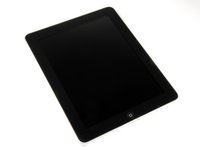
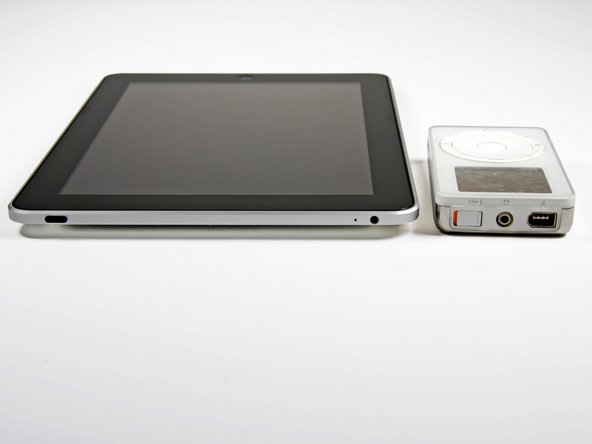
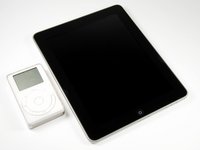
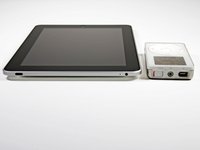
The iPad measures in at 242.8 x 189.7 x 13.4 mm and weighs in at 1.5 lbs.
-
The significantly improved 9.7 inch LED-backlit glossy widescreen with Multi-touch is perfect for all your movie watching, e-book reading needs.
-
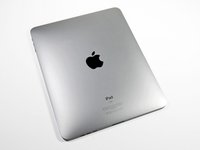
The iPad's model number is A1219, which doesn't mean much. But the 3G iPad is A1337, which is rather geeky, even for Apple.
-
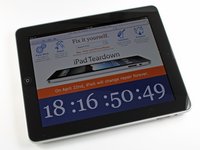
Yes, we did turn it on—how could we not? But then we turned it right back off and started figuring out how to pry this beautiful machine apart.
-
-
Tool used on this step:Metal Spudger$2.99
-
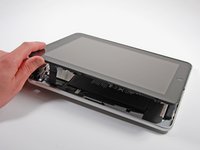
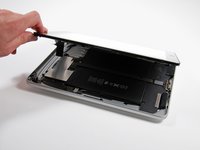
Insert a metal spudger between the display and the rear case to pry the iPad open.
-
What an environmentally friendly device!
-
Arsenic-free display glass
-
BFR-free
-
Mercury-free LCD display
-
PVC-free
-
Recyclable aluminum and glass enclosure
-
Environment WIN!
-
-
-
Aaaand it's off. You have no idea how glad we are that this didn't require a heat gun.
-
Words from the wise: You might break some tabs getting the display assembly off.
-
-
-
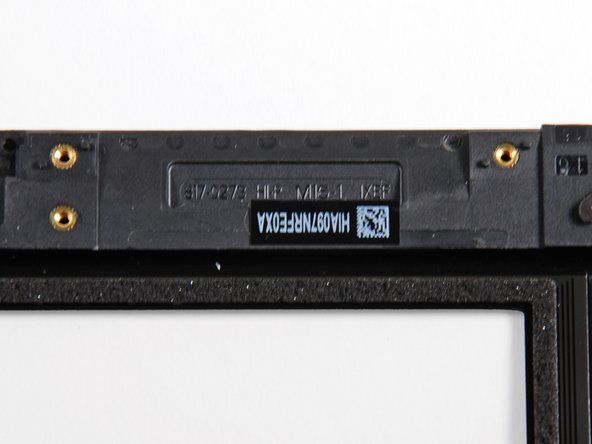
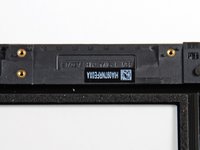
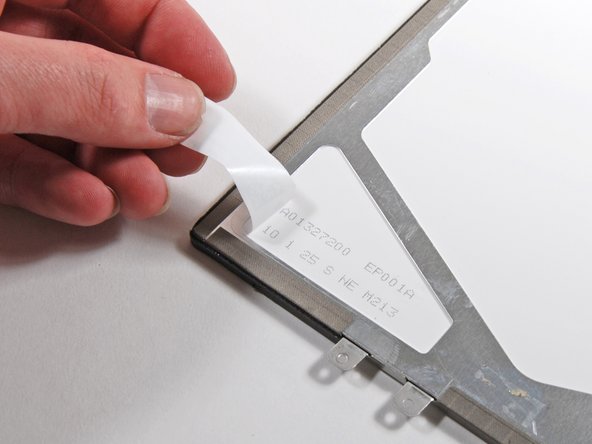
The display has a marking referencing Honeywell patent #5280371.
-
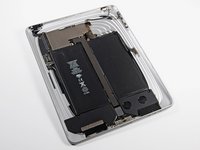
It looks pretty barren, mostly because all the 3G equipment is missing.
-
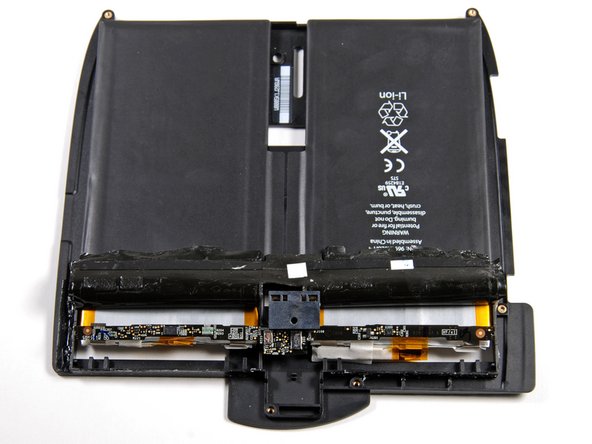
The 3.75V, 24.8 watt-hour battery provides the juice for an advertised 10 hours of use. In contrast, the iPhone 3GS has a 4.51 watt-hour battery and the MacBook Air has a 40 watt-hour battery.
-
The USB power supply had to be enhanced specifically for the iPad. It's a 10W unit manufactured by Foxlink Technology, Ltd., part #A1357 W010A051.
-
-
-
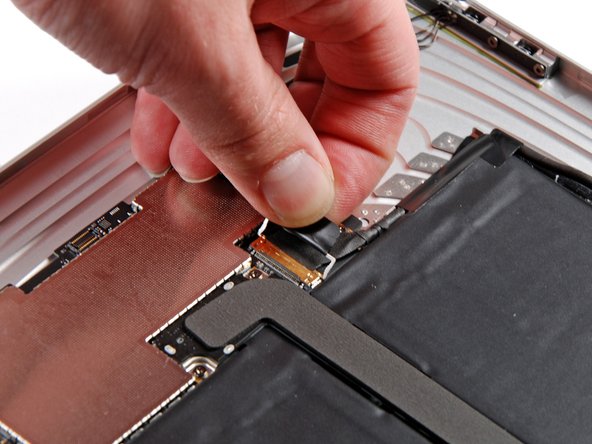
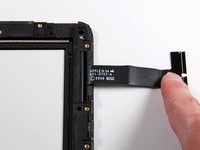
Disconnecting the display data cable.
-
Removing these connectors is a two step process. You first have to flip up the locking bar (pictured) and can then slide the cable out of the socket.
-
The display data cable connector is the same style used in all of the new Unibody MacBooks.
-
-
-
-
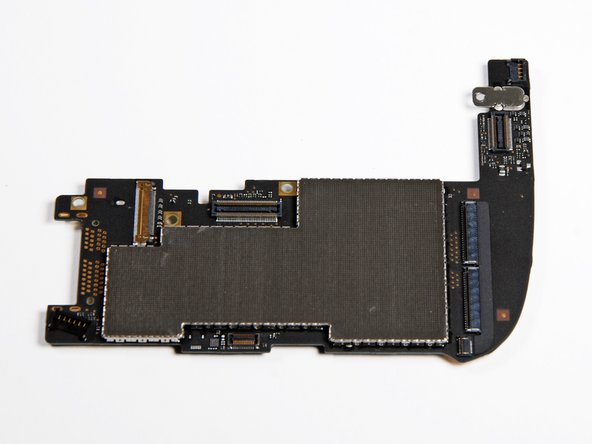
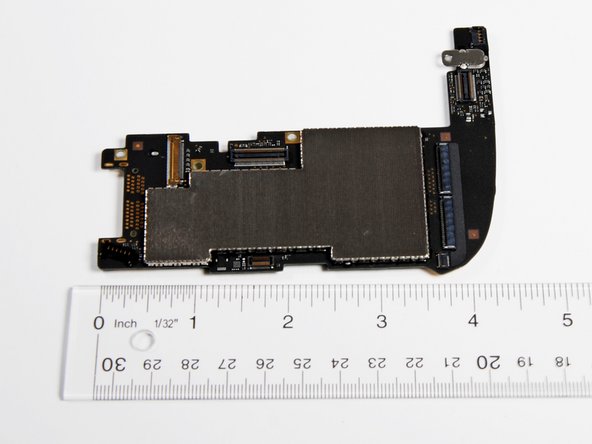
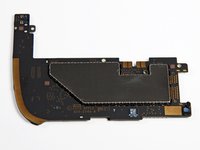
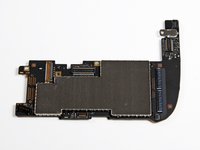
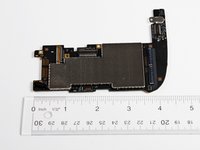
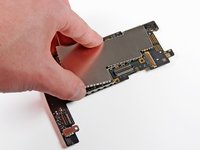
Remove the EMI shield from the logic board, and presto!
-
This board is markedly different than the pre-production board we uncovered.
-
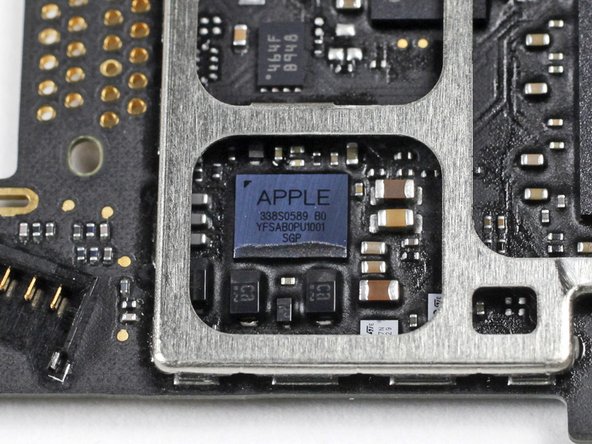
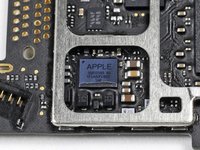
Markings on the A4:
-
N26CGM0T 1007 APL0398 33950084 YNL184A2 1004 K4X2G643GE
-
Yes, the K4X2 is a Samsung DRAM part number!
-
Decoding the part number shows there is 2Gb of memory inside. This translates into ~128MB of memory per die, for 256 MB total. (NOT 512MB, as we previously reported.)
-
This means the A4 processor is probably being manufactured by Samsung.
-
The DRAM was stamped at the end of January, while the processor die was likely manufactured the third week of February.
-
-
-
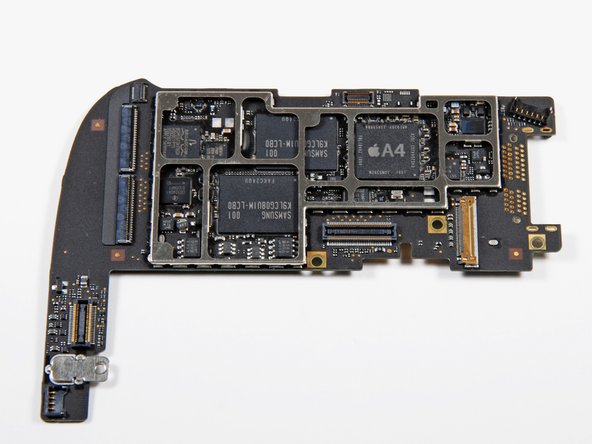
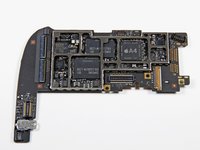
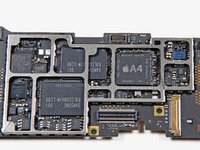
A shot of the logic board minus the steel EMI shield.
-
The manufacturer of the memory has switched from Toshiba on the FCC teardown to Samsung on this device.
-
Samsung K9LCG08U1M 8 GB NAND flash.
-
We love how much easier Samsung's chip numbers are to interpret.
-
Broadcom BCM5973 I/O controller.
-
The Apple A4 is marked up much nicer than the part in the FCC photos from yesterday.
-
Texas Instruments CD3240A1 touch screen controller.
-
NXP: L061 01 4 ZSD950
-
-
-
Removing the single screw securing the dock connector cable to the rear case.
-
Notably lacking from this RF/data cable is anything GPS related. Check out the FCC iPad teardown to see where the GPS will be in the 3G device.
-
-
-
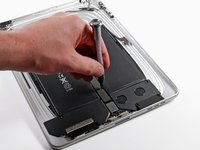
The speaker assembly is larger than we expected:
-
The connector found on the speakers and other components is typical of the connectors seen in MacBook Unibody laptops. Translation: the iPad isn't that cramped for space.
-
Dual speakers provide mono sound. Two small sealed channels direct sound toward three audio ports carved into the bottom edge of the iPad. The audio-out jack provides stereo sound, of course.
-
-
-
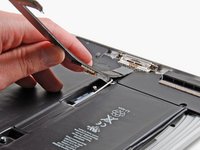
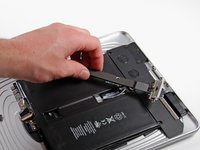
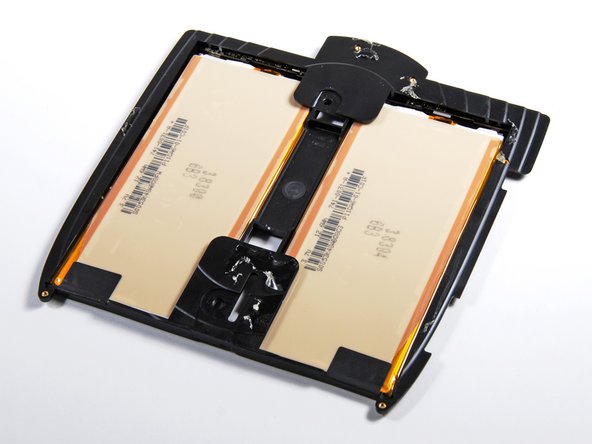
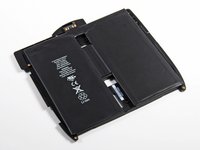
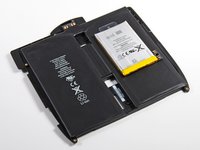
The iPad battery is a lot bigger than an iPhone 3G battery. The iPhone battery has about 1/5th the capacity provided by the iPad battery.
-
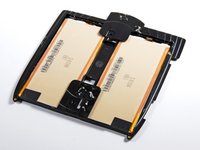
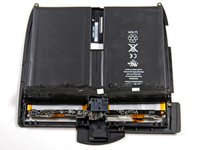
The second shot shows the battery cover peeled back to expose the protection and connection circuitry for each Li-Poly battery.
-
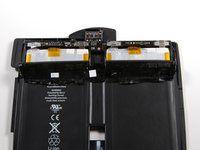
The third shot shows the other side of the battery board, which is stamped with Compeq.
-
-
-
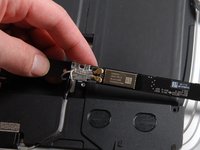
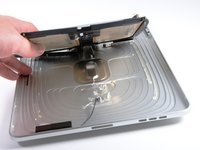
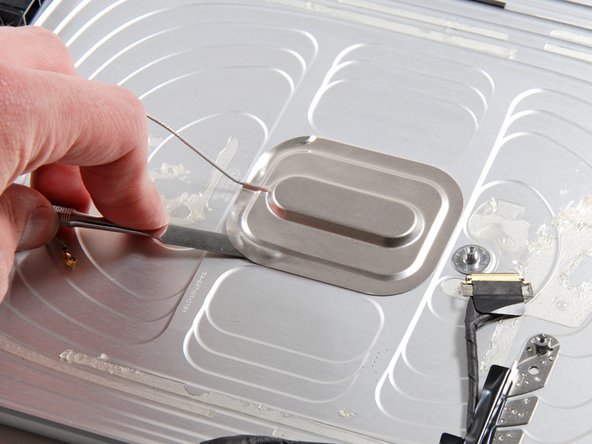
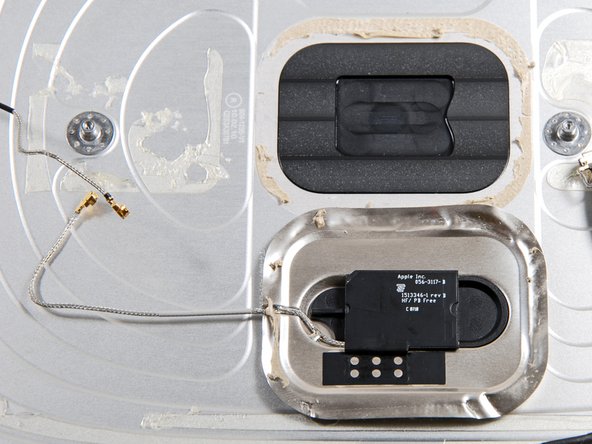
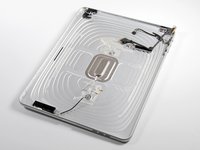
The bare rear case. The antenna behind the apple logo looks just like the antenna on the new iMacs.
-
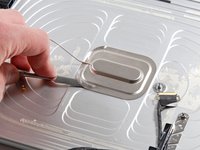
A little prying with a metal spudger is required to separate the antenna from the rear case.
-
Tolerances look pretty tight in the antenna compartment. Check out that pocket just for the antenna to sit in.
-
-
-
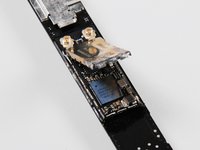
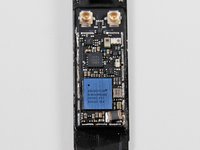
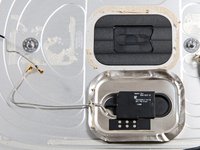
Here's a detail shot of both WiFi antennas. The wireless reception should be decent with such dense antennas.
-
Adding 3G capability to a Wi-Fi only iPad is not going to be a very feasible upgrade. Based on the photos released by the FCC, the 3G models include additional antennas as well as a plastic strip in the rear panel to improve reception.
-
-
-
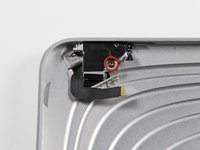
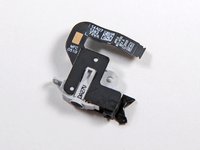
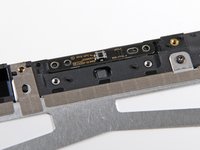
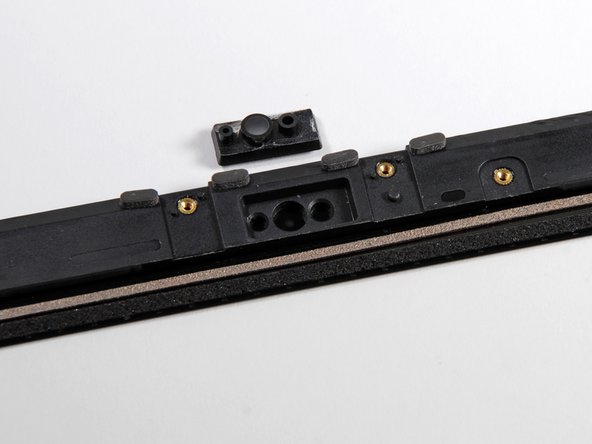
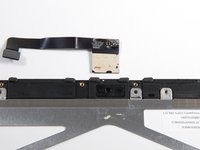
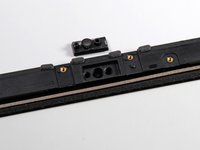
The ambient light sensor lives in a compartment that a camera would love to call home.
-
We suspect that this compartment was intended for the ambient light sensor all along, and the rumors of a camera that would fit here were overzealous. The layout does look very similar to the camera's view ports on the MacBook Pro 13" Unibody.
-
-
-
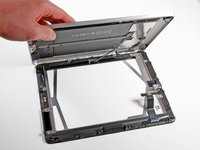
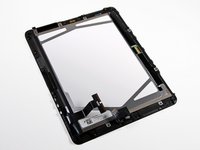
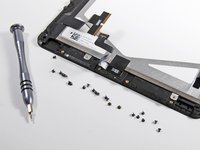
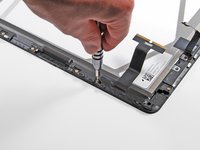
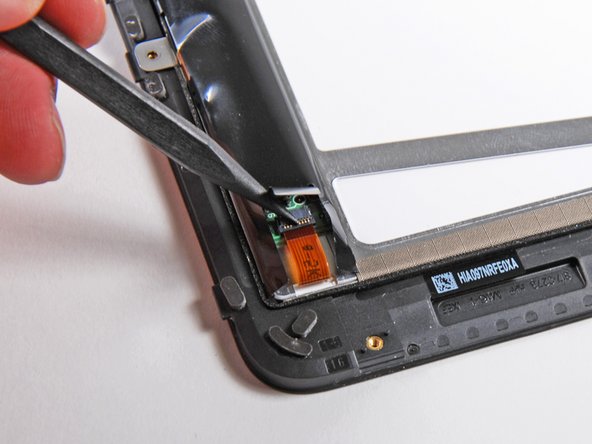
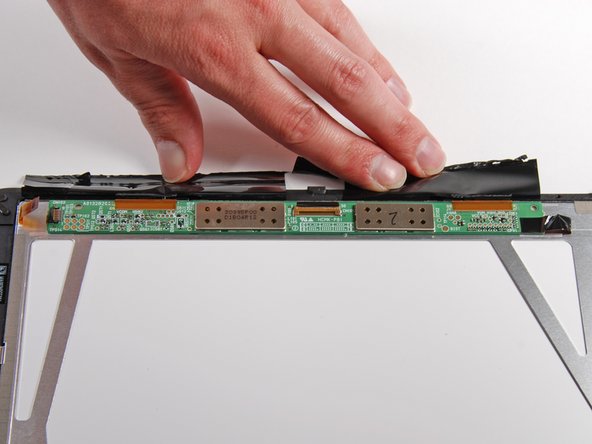
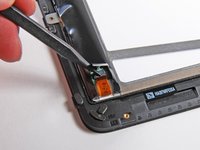
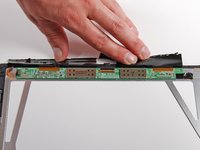
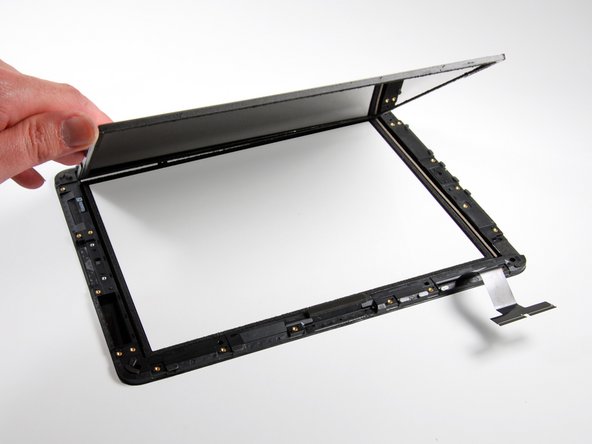
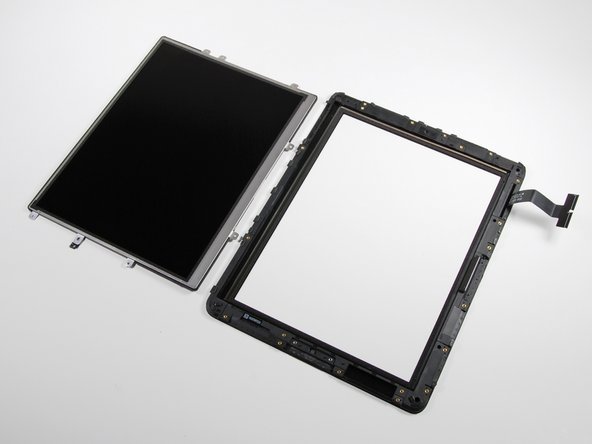
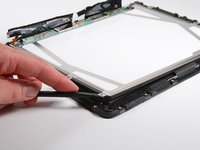
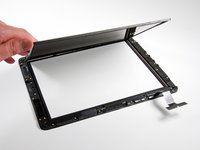
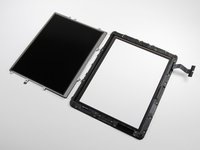
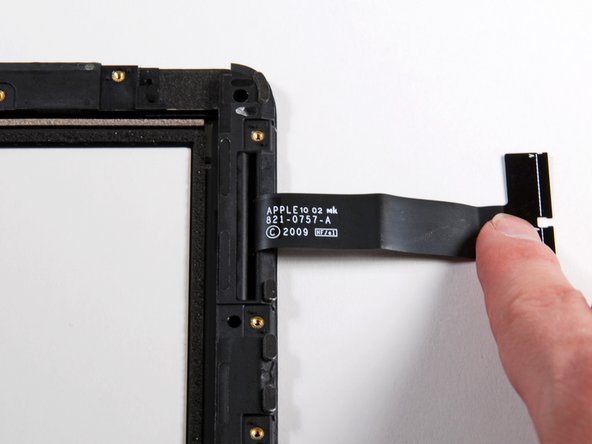
The display seems to be glued around its perimeter but can still be removed from the plastic framework.
-
The display assembly weighs in at:
-
153g for the LCD
-
193g for the front glass
-
The glass seems quite thick (~1.18 mm), which is not a huge surprise considering the size of the iPad. Compare that to about 1.02 mm for the iPhone.
-
-
-
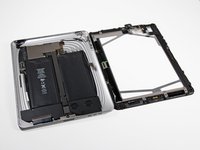
As always, the final layout shot.
-
Here's the weight breakdown: Aluminum back: 138 grams, Battery: 148 grams, LCD: 153 grams, Glass (and frame): 193 grams, Speaker: 17 grams, Main board: 21 grams, Everything else: 27 grams
-
Total: 697 grams (that's more than the .68 kg Apple quotes, has anyone else weighed their complete iPad?)
-
This iPad may be apart, but we'll continue to dig deeper into its chips. Follow @ifixit for the latest updates!
-
- Front panel is held in place with clips.
- LCD is not fused to the display glass.
- Battery is difficult to remove and replace.
































Final Thoughts
Repairability Score


(10 is easiest to repair)


8 Guide Comments
i used your post here -http://cafe.naver.com/disassemblemachine problem is hyunil0327@naver.com
Is it possible to replace the A4 with a better processor or add RAM?
No, it is not possible. You cannot upgrade any parts on this, or later generation iPads, since the boards are all completely custom designed for each generation, and not compatible. Also as in most laptops, the size constraints mean that the processor was not intended to be replaceable, as is clear when you look at step 15.
joshadow -
can I change the logic board?
Yes, you can. The system memory will be entirely different, though. iPad Wi-Fi Logic Board Replacement
