first image
thumb image 1
thumb image 2

Add Note Step 9

  • The optical drive is attached via three Phillips screws.

  • The brackets and screw layout are identical to the older MacBook Unibody.

first image
thumb image 1
thumb image 2

Add Note Step 10

  • Removing the optical drive exposes the right speaker.

  • It's held in place by adhesive. A quick pry with the spudger will loosen it.

first image
thumb image 1
thumb image 2
thumb image 3

Add Note Step 11

  • A connector, three Phillips screws, and bam -- the fan's out!

first image
thumb image 1
thumb image 2
thumb image 3

Add Note Step 12

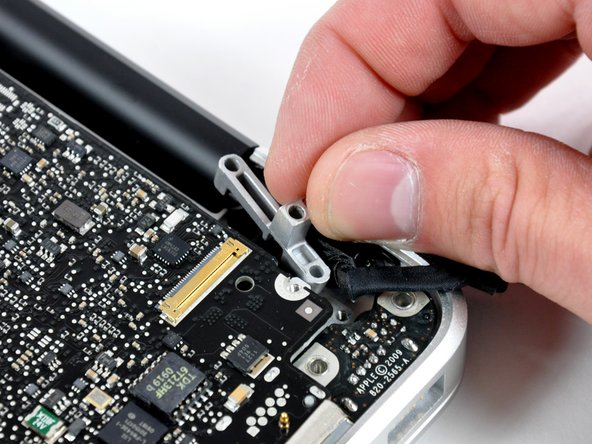
  • Disconnect the LVDS connector.

  • Remove 7 motherboard screws.

  • Remove 2 DC-in screws.

  • Disconnect trackpad, keyboard, and battery level indicator cables.

  • Remove LVDS cable retaining bracket.

  • And the logic board is almost out...

first image
thumb image 1
thumb image 2

Add Note Step 13

  • Pop out the microphone from its cave.

  • The logic board is finally free!

first image
thumb image 1
thumb image 2

Add Note Step 14

  • A couple of images of the logic board, before we strip it naked...

  • Like the MacBook Unibody, the heat sink comes out along with the logic board.

first image
thumb image 1
thumb image 2

Add Note Step 15

  • Both sides of the logic board.

  • Hi-res pictures of the front and back.

  • Not for the faint of heart -- full-size images (5 MB a pop!): front and back.

first image

Add Note Step 16

  • And here's the whole enchilada for you to enjoy.

Add NoteNotes: Step 9

Flag Reply by Whitehawk Sep 30 @ 11:28 PM

is it possible to replace the slot-in drive for slot-in bluray drive as this one http://bogielives.com/index.php?page=29&... ?

Add NoteNotes: Step 13

Flag Reply by prl99 Jun 11 @ 4:58 PM

It appears removing the microphone should be easy. Is the wireless and bluetooth hardware still in the base of the display? I know the iSight is still in the display. Are all cables coming out of the display combined or are they separated by function (display and wireless/bluetooth/iSight)? Have you tried operating the MBP with these devices unplugged (if possible)? Thanks. (yes, I'm asking about it again)

Flag Reply by kafrilos Jun 11 @ 7:47 PM

Could you please post some pictures of the empty unibody frame?

Flag Reply by scott523 Jun 12 @ 5:46 AM

Haha nice teardown! Nice humor accompanied by the teardown of course! ;)

Flag Reply by nswien Jun 14 @ 2:33 AM

You mentioned the harddrive is user replaceable. Is the Ram also ? I just want to make sure that neither of these two changes will void the warrenty. Although I know that Apple will no longer warrenty either of the replaced parts.

Flag Reply by lazerbeam Jun 17 @ 6:35 PM

Quote from nswien:

You mentioned the harddrive is user replaceable. Is the Ram also ? I just want to make sure that neither of these two changes will void the warrenty. Although I know that Apple will no longer warrenty either of the replaced parts.

Yes. My wife's MP13" arrived 2 days ago and I upgraded from 2 GB to 4 GB. Its very easy. You need a jewelers/eyeglass type Phillips screwdriver (very small tip) to remove the back cover screws. Just keep remember to keep the 10 screws in the same order as the hole they came out of because they are different lengths. The manual that comes with the notebook explains how to do it.

Flag Reply by newmacuser Jun 29 @ 3:17 PM

Awesome job on the tear-down. I purchased my 13" MacBook Pro about two weeks ago and already replaced the HD and Ram...very easy. Small phillips and torx, both of which I bought from Home Depot. What I didn't see in the tear-down is the wireless card. Is it soldered on-board or did I miss it as a mini-pci card?

iFixit Staff

Flag Reply by Andrew Bookholt Jun 29 @ 6:18 PM

Quote from newmacuser:

What I didn't see in the tear-down is the wireless card. Is it soldered on-board or did I miss it as a mini-pci card?

The AirPort card on these machines is attached to the display, underneath the black plastic "clutch cover."

Flag Reply by iv26 Jun 30 @ 7:13 AM

which screwdriver will I need to take out the Hard Drive Bracket?

iFixit Staff

Flag Reply by Miroslav Djuric Jun 30 @ 5:07 PM

Quote from iv26:

which screwdriver will I need to take out the Hard Drive Bracket?

You'll need a Phillips #00 screwdriver for the bracket, and then a T6 Torx driver to remove the hard drive's side screws (if you're planning on replacing the drive).

Flag Reply by rufus Aug 7 @ 7:56 PM

Quote from kafrilos:

Could you please post some pictures of the empty unibody frame?

I have pictures of completely stripped frame, don't know how to post them though

Add NoteNotes: Step 14

Flag Reply by anon4433 Jun 10 @ 10:25 PM

Can you replace both RAM modules without pulling the motherboard? Or do you have to get it all the way out to do the one on the other side?

iFixit Staff

Flag Reply by Miroslav Djuric Jun 10 @ 10:46 PM

Quote from anon4433:

Can you replace both RAM modules without pulling the motherboard? Or do you have to get it all the way out to do the one on the other side?

You can replace both RAM modules right after you remove the bottom cover -- no need to take out the logic board.

Flag Reply by terrywood02 Jun 10 @ 10:53 PM

Quote from miro:

You can replace both RAM modules right after you remove the bottom cover -- no need to take out the logic board.

Judging from the pictutes that isn't true, it looks like only the first chip is accessable. Look at the first picture in step 11.. Aluminum blocks access to the other chip.

Flag Reply by thefanta Jun 10 @ 11:03 PM

Quote from terrywood02:

Judging from the pictutes that isn't true, it looks like only the first chip is accessable. Look at the first picture in step 11.. Aluminum blocks access to the other chip.

the ram slots look to be the same as the first unibody 13" and you can access both RAM chips without removing the logic board

Flag Reply by williamwarn Jun 10 @ 11:11 PM

can you take the vid processor off or is it soldered on? upgrade to the 9600???????

Flag Reply by malarkey21 Jun 10 @ 11:12 PM

Quote from terrywood02:

Judging from the pictutes that isn't true, it looks like only the first chip is accessable. Look at the first picture in step 11.. Aluminum blocks access to the other chip.

I disagree. Look at the middle picture in Step 11. You can see the other RAM chip peeking out from under the top chip. Looks like it'd be easy to replace.

Flag Reply by nfoo Jun 10 @ 11:13 PM

Quote from thefanta:

the ram slots look to be the same as the first unibody 13" and you can access both RAM chips without removing the logic board

I can confirm that RAM slots are the same as before. Differences are only the new battery and that you have to unscrew the bottom cover again.

RAM and HD remain user serviceable.

Flag Reply by AustinButler Jun 11 @ 1:05 AM

Is it possible to replace the harddrive with an SSD drive?

If so are there particular ones that will fit or not fit?

Can you recomend a worthwhile SSD to replace.

Thanks.

Flag Reply by onehoop Jun 11 @ 2:00 AM

I'm also curious about changing the video card, but I'm glad to see that the hard drive and RAM are considered user-replaceable. Too bad it's still cheaper to buy the 8GB through Apple. 13" MBP user manual:

http://manuals.info.apple.com/en_US/MacB...

The manual only mentions that the drive must be a 2.5" SATA. There's a 250GB SSD for $900 at Newegg, which is the more than it is to upgrade from Apple (although you'd get to keep the 250GB 5400). There are some more affordable 128GB SSD drives, $250-300. However, they're just covered under a replacement policy, no refunds! So, it'd be nice to hear some first-hand anecdotal evidence about a particular brand working well. Or, better yet, which drives Apple uses as its OEM? I'm using just over 128GB now, and I'm not sure how much of that can be pared down just for the longevity and energy/heat/mass savings of a solid state drive.

Flag Reply by EShupps Jun 11 @ 3:35 AM

Quote from onehoop:

I'm also curious about changing the video card, but I'm glad to see that the hard drive and RAM are considered user-replaceable. Too bad it's still cheaper to buy the 8GB through Apple. 13" MBP user manual:

http://manuals.info.apple.com/en_US/MacB...

The manual only mentions that the drive must be a 2.5" SATA. There's a 250GB SSD for $900 at Newegg, which is the more than it is to upgrade from Apple (although you'd get to keep the 250GB 5400). There are some more affordable 128GB SSD drives, $250-300. However, they're just covered under a replacement policy, no refunds! So, it'd be nice to hear some first-hand anecdotal evidence about a particular brand working well. Or, better yet, which drives Apple uses as its OEM? I'm using just over 128GB now, and I'm not sure how much of that can be pared down just for the longevity and energy/heat/mass savings of a solid state drive.

Any SATA SSD will work. I'm running a Samsung 256GB SSD in my 15" unibody and I previously had a Patriot 128GB SSD in it. It pops in just like any other 2.5" drive (NOTE: Don't buy the Apple SSD from the BTO option; get an aftermarket drive from OCZ, Patriot or Samsung. The BTO SSD's have inferior read/write speeds.)

Flag Reply by Vrumm Jun 11 @ 7:01 AM

Quote from nfoo:

I can confirm that RAM slots are the same as before. Differences are only the new battery and that you have to unscrew the bottom cover again.

RAM and HD remain user serviceable.

Is it possible to adapt the new battery from the MBP 13 (MB466LL/A) in the late 2008 MB 13 AL (MB990LL/A)??? Could ypu please reply to this question? I looks the same size and shape. The only point to observe is how to fix it to the main block of aluminun...

Flag Reply by Zews Jun 11 @ 9:07 AM

Quote from terrywood02:

Judging from the pictutes that isn't true, it looks like only the first chip is accessable. Look at the first picture in step 11.. Aluminum blocks access to the other chip.

RTFM!

http://manuals.info.apple.com/en_US/MacB...

iFixit Staff

Flag Reply by Miroslav Djuric Jun 11 @ 6:41 PM

Quote from williamwarn:

can you take the vid processor off or is it soldered on? upgrade to the 9600???????

The video processor is soldered onto the logic board, and it would be very hard to upgrade it to a 9600...

Flag Reply by bex Jun 12 @ 11:29 AM

Quote from Zews:

RTFM!

http://manuals.info.apple.com/en_US/MacB...

the ram socket is the clip up type not the push in type on the old macbook so you can replace it without removing the battery

Flag Reply by Kristyanna1019 Jun 16 @ 4:00 AM

I just got a 15" MacBook Pro the end of January, It is easy to replace the HD but I would a good 500GB 7200 RPM HD from OWC They seem to have the best price when I went for My 500GB in Mine. I mad the mistake of only getting a 5200 RPM drive, and get a FW 800 external case for the old 500 GB and do a Carbon Copy on it before putting it back in. The 500GB in my 15" MB Pro I may replace it but I most likely will do it when I get my student loan in the fall. and then Get a 13" MB Pro to use as a "NetBook" unless Apple will come out with a new machine in the fall?

Add NoteNotes: Step 15

Flag Reply by Vrumm Jun 11 @ 6:43 AM

In this new Logic Board the <b>mini Display Port</b> support vídeo+audio??? Are Apple going to solve this claim???

Flag Reply by toppernh Jun 11 @ 4:54 PM

It looks like the Realtek ALC885 audio chip has been replaced with something else. I can't tell if the Cirrus labled chip or the chip with first line GL137 is the new audio chip. I figure one is the audio chip & the other is the SD card controller. I have tried to search the web for what these parts could be but I haven't had any luck.

Flag Reply by bez Jun 12 @ 12:03 AM

How was the thermal paste on these models?

Have Apple trained the CM to apply the correct quantity yet?

Flag Reply by Orpheus Jul 1 @ 9:14 PM

Quote from bez:

How was the thermal paste on these models?

Have Apple trained the CM to apply the correct quantity yet?

Yes, I would like to know if thermal paste is applied correctly as well. From the photos I can't see any thermal paste at all?

iFixit Staff

Flag Reply by Andrew Bookholt Jul 1 @ 11:08 PM

Quote from Orpheus:

Yes, I would like to know if thermal paste is applied correctly as well. From the photos I can't see any thermal paste at all?

The thermal paste coverage on our MBP 13" Unibody seemed adequate. We cleaned the thermal paste off the surface of the processors so whoever is interested could easily identify the chips.

Flag Reply by vant Jul 2 @ 9:08 PM

Quote from andrew:

The thermal paste coverage on our MBP 13" Unibody seemed adequate. We cleaned the thermal paste off the surface of the processors so whoever is interested could easily identify the chips.

Is there any pictures of the thermal paste coverage? It'd be nice to see how much Apple applied.

Flag Reply by brdnboy Jul 8 @ 4:42 PM

For anyone who is curious about thermal paste coverage, here is a photo of the factory amount.

http://www.flickr.com/photos/40248045@N0...

Flag Reply by Orpheus Jul 14 @ 10:32 AM

Quote from brdnboy:

For anyone who is curious about thermal paste coverage, here is a photo of the factory amount. http://www.flickr.com/photos/40248045@N0...

Geez, that looks horrible! I'll definitely redo the thermal paste when I change the HD.

Flag Reply by skoorbevad Aug 5 @ 2:51 AM

Anybody know if the CPU is soldered in? I just got a 13" MBP this past weekend, and immediately swapped the ram for 4GB and the HDD for a 500GB unit, and while the processor is just fine right now I'm curious to know if it's able to be replaced later down the road.

Thoughts?

iFixit Staff

Flag Reply by Andrew Bookholt Aug 5 @ 6:07 PM

Quote from skoorbevad:

Anybody know if the CPU is soldered in?

It is soldered to the board and is non-replaceable.

Add NoteNotes: Step 16

Flag Reply by macphisto Jun 10 @ 11:23 PM

Is the display still a 6-bit display from the previous generation? Or did they move it to the 8-bit (IPS?) display that is in the 15" and 17" MBP?

Flag Reply by nfoo Jun 10 @ 11:25 PM

Quote from macphisto:

Is the display still a 6-bit display from the previous generation? Or did they move it to the 8-bit (IPS?) display that is in the 15" and 17" MBP?

I'm not sure, but I can confirm that it's A LOT better than the Unibody MacBook.

The brightness "tearing" is gone and the viewing angles have improved.

From the short time I had with it I'd say it is at least on par with the previous 15".

And that's a great improvement for the 13".

Flag Reply by andrew42 Jun 11 @ 2:44 AM

Quote from nfoo:

I'm not sure, but I can confirm that it's A LOT better than the Unibody MacBook.

The brightness "tearing" is gone and the viewing angles have improved.

From the short time I had with it I'd say it is at least on par with the previous 15".

And that's a great improvement for the 13".

15" and 17" never had an IPS display. These are all TN displays.

Flag Reply by nfoo Jun 12 @ 7:26 AM

Quote from andrew42:

15" and 17" never had an IPS display. These are all TN displays.

Not true. The "new" 17" uses an S-IPS panel.

And it's awesome.

I'm not sure what they did with the 15" and 13". They surely had TN panels before and I'm pretty sure still have TN panels, but they are a lot improved. Especially the 13".

Flag Reply by phr33k Jun 13 @ 7:59 PM

Do you have a high-res shot of the complete tear-down? I think it's fantastic, and would love to have it on my desktop! Nerdy, I know.

Flag Reply by mac4life Jun 18 @ 2:52 PM

is it possible to repklace the keyboard like on the 15''

Flag Reply by iraoul Jul 16 @ 8:56 PM

Quote from mac4life:

is it possible to repklace the keyboard like on the 15''

is it ????

Flag Reply by iraoul Jul 16 @ 8:58 PM

i spilled hot tea on it and want to clean it, cause it sticks and it blocks the backlight.