iMac Intel 20" EMC 2133 and 2210 Optical Drive Replacement

Replace the optical drive in your iMac Intel 20" EMC 2133 and 2210.

  • Add Note x
  • x 16

Use this guide to replace your optical drive.

first image

Add Note Edit Step 1 — Access Door  ¶ 

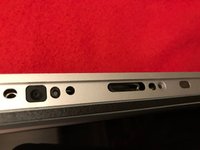
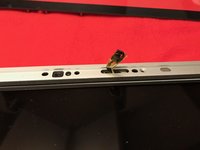
  • Loosen the single Phillips screw in the center of the access door.

  • This screw is captive in the access door.

  • Remove the access door from your iMac.

first image
thumb image 1
thumb image 2

Add Note Edit Step 2 — Glass Panel  ¶ 

  • The glass panel is fixed onto the front bezel with fourteen magnets around its perimeter.

  • Stick two suction cups to opposing corners of the glass panel.

  • To attach the suction cups we sell, first position the suction cup with the movable handle parallel to the face of the glass panel. While lightly holding the suction cup against the glass, raise the movable handle until it is parallel with the other handle.

  • If your suction cups refuse to stick, try cleaning both the glass panel and the suction cup with a mild solvent such as Windex.

first image

Add Note Edit Step 3  ¶ 

  • Gently pull the glass panel straight up off the iMac.

  • The glass panel has several positioning pins around its perimeter. To avoid shearing these pins off the glass panel, be sure to only pull straight up during removal.

  • Be meticulous about cleaning the LCD and the inside face of the glass panel before reinstallation, as any fingerprints or dust trapped inside will be annoyingly visible when the display is on.

first image

Add Note Edit Step 4 — Front Bezel  ¶ 

  • Remove the following 12 screws securing the front bezel to the rear case:

    • Eight 13 mm T8 Torx.

    • Four 25 mm T8 Torx.

first image
thumb image 1
thumb image 2

Add Note Edit Step 5  ¶ 

  • The front bezel is still attached to the iMac by the microphone cable.

  • Gently lift the front bezel from its top edge off the rear case. It helps to use your thumbs to push down very gently on the corners of the display.

  • Once the top edge of the front bezel has cleared the rear case, rotate the front bezel toward the stand and lift it off the rear case.

  • When reinstalling the front bezel, start at the lower edge and make sure it is flush with the rear case before lowering the top edge onto the iMac.

first image

Add Note Edit Step 6  ¶ 

  • Disconnect the microphone cable connector, removing tape as necessary.

  • For the front bezel to sit properly, be sure to tuck the microphone cable and connector into the void next to the camera board.

first image
thumb image 1
thumb image 2

Add Note Edit Step 7 — Display Panel  ¶ 

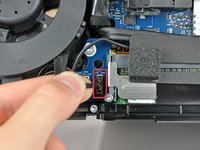
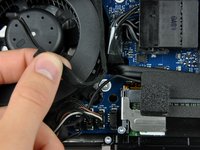
  • Pull the LCD temperature sensor connector straight up out of its socket on the logic board.

  • If necessary, de-route the LCD temperature sensor cable from behind the logic board.

first image

Add Note Edit Step 8  ¶ 

  • Remove the two 5.3 mm T6 Torx screws securing the data display cable to the logic board.

first image

Add Note Edit Step 9  ¶ 

  • Use the attached black tab to pull the data display cable connector away from the logic board.

first image
thumb image 1
thumb image 2

Add Note Edit Step 10  ¶ 

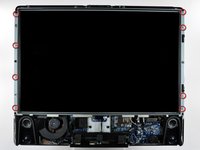
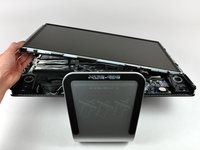
  • Remove the eight 12 mm T8 Torx screws securing the display panel to the rear case.

  • Lift the display panel from its left edge and rotate it toward the right edge of the iMac.

first image
thumb image 1
thumb image 2

Add Note Edit Step 11  ¶ 

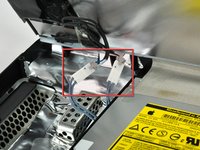
  • With the display panel still lifted, disconnect the four inverter cables.

  • During reinstallation, place the four inverter cable connectors in voids between components attached to the rear panel so the display panel will sit flush.

  • During reassembly, the order of the inverter cables is interchangeable within each socket.

first image

Add Note Edit Step 12 — Optical Drive  ¶ 

  • If necessary, remove the pieces of tape securing the hard drive/optical drive thermal sensor cables to your iMac.

first image

Add Note Edit Step 13  ¶ 

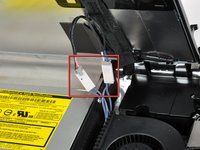
  • Disconnect the optical drive thermal sensor connector from the logic board by pulling its connector toward the top of your iMac.

  • When removing this connector, it is helpful use your thumbnails to push the ears on either side of the connector toward the top of your iMac.

first image

Add Note Edit Step 14  ¶ 

  • Remove the two fine-thread 7 mm T10 Torx screws securing the optical drive to the rear case.

first image

Add Note Edit Step 15  ¶ 

  • Lift the free end of the optical drive slightly out of the rear case.

  • Remove the two 3.5 mm T6 Torx screws securing the optical drive connector to the optical drive.

first image
thumb image 1
thumb image 2

Add Note Edit Step 16  ¶ 

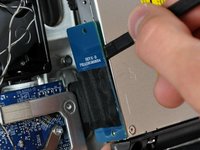
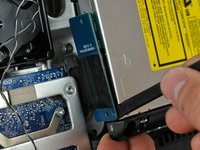
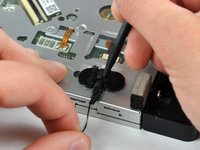
  • Insert the flat end of a spudger between the optical drive connector and the body of the optical drive.

  • Twist the spudger to separate the connector from the optical drive.

  • It may be necessary to work from alternating sides of the connector until it is disconnected.

first image

Add Note Edit Step 17  ¶ 

  • Lift the optical drive out of the rear case and pull it away from the side of the rear case to release the strip of EMI tape attached to its surface.

  • The optical drive thermal sensor is still attached to the underside of the optical drive.

first image
thumb image 1
thumb image 2

Add Note Edit Step 18 — Optical Drive Replacement  ¶ 

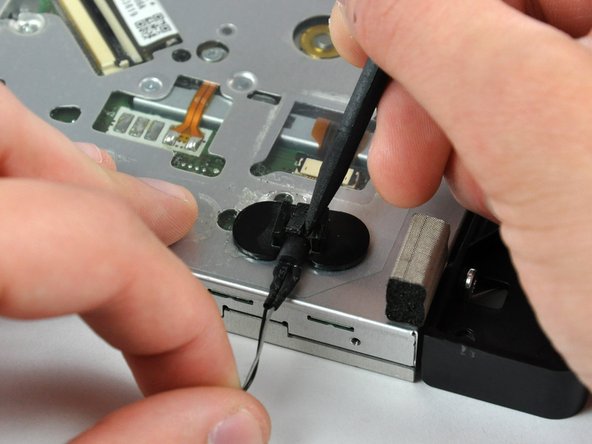
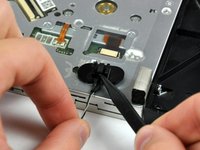
  • If necessary, remove the piece of foam tape covering the optical drive thermal sensor.

  • To remove the optical drive thermal sensor, use the tip of a spudger to lift the center finger of the thermal sensor bracket while applying slight tension to the thermal sensor cable.

  • If your thermal sensor is stuck to the optical drive, skip to the next step.

first image

Add Note Edit Step 19  ¶ 

  • Use the flat end of a spudger to pry the optical drive thermal sensor bracket up off the adhesive securing it to the optical drive.

  • If the adhesive gets dirty or will not stick to your new optical drive, place some double-sided tape under the two semicircular ears of the thermal sensor bracket.

first image

Add Note Edit Step 20  ¶ 

  • Use a spudger to remove the small piece of EMI foam from the bottom of the optical drive.

  • Don't forget to transfer this to your new optical drive.

first image
thumb image 1
thumb image 2

Add Note Edit Step 21  ¶ 

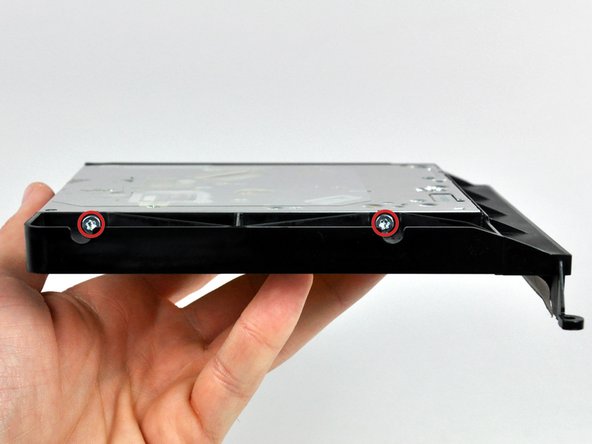
  • Remove the two 6.5 mm T10 Torx screws from both sides of the optical drive (four screws total).

first image

Add Note Edit Step 22  ¶ 

  • Peel the strip of EMI tape off the optical drive.

  • Don't forget to transfer this to your new optical drive.

first image
thumb image 1
thumb image 2

Add Note Edit Step 23  ¶ 

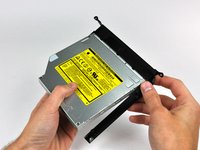
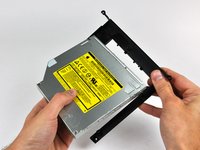
  • Slightly rotate the optical drive bracket away from the optical drive.

  • Pull the optical drive bracket away from the open end of the optical drive, minding any tabs that may get caught.

  • If you have a disk or anything else stuck inside your optical drive, we have a guide to fix it.

To reassemble your device, follow these instructions in reverse order.

For more information, check out the iMac Intel 20" EMC 2133 and 2210 device page.

Did you successfully follow this guide?

This guide has been completed 16 times.

Comments Add Note Comments are offturn on