iMac G5 20" Model A1076 Hard Drive Replacement

Featured Guide

Featured Guide

This guide has been found to be exceptionally cool by the iFixit staff.

  • Add Note x
  • x 66

Upgrade your hard drive for more storage capacity.

Image #1

Add Note Edit Step 1 — Rear Panel  ¶ 

  • Lay the iMac display-side down on a flat surface.

  • Loosen the three Phillips screws securing the rear panel to the iMac.

  • These screws are captive in the iMac. The center screw will stop turning after about 3.5 turns and the outer screws will stop turning after about 5.5 turns. Do not try to remove these screws from your iMac.

Image #1 Image #2

Add Note Edit Step 2  ¶ 

  • Lift the rear panel slightly near the bottom of the iMac.

  • Pull the rear panel toward yourself and remove it from the iMac.

Image #1

Add Note Edit Step 3 — Hard Drive  ¶ 

  • Remove the following three screws:

    • One shouldered 12.4 mm Phillips.

    • Two 7 mm T10 Torx.

Image #1

Add Note Edit Step 4  ¶ 

  • The following action is optional. If you skip this step, be very careful not to strain the thermal sensor cable as you disconnect the hard drive cables and transfer this bracket to your new hard drive.

  • Lift the hard drive slightly and disconnect the hard drive thermal sensor connector.

Image #1 Image #2

Add Note Edit Step 5  ¶ 

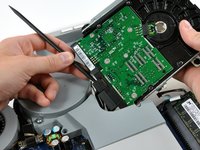
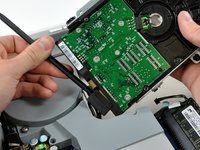
  • Insert the flat end of a spudger into the gap between the SATA data connector and the hard drive.

  • Twist the spudger to separate the SATA data connector from the hard drive, then disconnect it from the hard drive.

  • Repeat this process for the SATA power connector.

Image #1

Add Note Edit Step 6  ¶ 

  • Lift the hard drive out of the iMac.

Image #1

Add Note Edit Step 7 — Hard Drive Replacement  ¶ 

  • Remove the two 15 mm shouldered T10 Torx screws from the hard drive and remove the bracket.

Image #1

Add Note Edit Step 8  ¶ 

  • Remove the two 6 mm T10 Torx screws from the hard drive and remove the hard drive bracket.

  • The hard drive bracket with the thermal sensor board is attached to the SATA connector side of the hard drive.

  • If you are installing a new hard drive, we have an OS X install guide to get you up and running.

Required Tools

Spudger

$2.95 · 50+ In stock

Phillips #1 Screwdriver

$4.95 · 5 In stock

T10 Torx Security Bit Screwdriver

$6.95 · 29 In stock

Related Products

2 TB 7200 RPM 3.5" Hard Drive

$129.95 · 5 In stock

3 TB 7200 RPM 3.5" Hard Drive

$179.95 · 8 In stock

Recommended Tools

Universal Drive Adapter

$29.95 · 50+ In stock

Inspection Scope

$39.95 · 17 In stock

Portable Anti-Static Mat

$24.95 · 10 In stock

Comments Add Note Comments are offturn on