Introduction
Upgrade your hard drive for more storage space!
This guide also includes steps to upgrade your iMac's hard drive with a SSD. It describes how to install the SSD's temperature sensor so that the Mac's fans will operate at the correct speed.
Before beginning any work on your iMac: Unplug the computer and press and hold the power button for ten seconds to discharge the power supply's capacitors.
Be very careful not to touch the capacitor leads or any exposed solder joints on the back of the power supply.
What you need
-
-
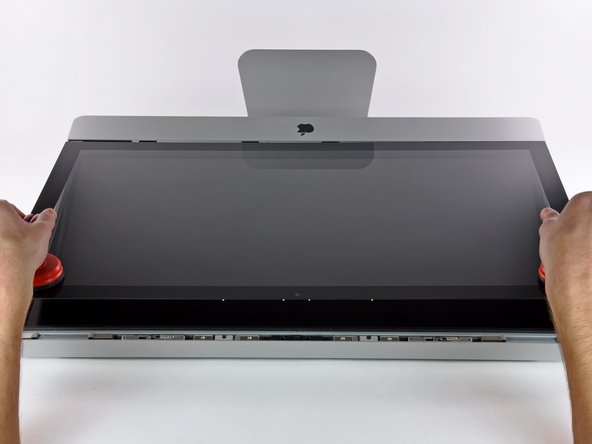
Stick a heavy-duty suction cup near each of the two top corners of the glass panel.
-
While lightly holding the suction cup against the glass, raise the movable handle until it is parallel with the other handle (as indicated by the third picture).
-
-
-
-
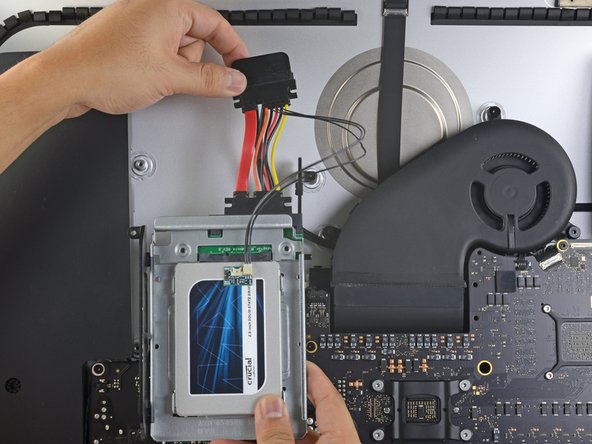
Disconnect the thermal sensor, SATA power, and SATA data cables by pulling their connectors away from the sockets on the hard drive.
-
-
-
Line up the SSD connectors with the metal enclosure's sockets.
-
Press the drive against the enclosure sockets until the SSD is firmly seated.
-
-
-
Peel the white liner off the back of the small temperature sensor board in order to expose the adhesive.
-
Adhere the temperature sensor board to an exposed, metal surface of the SSD, close to the SATA connector.
-
Fold the excess temperature sensor wires so that they are out of the way while you install the enclosure.
-
-
-
Find the connector on the motherboard labeled HD TMP or HDD TEMP.
-
If the previous temperature cable is still connected to the board here, disconnect and remove it. You will no longer need it.
-
Connect the temperature sensor's two-wire red-black cable to the motherboard plug labeled HD TMP or HDD TEMP.
-
Route the excess wire so it does not interfere with any other components.
-






To reassemble your device, follow these instructions in reverse order.
To reassemble your device, follow these instructions in reverse order.
Cancel: I did not complete this guide.
580 other people completed this guide.


87 Comments
While putting the system back together, I recommend untaping and removing the vertical sync cable from the back of the led screen. Plug it back into the LED Driver board and then into the back of the screen. Reapply the tape and continue reassembling as normal. It is far easier to plug it back into the screen than into the driver board through such a small gap.
Wow! That's a great tip... I looked at doing this and thought it would be a hassle but if you said it is easier than doing it taped than it must be easier. I'm going to do this time. Thaanx
My hd failed and i used this guide to replace it with the same model. The problem i'm stuck with now is installing os x again. The installation starts and goes on for a while, while the hard drive makes a weird clicking noise. Then randomly the installation fails and asks to try again. I've done this ten times now.
I'm not here to rant though, i've some useful tips as well.
Instead of buying suction cups, i used a vacuum cleaner inserted into the back of a plastic container to create more pressure per inch. Also used duct tape on edges of the container to create more friction and not damage the glass. Although later i noticed you could wedge the sharp edge of a knife between the glass and the case and widen the gap with a fingernail, then pull the glass out completely.
A note when you're buying screw drivers... The ones with the interchangeable bits won't reach the screws on the lcd, so be prepared to fiddle with strips of paper and screws falling into the sides!
Were you able to finally install the osx ?
Kul -
I'm supposing my SSD will go before my HDD, but either way this doesn't look like the inside of my 27" iMac. Help?
