Introduction
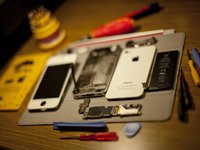
found a way to fix a liquid damaged iphone screen back light issue
What you need
-
-
Power off your iPhone before beginning disassembly.
-
Your iPhone 4 rear cover may have either two #000 Phillips screws or Apple's 5-Point "Pentalobe" screws (second image). Check which screws you have, and ensure you also have the correct screwdriver in order to remove them.
-
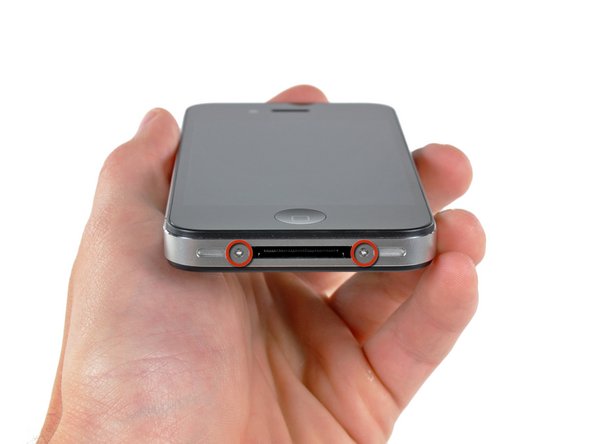
Remove the two 3.6 mm Pentalobe or Phillips #000 screws next to the dock connector.
-
-
-
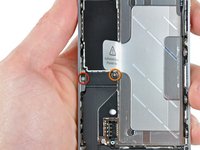
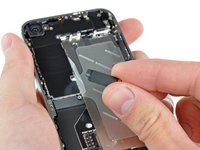
Remove the single 2.5 mm Phillips screw securing the battery connector to the logic board.
-
-
-
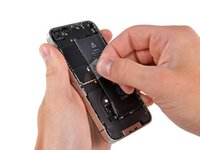
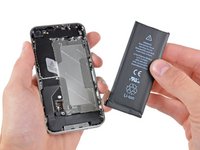
Use the clear plastic pull tab to gently lift the battery out of the iPhone.
-
If there's any alcohol solution remaining in the phone, carefully wipe it off or allow it to air dry before installing your new battery.
-
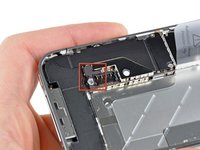
Before reconnecting the battery connector, be sure the contact clip (shown in red) is properly positioned next to the battery connector.
-
-
-
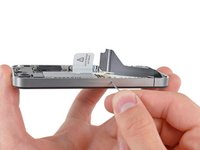
Use a SIM card eject tool or a paperclip to eject the SIM card and its holder.
-
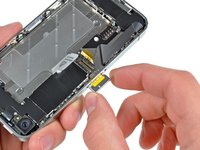
Remove the SIM card and its holder.
-
-
-
-
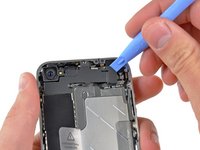
Use an iPod opening tool to slightly lift the top edge of the Wi-Fi antenna away from the logic board.
-
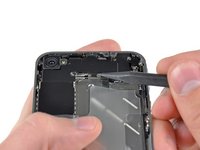
Use the tip of a spudger to pull the Wi-Fi retaining clips away from the inner frame.
-
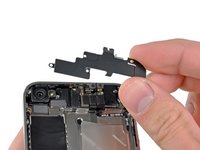
Remove the Wi-Fi antenna from the iPhone. Make sure you don't lose the metal clips on the top of the cover where the 4.8mm screw attaches or the 4.8mm screw. That's the primary reason for abnormal Wi-Fi performance after the reassembly.
-
-
-
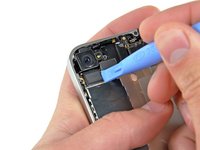
Use the edge of a plastic opening tool to gently pry the following connectors up and out of their sockets on the logic board:
-
Digitizer cable (pry from bottom)
-
LCD cable (pry from bottom)
-
Headphone jack/volume button cable (pry from top)
-
Top Microphone/sleep button cable (pry from top)
-
Front camera cable (pry from top)
-
-
-
Remove the single 2.4 mm Phillips screw securing the speaker enclosure to the side of the inner frame.
-
-
-
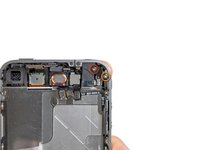
Remove the following two screws securing the vibrator to the inner frame:
-
One 6 mm Phillips
-
One 1.4 mm Phillips
-
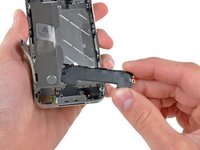
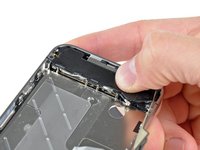
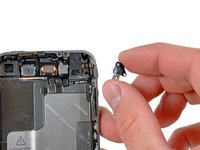
Remove the vibrator from the iPhone.
-
-
-
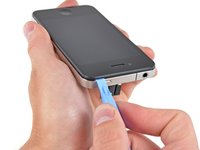
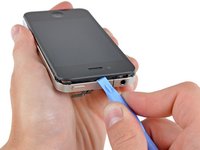
Slowly and gently lift the top edge of the front panel assembly away from the steel inner frame.
-
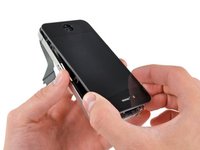
Continue to rotate the front panel assembly away from the steel inner frame until it slowly begins to peel off the adhesive applied below the home button area.
-
It may be easiest to insert a spudger at the top and work it around the edges, spreading gently as you go.
-
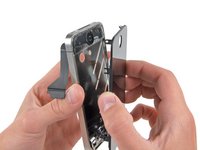
Carefully pull the lower edge of the front panel assembly away from the steel inner frame.
-
-
-
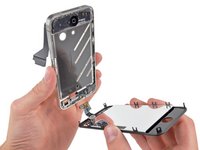
De-route the digitizer and LCD cables through the steel inner frame, and remove the display from the iPhone.
-
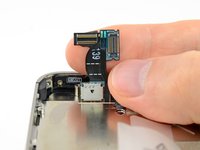
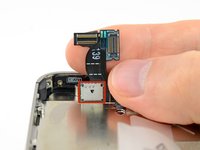
When the front panel has been correctly installed, both the LCD and digitizer cables should be immediately next to one another and should be the same length, as shown in the second photo.
-
During reassembly, do not touch the metallic area at the base of the LCD data cable, as this can cause problems with the LCD. If you do touch it accidentally, clean it gently with an alcohol wipe before continuing.
-
-
-
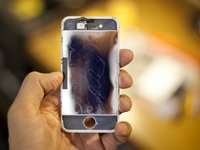
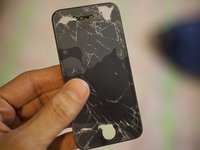
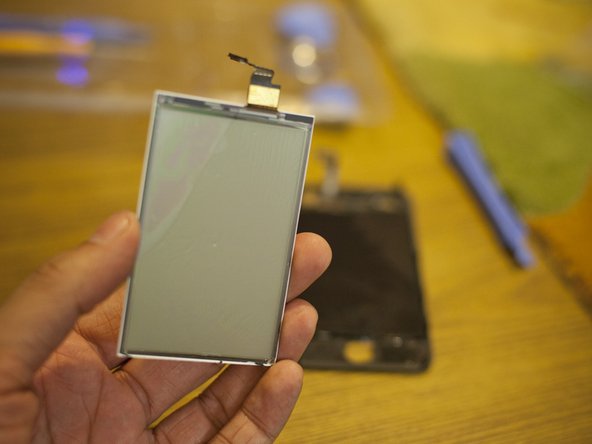
This is what the damage was. The digitiser was fine, the display was fine, but the backlight is damaged and dark patches exist.
-
As you can see, the screen was damaged by Acetone while trying to fix the home button. Some of it seeped in the screen because I tilted the device upside down.
-
-
-
I had no idea if I could fix it, I just wanted to find out what exactly was wrong.
-
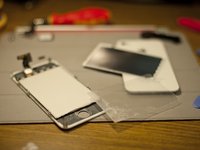
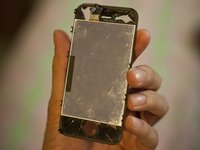
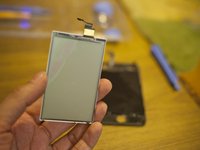
Now that we have the screen out, the chrome with white border is a casing on the backlight, so I took it apart by peeling it off gently, by the white plastic frame.
-
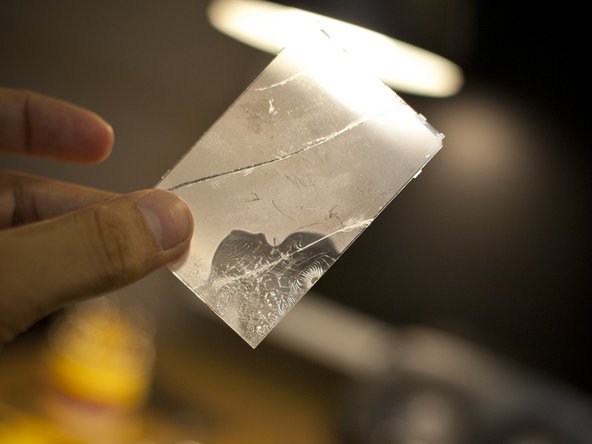
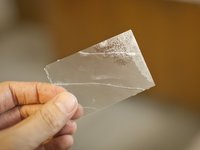
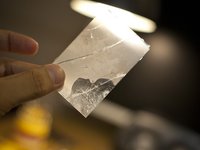
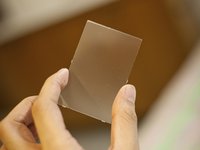
Here we are, the chrome part is out, the backlight is naked and you see that transparent plastic part lying there. This is like a fibre optic transmitting light from the LEDs to the whole screen. This was damaged by the Acetone.
-
-
-
Remove the part, extract the fresh, non-damaged plastic backlight part from it.
-
Just replace the part and put everything back together with the chrome cover and plastic frame, and reassemble your phone.
-
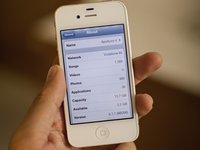
Sure looks back to what it was - at least 95%. It's a job involving no cost at all! Worth the effort.
-








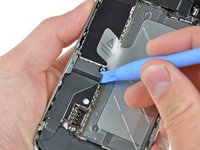
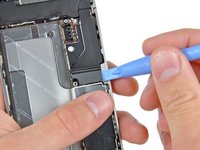


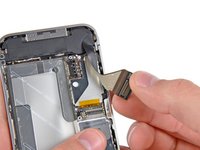
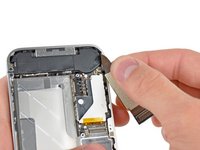

















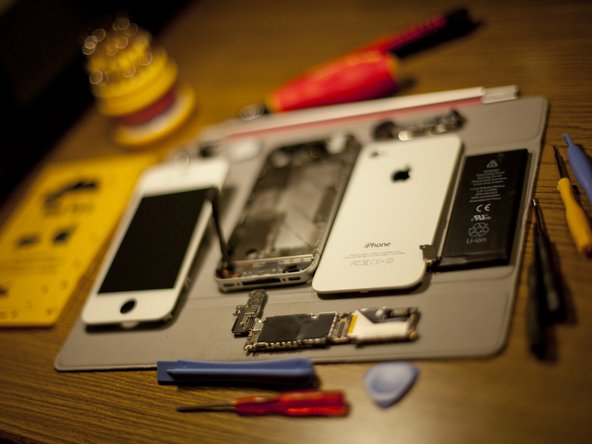







To reassemble your device, follow these instructions in reverse order.
Cancel: I did not complete this guide.
29 other people completed this guide.



