first image

Add Note Step 13

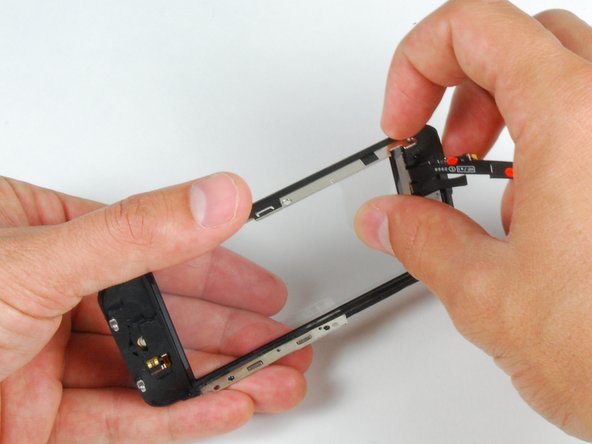
  • Separate the LCD and glass by sliding the LCD panel away from the ribbon cables on the glass.

first image

Add Note Step 14 — Front Panel

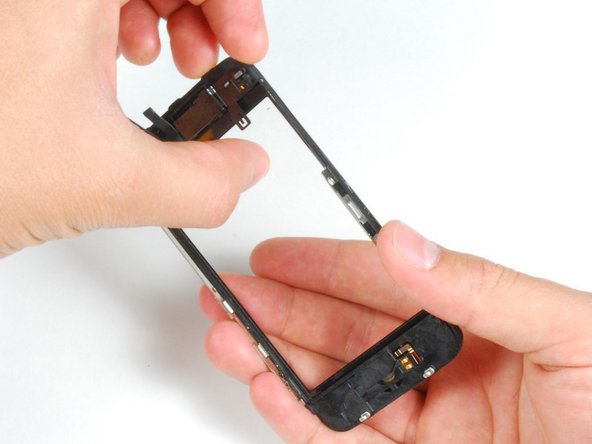
  • This is what should be left after removing the LCD.

first image
thumb image 1
thumb image 2
thumb image 3

Add Note Step 15

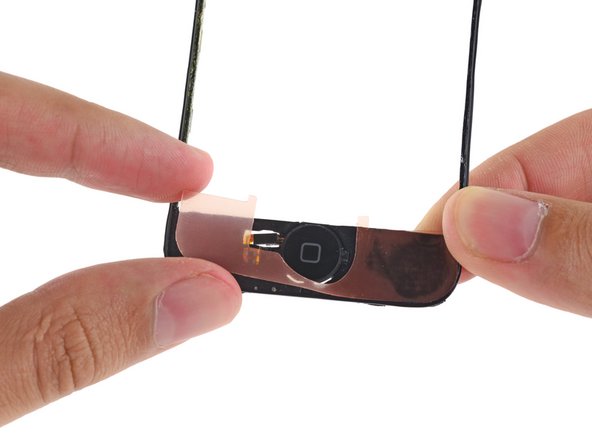
  • Be careful when using a heat gun in the forthcoming steps. Use it at a very low heat setting, and make sure not to melt the touch screen plastics or Home button.

  • Using a heat gun or hairdryer, heat the top left area of the touch screen.

  • Use your fingernails to slowly lift up the left corner. The touch screen plastics are held to the touch screen with adhesive. It may take some work to free the corners.

    • If it seems like too much force is being applied to lift the touch screen plastics, try using the heat gun again.

  • Heat and repeat for the right side.

Add NoteNotes: Step 13

Flag Reply by deanmcrobie Oct 8 @ 6:47 PM

when reattaching the LCD< be VERY careful to not cut the cables to the digitizer/screen as you snap it back as I assembled it, the flat thin ribbon cable got cut/ripped the cable very easily.

Flag Reply by happydaisey2001 Oct 19 @ 1:55 PM

so the kit I got sent me all the tools I need including the glass panel but step 12 said to separate the lcd from the glass by separating the 2 metal rails. The new glass I got does not have the other set of rails, the speaker or the button. How do you separate that stuff from the old glass assembly?

Flag Reply by bcs909 Nov 5 @ 10:30 AM

I first tried this with a hairdryer for a good 40 seconds and it did not get hot enough to budge the adhesive. 5 seconds with a heat gun on low and the glass separated easily. Be careful with the heat gun, go slowly and only heat small portions at a time but it works much better than a hairdryer.

Flag Reply by Shackscs Nov 8 @ 7:57 AM

Quite frankly the hardest part about this process is removing the old adhesive. Take your time!!!

We used the hair dryer and heated the glass side and pryed as I went and it all came up.

Flag Reply by bcs909 Nov 10 @ 8:35 PM

Another thing that was not in the manual, that really should be in the manual. I powered off the phone before the install, and then powered it on at the last step of attaching the cables, to verify all was connected fine. Then powered off again, closed up the case and powered on again.

BUT the display was clunky and unresponsive, which was strange to me because it was perfectly functional with the shattered glass. I had to power off and on to get it to respond, and even then pressing buttons on the screen was still clunky and unresponsive. Finally I went to troubleshoot the display at Apple (http://support.apple.com/kb/HT1737) where I reset it and then reset all settings. After that the display responded perfectly. I basically followed these steps from the above link:

If iPhone won't turn on, or the display freezes or doesn't respond

See iPhone and iPod touch: Frozen and unresponsive for information on addressing these symptoms.

iPhone OS 2.x and earlier: Press and hold the Home button until the application quits.

iPhone OS 3.x and later: Press and hold the Sleep/Wake button until the red slider appears, then press and hold the Home button until the application quits.

If that doesn't work, turn iPhone off and turn it on again. Press and hold the Sleep/Wake button on top of iPhone for a few seconds until a red slider appears, and then slide the slider. Then press and hold the Sleep/Wake button until the Apple logo appears.

If that doesn't work, reset iPhone. Press and hold the Sleep/Wake button and the Home button at the same time for at least ten seconds, until the Apple logo appears.

If iPhone continues to freeze or not respond after you reset it

Reset iPhone settings. From the Home screen choose Settings > General > Reset > Reset All Settings. All your preferences are reset, but no data or media is deleted.

If that doesn't work, reset iPhone. Press and hold the Sleep/Wake button and the Home button at the same time for at least ten seconds, until the Apple logo appears restore the iPhone software. See Backing up, updating and restoring your iPhone and iPod touch software.

Add NoteNotes: Step 15

Flag Reply by satanders Sep 1 @ 3:16 AM

the heat gun step took me the longest, but i actually used a hair dryer. i had to get the assembly quite hot before it would budge at all -- hotter than i could comfortably handle with my bare fingers. i set the entire thing on my jeans-protected thigh while heating the assembly's edges, then trying to pry, then heating, then attempting to pry again.

i seemed to find a bit more success heating from the glass side (the front side) than from the back with all the electronics and whatnot in the way.

i might recommend safety glasses here at this step because when the adhesive gave, it gave quickly and i ended up spreading quite a few very tiny pieces of my broken screen glass everywhere.

Flag Reply by rdigges Oct 24 @ 7:42 PM

Considering that my screen was broken into tiny bits at the top, this step had me digging little shards of glass off the adhesive with the spudger. It took a good 45 minutes to get it all. Many bad words were said.

Flag Reply by david113 Oct 29 @ 1:37 PM

and this is where i kissed my 3g Belgium 600+ working iphone goodbye, the home button ribbon cable detached from the frame , already when i opened the phone i did not see connection #1 connected so a nice piece of art work...

Flag Reply by jamesbuttigieg Nov 6 @ 4:04 AM

OMG - that was freakin hard! Make sure you don't burn yourself. I agree with satanders and ridges comments. Heat from the outside and use the spudger to prise the cover. And make sure you don't harm the button!

Flag Reply by cochranb Nov 14 @ 3:02 PM

At least one YouTube video shows using a spudger to try and free the parts from the glue after heating. The spudger is shown being used close to the flex cable (the yellowish flat plastic thing) for what I believe is the speaker. There is a risk you will damage the flex cable. You might want to be really careful not to damage it. Let us suppose the phone was working okay except for a cracked screen before you began the replacement procedure. If something goes wrong with your installation and you need to reassemble the phone for any reason (such as realizing you need a new front screen in addition to the digitizer), and you have damaged that flex cable, you probably won't have any sound in the phone.

Flag Reply by bnewquist78148 4 days ago

i held the corners up to my stove burner on low heat. worked quickly and easy.