Introduction
You can install hard drives up to 9.5mm thick.
What you need
-
-
Use your fingers to push both battery release tabs away from the battery, and lift the battery out of the computer.
-
-
-
Remove the three identical 2mm Phillips screws from the memory door.
-
Lift the memory door up enough to grip it and slide it toward you, pulling it away from the casing.
-
-
-
Remove the two 2.8 mm Phillips screws in the battery compartment near the latch.
-
-
-
-
Lift up at the rear of the case and work your fingers along the sides, freeing the case as you go. Once you have freed the sides, you may need to rock the case up and down to free the front of the upper case.
-
There are four plastic clips above the DVD slot, and another above and to the left of the IR sensor. These clips can be very difficult to disengage without prying. They can also be difficult to re-engage during reassembly.
-
-
-
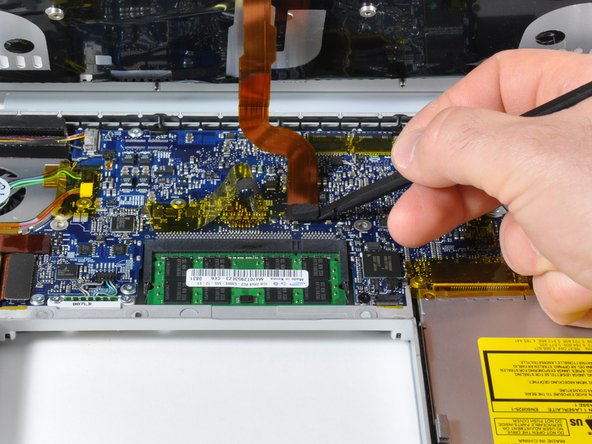
Disconnect the orange hard drive ribbon cable from the logic board.
-
Remove tape as necessary and use a spudger (or carefully push a credit card under the tape) to carefully loosen the adhesive securing the sleep light and IR sensor connectors to the top of the hard drive.
-
-
-
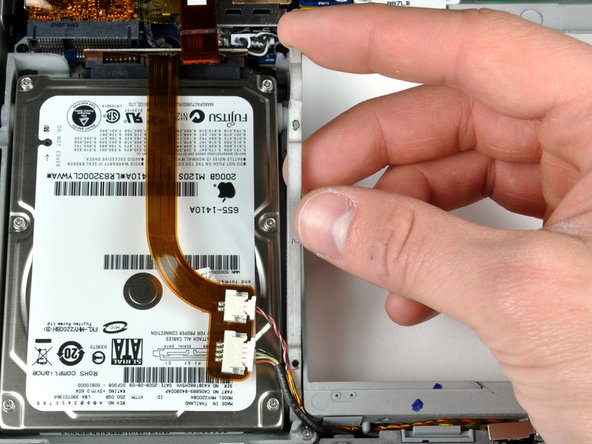
Remove the two silver T6 6 mm Torx screws from the left side of the hard drive.
-






To reassemble your device, follow these instructions in reverse order.
To reassemble your device, follow these instructions in reverse order.
Cancel: I did not complete this guide.
1093 other people completed this guide.


22 Comments
Hi folks, is it possible to inserting a new 1 GB 2,5" HDD with a thickness of 12.5 mm into the MBP?
can anyone help me?
Sorry about my bad english...
Andreas from germany
Not to the pre-unibody MBPs it isn't possible, no. Maximum size 9.5 mm drives
I used the A1260 hard drive replacement guide to swop out a Western Digital Scorpio SATA (WD3200BEVT) 320 Gig 5400rpm for a Western Digital SATA (ST9750420AS) Momentus 750 Gig 7200rpm. (http://www.seagate.com/www/en-us/product...) The whole operation went flawlessly thanks to the guide. The improvement in speed / access with the bigger, faster hard drive is very noticeable. Just to let people know that the installation of a 750 gig drive is an accomplished fact in a A1260 series MacBook Pro.
Thanks for the very thoroughly and easy-to-follow guide. I'm no technical genius, but thanks to the guide I manage to replace the original disc with a Toshiba THNS 512GG8BBAA. I printed out the instructions and attached the screws with scotch to the right picture as I went along - not a chance of mixing or loosing the screws. It all went well, and the improvement is awesome!
After some trepidation, it all came together flawlessly in about an hour. Great guide, and good advice in the notes about organizing those 27 screws. This will put at least another year of life in my aging Macbook.
