Installing iMac Intel 27" Optical Drive Fan

  • Add Note x

Replace a broken optical drive fan to keep temperatures down.

Sections
first image

Add Note Edit Step 1 — Glass Panel  ¶ 

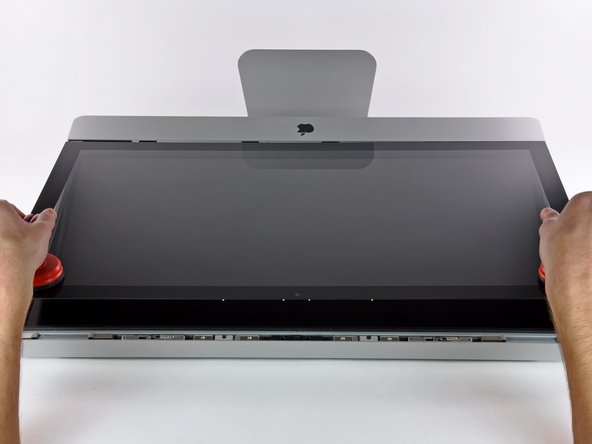
  • Stick a suction cup near each of the two top corners of the glass panel.

  • To attach the suction cups we sell, first position the suction cup with the movable handle parallel to the face of the glass panel. While lightly holding the suction cup against the glass, raise the movable handle until it is parallel with the other handle.

  • If your suction cups refuse to stick, try cleaning both the glass panel and the suction cup with a mild solvent.

first image
thumb image 1
thumb image 2
thumb image 3

Add Note Edit Step 2  ¶ 

  • Gently lift the glass panel perpendicular to the face of the LCD enough to clear the steel mounting pins attached along the underside of the top edge of the glass panel.

  • Pull the glass panel away from the lower edge of the iMac and carefully set it aside.

  • During reinstallation, be sure to meticulously clean the inside of the glass panel and the face of the LCD as any dust or fingerprints trapped inside will be annoyingly visible when the machine is turned on.

first image

Add Note Edit Step 3 — Display  ¶ 

  • Remove the eight T10 Torx screws securing the LCD to the outer case.

first image
thumb image 1
thumb image 2
thumb image 3

Add Note Edit Step 4  ¶ 

  • Carefully lay the iMac stand-side down on a flat surface.

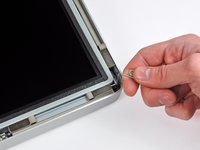
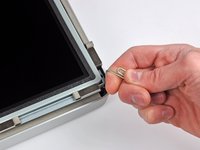
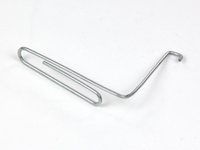
  • Due to tight tolerances, you will have to use a thin hooked tool to lift the display out of the outer case. As seen in the third picture, we made one out of a bent paperclip.

  • Use a thin hooked tool to lift one side of the top edge of the display by its steel outer frame.

  • After lifting the top edge of the display on one side, hold it out of the outer case while you use a hooked tool to lift the other side.

  • Do not lift the top edge of the display out of the outer case too far, as several short ribbon cables still connect the two components.

first image
thumb image 1
thumb image 2

Add Note Edit Step 5  ¶ 

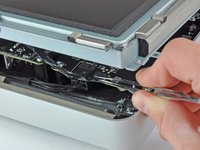
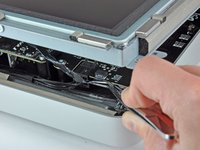
  • Use a pair of tweezers to pull the vertical sync ribbon cable out of its socket on the LED driver board near the top left corner of your iMac.

first image

Add Note Edit Step 6  ¶ 

  • Rotate the display out of the outer case enough to disconnect the LED backlight power cable from the LED driver board.

first image

Add Note Edit Step 7  ¶ 

  • Squeeze the two display data cable connector arms together to unlock it from its socket on the logic board.

  • Pull the display data cable connector away from its socket on the logic board.

first image

Add Note Edit Step 8  ¶ 

  • Lift the display for enough clearance to disconnect the LCD thermal sensor cable connector from its socket on the logic board.

first image

Add Note Edit Step 9  ¶ 

  • Carefully pull the display toward the top edge of your iMac and lift it out of the outer case.

first image

Add Note Edit Step 10 — Optical Drive  ¶ 

  • Remove the four T10 Torx screws securing the optical drive to the outer case.

first image

Add Note Edit Step 11  ¶ 

  • Pull the optical drive thermal sensor connector straight away from its socket on the logic board.

first image
thumb image 1
thumb image 2

Add Note Edit Step 12  ¶ 

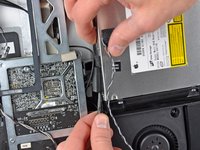
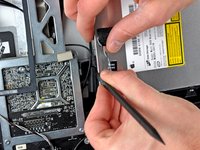
  • Insert a spudger between the optical drive connector and the optical drive.

  • Twist the spudger to slightly separate the optical drive connector from the optical drive, then use your fingers to pull the connector away from the drive.

first image

Add Note Edit Step 13  ¶ 

  • Lift the left edge of the optical drive slightly and pull it away from the right side of the outer case.

first image

Add Note Edit Step 14 — Optical Drive Fan  ¶ 

  • Carefully move the audio ribbon cable to reveal the optical drive fan connector hidden underneath.

  • Disconnect the optical drive fan by pulling its connector away from the socket on the logic board.

first image
thumb image 1
thumb image 2

Add Note Edit Step 15  ¶ 

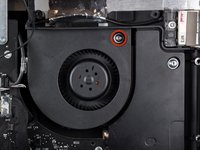
  • Remove the single T10 Torx screw securing the optical drive fan to the outer case.

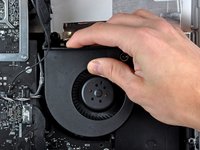
  • Pull the optical drive fan away from the outer case to lift it off the three plastic posts around its perimeter.

  • Carefully maneuver the optical drive fan out of the iMac, minding any cables that may get caught.

To reassemble your device, follow these instructions in reverse order.

For more information, check out the iMac Intel 27" device page.

Did you successfully follow this guide?

Notes Add Note Notes are offturn on