Introduction
This will overview the process to remove and replace the Cooling and Processing unit of the Apple G5. Due to design restrictions of the device it is difficult replace the just processors without permanently damaging the entire unit. So this portion of the guide will only overview removal of the entire unit.
What you need
-
-
-
The cooling fan unit is located on the bottom right of the Apple G5 Desktop.
-
-
-
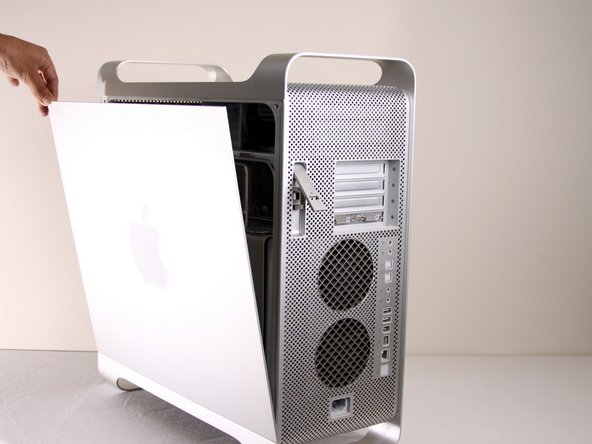
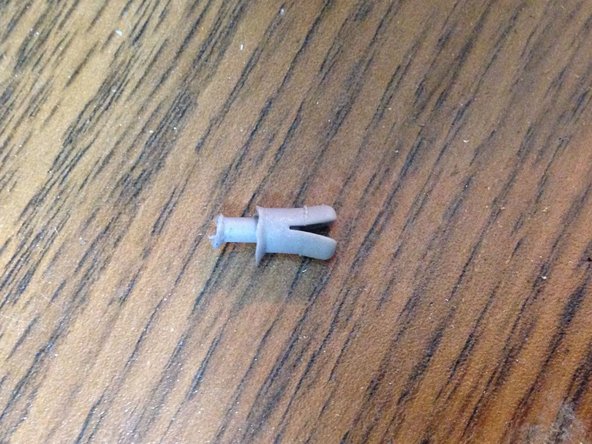
Remove the G5 metal cover from the processing/cooling unit of the computer. NOTE: Apple inserted a rather fragile plastic pin that inserts through the top divider shield and clips into a tab on the hidden ledge of this CPU shield. Removing this pin, certainly voided Mac's warranty - but more appropriate for now, voids most after-market insurance plans. A replacement pin (new) is hard to get ahold of, and very few are talented and patient enough to remove this pin without damaging it. Just something to keep in mind. If you have no warranty any longer or don't care, please continue...
-
Pull the metal plate to the left and outward to remove the plate from the processing/cooling unit.
-
-
-
Unplug the fan's power cable from the upper rightmost corner of the motherboard (connection J45). If there is a video card in place, carefully pull the cable plug down between the back edge of the video card and the motherboard. Note, the photo shows the unplugged cable and the area it plugs into outlined in yellow. No video card is shown in this photo.
-
-
-
Locate the Cooling Unit on the Apple G5.
-
Put the CPU case on its back with the opening facing up to make the next steps easier.
-
-
-
Unscrew 8 T10 screws from the cooling unit. NOTE: these screws are acctually allen keys. The prefered tool will be long handled allen keys. t10 are 2.74mm (closest allen key is 2.5 or 3mm) and t15 are 3.27mm(closest allen key is 3mm and 4mm). You may strip your tool or the actual screws themselves. Use a set of high quality long handled allen keys.
-
The screws will loosen but will not come out, they are designed to loosen the unit, but remain in place.
-
The last two images show another version of the LCS (out of the computer) in the G5 with off-center views to show the 8 screw holes.
-
-
-
Pull the cooling/processing unit straight up to prevent damage to logic board
-
The sleeves around the 6 screws may hold it in, if so just take a pair of needle nose pliers and gently squeeze the sleeves until it releases.
-
Pull the bottom, then side towards the bottom of the CPU case, first to move around the bottom coolant sleeve around the heat sinking bracket. *heat sinking bracket not in picture*
-
-
-
NOTE: Here are the standoffs without the cooling unit installed to make it easier to understand where the screws are located. Remove the bottom 2 standoffs so it is easier to remove the power supply.
-
Check the pin connections for any damage. All the pins highlighted in yellow should appear straight up and not appear bent. DON'T TOUCH THE PINS. A bent pin will result in your computer not powering on.
-






To reassemble your device, follow these instructions in reverse order.
To reassemble your device, follow these instructions in reverse order.
Cancel: I did not complete this guide.
57 other people completed this guide.



Team

Cal Poly, Team 5-8, Forte Winter 2010 Member of Cal Poly, Team 5-8, Forte Winter 2010
CPSU-FORTE-W10S5G8
7 Members
20 Guides authored
5 Comments
This is a great teardown/guide! you should email one of the iFixit staff members and have them post it so the whole community can see it!
I have a different cooling apparatus in my Quad Core than the one pictured here. It has a wider radiator on the left side and two black pumps on the right side. The pumps are elevated away from the CPUs. Nearest the CPUS is a grey plastic covering with Cooligy printed on it.
I can only find 6 of the 8 screws mentioned in STEP 15. The unit will not come out. If the 2 remaining screws are as pictured in STEP 18, then they would be directly under my radiator. Do I need to remove that too?
Kaesong,
I have the same problem with a G5 Dual 2.5 Quad core (version 2) LCS. I am about to loose it. Did you ever find out how to get the LCS off the mother or logic board? Please let me know.
Mark
castsmooth@yahoo.com
On the Delphi / Cooligy model the hex ball end screws behind radiator have got to come out following the crossbar there are 2 10 T that are flathead with no washer note that because they have to go back same way. Do not forget the Power Buss for processor the powerleads have to be disconnected because processor board is under them. The Delphi / Cooligy has 2 pumps and was the least successful implementation of the LCS. Panasonic later made one which was great and sold as a replacement for the Delphi / Cooligy for a replacement (THE BEST IMPLMENTATION) of the LCS. Hope this help battling on of these beast myself.....
@Edward, you are 100% mistaken about the Panasonic and Delphi / Cooligy LCSs: it was the OTHER way around: the early 2005 liquid-cooled systems are the ones that gave the G5 a bad fame of leakage, which used Panasonic radiators, which is the reason you almost never see 2.7GHz models that still live, while the late-2005 Quad replaced that with Delphi ones (both version 1 and 2).
Both version 1 and 2 are extremely reliable, which is why so many Quads still exist today (my own included), and most existant 2.7GHz G5 owners today, who are already so few, saved their machines precisely by replacing the faulty Panasonic LCS one with a Delphi one (same one found in the Quads).
People debate which version (1 or 2) is better, too, but there’s no existent reliable report so far. But it’s speculated version 2, as the numbering suggests, is a revision for even further reliability (perhaps by evening out the cooling for each processor contained by having 2 pipes).
