Introduction
Use this guide to replace your MacBook Pro's RAM.
What you need
-
-
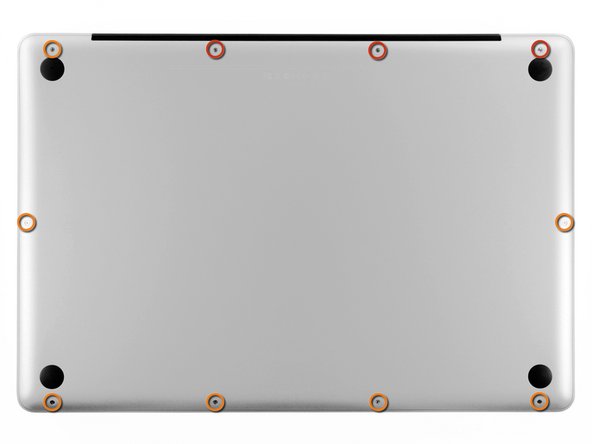
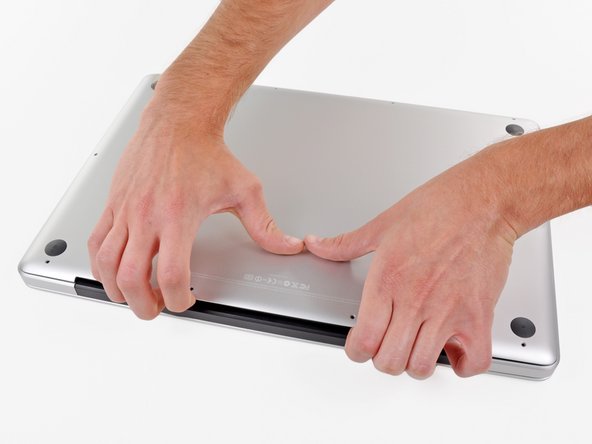
Remove the following ten screws securing the lower case to the upper case:
-
Three 13.5 mm Phillips screws.
-
Seven 3 mm Phillips screws.
-
-
-
-
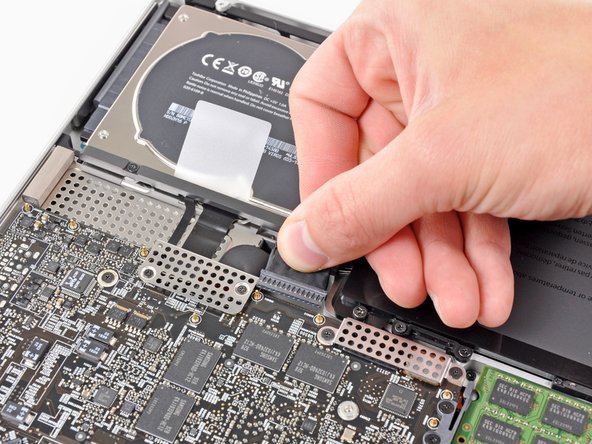
If present, grab the plastic tab attached to the battery connector and pull it toward the front edge of the device. For Late-2011 models the battery connector will not have a tab and is simply a plug that inserts straight down into the motherboard--to remove pry the plug straight up.
-
-
-
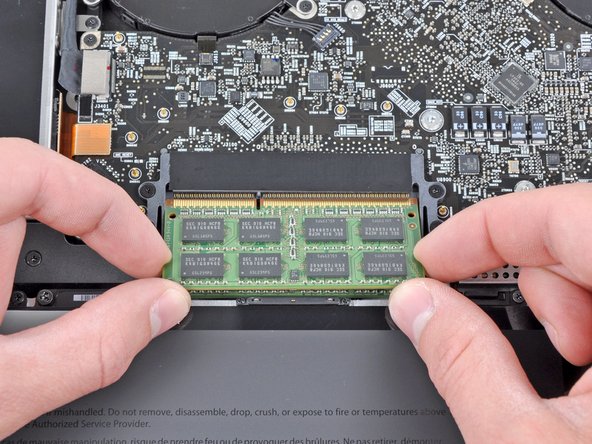
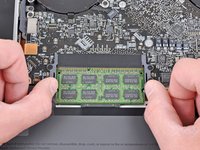
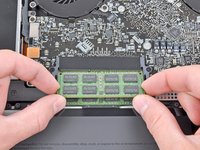
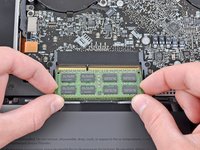
Release the tabs on each side of the RAM chip by simultaneously pushing each tab away from the RAM.
-
After the RAM chip has popped up, pull it straight out of its socket.
-




To reassemble your device, follow these instructions in reverse order.
Cancel: I did not complete this guide.
133 other people completed this guide.


9 Guide Comments
Thank you iFixIt. Your tutorial gave me confidence to move forward and get inside my computer. I agree with bhodges2, a great opportunity to clean. I'd keep a can of compressed air handy next time. I would also use a separate compartment for each screw. I treated the case like a wheel, lightly tightening each first. Still, the 3mm screws do not seem not entirely interchangeable. Mixing them around, not forcing anything, eventually worked out.
Folded masking tape to make two sided.Made rectangle like shape of Mac.Put the screws on the tape in order, so I would not mix screws or loose them.That process took longer than installation. Done in 10 mins..No need to remove battery.Put finger on metal stated by Apple.Now going to add 16gigs more in my IMac.Thanks for the illustrations Andrew !!!!
Late 2011 Macbook Pro 17" A1297 2.5GHz i7-2860QM supports 1600MHz DDR3 RAM according to Intel's Ark (http://ark.intel.com/products/53476/Inte...), faster than what Apple suggests. I tried 2x8GB 1600MHz SODIMMs (opposite 2x16GB maximum as supported by Intel, yet cannot find the modules anywhere) and it works. The machine is a lot faster compared to the default 1333MHz RAM.
