Introduction
Upgrade your hard drive for more storage space.
What you need
-
-
Remove the following ten screws securing the lower case to the upper case:
-
Seven 3 mm Phillips screws.
-
Three 13.5 mm Phillips screws.
-
-
Tool used on this step:P6 Pentalobe Screwdriver 2009 15" MacBook Pro Battery$5.49
-
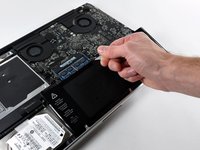
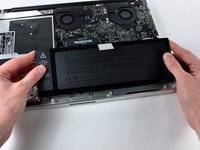
Remove the two 5-Point Pentalobe screws along the top edge of the battery.
-
-
-
-
Remove the two Phillips screws securing the hard drive bracket to the upper case.
-
Lift the the retaining bracket out of the upper case.
-
-
-
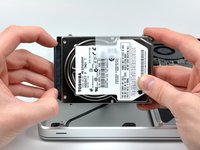
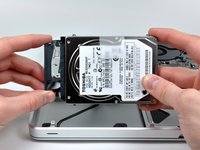
Remove two T6 Torx screws from each side of the hard drive (four screws total).
-






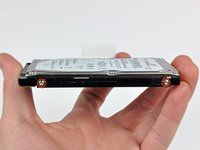
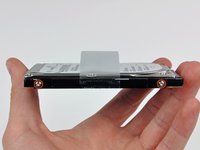
To reassemble your device, follow these instructions in reverse order.
Cancel: I did not complete this guide.
210 other people completed this guide.


13 Guide Comments
Piece of cake! Didn't have the 5-point, so I left the battery alone. Finder says I have 550G of free space!
Very Easy. Don't need to remove the battery.
Hi. Does myy macBook Pro (15" Mid 2009) support Solid State Drive? I upgraded the memory with 8 gigabites, but it´s still a bit slow. I hope someone can answer soon.
Yes you can. Look up crucial.com
kris -
