Installing MacBook Pro 15" Unibody 2.53 GHz Mid 2009 Display Assembly

  • Add Note x
  • x 5

Use this guide to replace your MacBook Pro's display assembly.

first image

Add Note Edit Step 1 — Lower Case  ¶ 

  • Remove the following ten screws securing the lower case to the upper case:

    • Seven 3 mm Phillips screws.

    • Three 13.5 mm Phillips screws.

first image

Add Note Edit Step 2  ¶ 

  • Using both hands, lift the lower case near the vent to pop it off two clips securing it to the upper case.

  • Remove the lower case and set it aside.

first image

Add Note Edit Step 3 — Battery  ¶ 

  • Three special five-point Torx screws secure the battery to the upper case. They can be removed with this special driver.

  • If you don't have the special 5-point tool, a common 1.5 mm flathead screwdriver can be used in a pinch. Be sure the head of your flathead screwdriver fits snugly across two of the five "points" of the screw head before trying to break the screw free, as a loose fit will easily strip the screw head. If the head of your screwdriver fits too loosely, find a bigger bit and file it down until it fits snugly before proceeding.

  • You do not necessarily have to follow steps 3-7 to remove the battery in order to replace the hard drive. However it is recommended to remove all power sources from electronics before working on them.

first image

Add Note Edit Step 4  ¶ 

  • Remove the two exposed five-point Torx security screws along the top edge of the battery.

first image

Add Note Edit Step 5  ¶ 

  • Use the tip of a spudger to bend back the finger of the "Warning: Do not remove the battery" sticker while you remove the five-point Torx security screw hidden underneath.

first image
thumb image 1
thumb image 2

Add Note Edit Step 6  ¶ 

  • Lift the battery by its plastic pull tab and slide it away from the long edge of the upper case.

  • Do not try to completely remove the battery just yet.

first image

Add Note Edit Step 7  ¶ 

  • Tilt the battery back enough to access the battery cable connector.

  • Pull the battery cable connector away from its socket on the logic board and remove the battery from the upper case.

first image
thumb image 1
thumb image 2

Add Note Edit Step 8 — Display Assembly  ¶ 

  • Apple sticks a small strip of clear plastic with adhesive applied to one side to the logic board behind the camera cable connector to keep it in its socket. When moving it out of the way, be sure not to break any surface-mount components off the logic board.

  • Hold the end of the cable retainer down with one finger while you use the tip of a spudger to slightly lift the other end and rotate it away from the camera cable connector.

  • Pull the camera cable away from its socket on the logic board.

  • Pull the connector parallel to the face of the logic board, not straight up.

first image

Add Note Edit Step 9  ¶ 

  • Peel the camera cable off the adhesive securing it to the optical drive.

first image
thumb image 1
thumb image 2

Add Note Edit Step 10  ¶ 

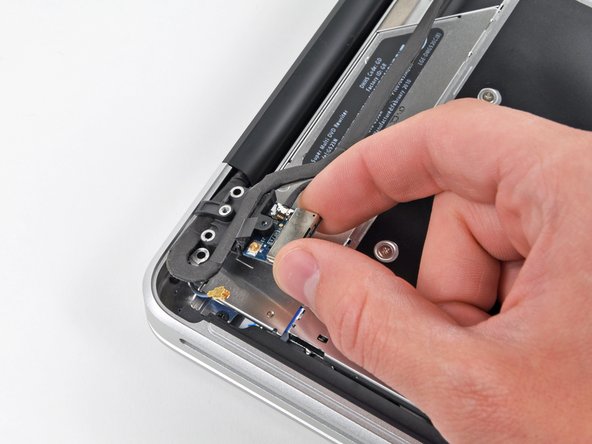
  • This step is only required if you have an anti-glare display. If you have a glossy display, skip to step 12.

  • Disconnect the Bluetooth cable by pulling the male end straight away from its socket.

  • Pull the connector parallel to the face of the logic board, not straight up.

  • Use the flat end of a spudger to pry the Bluetooth antenna cable from its socket on the board.

first image
thumb image 1
thumb image 2

Add Note Edit Step 11  ¶ 

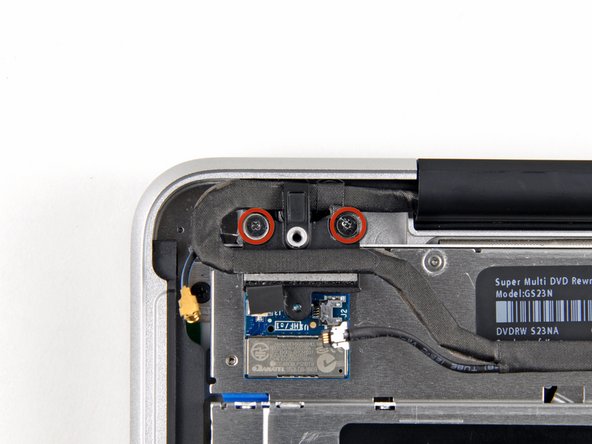
  • This step is only required if you have an anti-glare display.

  • Remove the two 8 mm Phillips screws securing the Bluetooth/camera cable retainer to the upper case.

  • One of the screws may remain captive in the Bluetooth/camera cable ground loop. If replacing the display, be sure to transfer this screw to the new unit.

  • Lift the Bluetooth board/cable retainer assembly out of the upper case.

first image
thumb image 1
thumb image 2

Add Note Edit Step 12  ¶ 

  • This step is only for glossy display machines. If you have an anti-glare display, skip this step.

  • Remove the two 8 mm Phillips screws securing the camera cable retainer to the upper case.

  • One of the screws may remain captive in the camera cable ground loop. If replacing the display, be sure to transfer this screw to the new unit.

  • Lift the camera cable retainer out of the upper case.

first image
thumb image 1
thumb image 2

Add Note Edit Step 13  ¶ 

  • Remove the single 7 mm Phillips screw securing the display data cable retainer to the upper case.

  • This screw may remain captive in the display data cable ground loop. If replacing the display, be sure to transfer this screw to the new unit.

  • Remove the display data cable retainer from the upper case.

first image
thumb image 1
thumb image 2

Add Note Edit Step 14  ¶ 

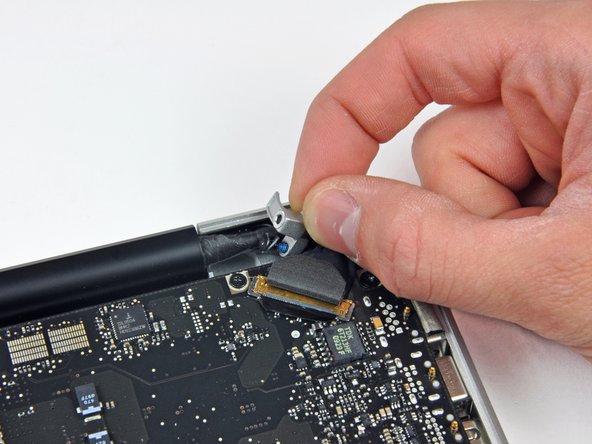
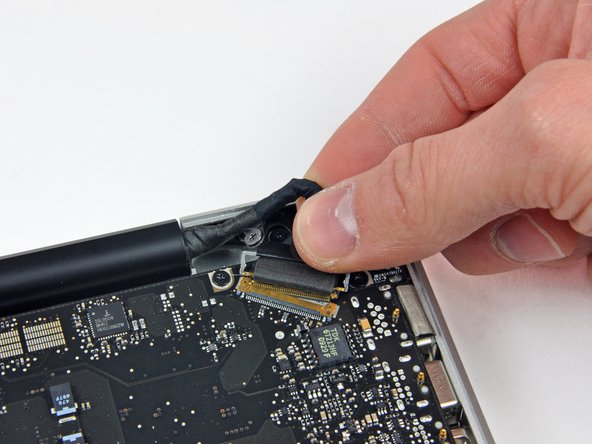
  • Grab the plastic pull tab secured to the display data cable lock and rotate it toward the DC-in side of the computer.

  • Pull the display data cable connector straight away from its socket.

  • Make sure to pull the connector parallel to the face of the logic board, not straight up from its socket.

first image
thumb image 1
thumb image 2

Add Note Edit Step 15  ¶ 

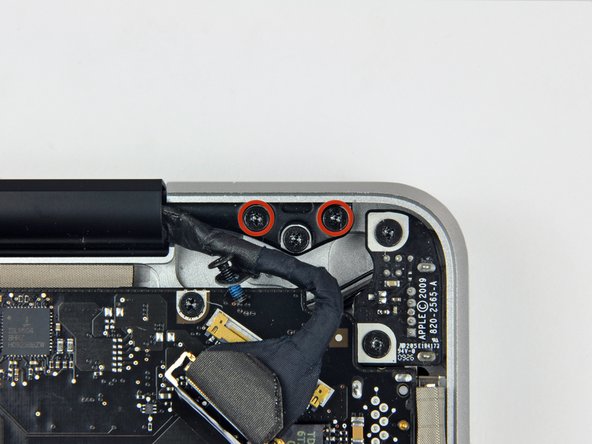
  • Remove the outer two T6 Torx screws securing both display hinges to the upper case (four screws total).

first image

Add Note Edit Step 16  ¶ 

  • Open your MacBook so the display is perpendicular to the upper case.

  • Place your opened MacBook on a table as pictured.

  • While holding the display and upper case together with your left hand, remove the remaining 6.5 mm Torx screw from the lower display bracket.

first image

Add Note Edit Step 17  ¶ 

  • Be sure to hold the display and upper case together with your left hand. Failure to do so may cause the freed display/upper case to fall, potentially damaging each component.

  • Remove the last remaining 6 mm T6 Torx screw securing the display to the upper case.

first image
thumb image 1
thumb image 2
thumb image 3

Add Note Edit Step 18  ¶ 

  • Grab the upper case with your right hand and rotate it slightly toward the top of the display so the upper display bracket clears the edge of the upper case.

  • Rotate the display slightly away from the upper case.

  • Lift the display up and away from the upper case, minding any brackets or cables that may get caught.

To reassemble your device, follow these instructions in reverse order.

For more information, check out the MacBook Pro 15" Unibody 2.53 GHz Mid 2009 device page.

Did you successfully follow this guide?

Notes Add Note Notes are offturn on