Installing MacBook Pro 15" Core 2 Duo Models A1226 and A1260 Left I/O Board

This guide has more recent changes. Switch to the latest unverified version.

  • Add Note x
  • x 21

Provides power to the machine and includes all ports on the left side of the machine.

Sections
Tools
first image
thumb image 1
thumb image 2

Add Note Edit Step 1 — Battery  ¶ 

  • Use your fingers to push both battery release tabs away from the battery, and lift the battery out of the computer.

first image
thumb image 1
thumb image 2

Add Note Edit Step 2 — RAM Shield  ¶ 

  • Remove the three identical 2mm Phillips screws from the memory door.

  • Lift the memory door up enough to grip it and slide it toward you, pulling it away from the casing.

first image

Add Note Edit Step 3 — Upper Case  ¶ 

  • Remove the two 2.8 mm Phillips screws in the battery compartment near the latch.

first image

Add Note Edit Step 4  ¶ 

  • Remove the following 6 screws:

    • Two 10 mm T6 Torx screws on either side of the RAM slot.

    • Four 14.5 mm Phillips screws along the hinge.

first image

Add Note Edit Step 5  ¶ 

  • Remove the four 3.2 mm Phillips screws on the port side of the computer.

first image

Add Note Edit Step 6  ¶ 

  • Rotate the computer 90 degrees and remove the two 3.2 mm Phillips screws from the rear of the computer.

first image

Add Note Edit Step 7  ¶ 

  • Rotate the computer 90 degrees again and remove the four 3.2 mm Phillips screws from the side of the computer.

first image
thumb image 1
thumb image 2
thumb image 3

Add Note Edit Step 8  ¶ 

  • Do not yank the upper case off quickly. The case is attached to the logic board via a ribbon cable.

  • Lift up at the rear of the case and work your fingers along the sides, freeing the case as you go. Once you have freed the sides, you may need to rock the case up and down to free the front of the upper case.

  • There are four plastic clips above the DVD slot, and another above and to the left of the IR sensor. These clips can be very difficult to disengage without prying. They can also be difficult to re-engage during reassembly.

first image
thumb image 1
thumb image 2

Add Note Edit Step 9  ¶ 

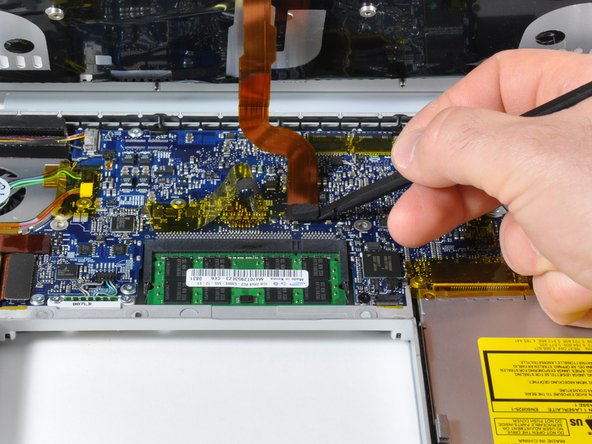
  • Disconnect the trackpad and keyboard ribbon cable from the logic board, removing tape as necessary.

  • Note: It is possible to replace the hard drive without disconnecting the keyboard from the chassis, but it will need to be held upright to keep it out of the way, while still allowing you both hands to work on the drive removal. Be careful when removing the keyboard-trackpad ribbon cable to ensure that the rear of the upper case is disengaged from the area near the hinge. It is easy to accidentally bend the screw receivers on either side of the keyboard.

    • Remove the upper case.

first image

Add Note Edit Step 10 — Left Fan  ¶ 

  • Use a spudger to disconnect the iSight cable from the logic board by sliding the cable to the left and out of its connector.

first image
thumb image 1
thumb image 2

Add Note Edit Step 11  ¶ 

  • Disconnect the left fan and left ambient light sensor cables by placing a spudger beneath each cable and lifting up.

    • Pry up from beneath the wires.

  • Peel up the left ambient light sensor cable from above the left fan, removing tape as necessary.

first image
thumb image 1
thumb image 2

Add Note Edit Step 12  ¶ 

  • Remove the following 3 screws:

    • One 6.2 mm black T6 Torx screw from the right side of the fan.

    • Two 9.4 mm silver T6 Torx screws from the left side of the fan.

  • Lift the fan up; carefully peel up the tape that secures the fan to the heat sink as you go.

first image

Add Note Edit Step 13 — ExpressCard Cage  ¶ 

  • Disconnect the hard drive and ExpressCard connectors from the left side of the logic board.

first image

Add Note Edit Step 14  ¶ 

  • Disconnect the two antenna cables attached to the Airport Extreme card.

  • Apple was kind enough to include a label showing where each color antenna cable plugs in - just make sure to look at this when reconnecting the antenna cables.

first image

Add Note Edit Step 15  ¶ 

  • Remove the single black T6 Torx screw located just above the Airport Extreme card.

first image
thumb image 1
thumb image 2
thumb image 3

Add Note Edit Step 16  ¶ 

  • Lift the Airport Extreme card up and slide it out of its connector.

  • Deroute the Airport antenna cables from their channel in the left speaker.

  • Peel up the orange hard drive cable from above the ExpressCard cage.

first image
thumb image 1
thumb image 2

Add Note Edit Step 17  ¶ 

  • Use a spudger to disconnect the speaker cable from the corner of the left I/O board.

  • Lift the left speaker assembly out of its housing and place it in the area previously occupied by the left fan.

first image

Add Note Edit Step 18  ¶ 

  • Disconnect the large gray and black power cable from the left I/O board.

first image

Add Note Edit Step 19  ¶ 

  • Use a spudger to disconnect the inverter cable from the corner of the left I/O board.

first image
thumb image 1
thumb image 2

Add Note Edit Step 20  ¶ 

  • Remove the following 5 screws/standoffs:

    • Four black T6 Torx screws securing the left I/O board to the lower case.

    • One 4 mm standoff located between the audio jacks.

  • Lift up the right side of the left I/O board and slide it out of the computer.

first image
thumb image 1
thumb image 2

Add Note Edit Step 21  ¶ 

  • Remove the following four screws:

    • One 3.1 mm at upper right.

    • One 4.9 mm at upper left.

    • Two 2.2 mm along the bottom.

  • Lift the left I/O board off the ExpressCard cage.

first image

Add Note Edit Step 22 — Left I/O Board  ¶ 

  • Disconnect the short left I/O board cable.

  • Left I/O board remains.

To reassemble your device, follow these instructions in reverse order.

For more information, check out the MacBook Pro 15" Core 2 Duo Models A1226 and A1260 device page.

Did you successfully follow this guide?

Notes Add Note Notes are offturn on