Introduction
Replacing a defective fan will keep your laptop running cool.
What you need
-
-
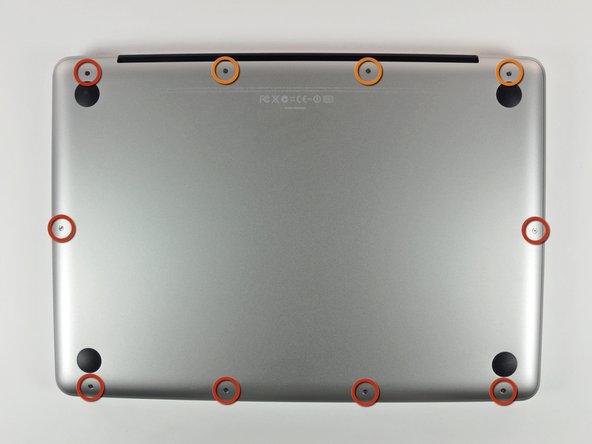
Remove the following 10 screws securing the lower case to the MacBook Pro 13" Unibody:
-
Seven 3 mm Phillips screws.
-
Three 13.5 mm Phillips screws.
-
-
-
Slightly lift the lower case and push it toward the rear of the computer to free the mounting tabs.
-
-
-
-
Use the flat end of a spudger to lift the battery connector up out of its socket on the logic board.
-
-
-
Use a spudger to pry the fan connector out of its seat, and straight up off the logic board.
-


To reassemble your device, follow these instructions in reverse order.
To reassemble your device, follow these instructions in reverse order.
Cancel: I did not complete this guide.
106 other people completed this guide.


3 Comments
I upgraded my macbook pro 13" mid 2009:
replaced optical drive with 250GB SSD.
replaced 2x2GB RAM with 2x4GB.
replaced old battery..
Things work, except the fan never slows down and makes a lot of noise.
The fan start at full speed as soon as I click the power button, even before the screen lights up.
Please help.
Also the bluetooth and camera stopped working :(
When I reapplied thermal paste to my heat sink ~18 month ago, I had issues reconnecting the camera cable (see Step 10 MacBook Pro 13" Unibody Mid 2009 Heat Sink Replacement). All of the symptoms you described were exactly those I saw when my camera cable was not properly reconnected. Perhaps you should check here.
If you didn't get a thermal sensor for your ssd your Mac fan will run at full speed 24/7 until you get the sensor
Jake / -
