Introduction
Screen have no backlight? Replace the inverter.
What you need
-
-
Remove the three evenly-spaced Phillips screws from along the rear wall of the battery compartment.
-
-
-
Remove the following 3 screws:
-
One 11 mm Phillips #00 in the middle of the case.
-
Two 14.5 mm Phillips #00.
-
-
-
Starting near the display and working around to the front of the computer, pry up on the upper case. It is held with clips on the right above the optical drive. These will release with some firm lifting pressure.
-
Be careful when prying up the upper case. It's very easy to slice open a fingertip and thus provide the blood sacrifice the Mac gods sometimes require of those who insist on doing their own repairs.
-
-
-
Grasp the white plastic tab attached to the hard drive and pull it to the left, removing the hard drive from the computer.
-
-
-
-
Remove the following 3 screws:
-
Two 3 mm Phillips near the right speaker.
-
One 6 mm Phillips threaded through a hole in a plastic finger above the subwoofer.
-
-
-
Use a spudger to carefully disconnect the microphone cable from the logic board. You'll want to work from side to side, and slowly wiggle the connector out of its socket.
-
-
-
Hold the display with one hand while removing the screws from the left hinge mount.
-
Remove the following 3 screws from the left hinge mount:
-
One 6 mm smaller diameter Phillips from the right side.
-
One 6 mm larger diameter Phillips from the middle.
-
One 10 mm Phillips from the left side.
-
Lift the left hinge mount out of the computer.
-
-
Tool used on this step:Plastic Cards$2.99
-
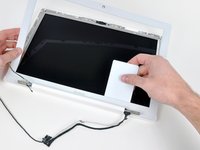
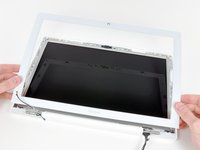
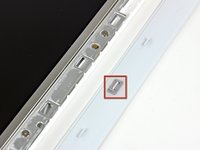
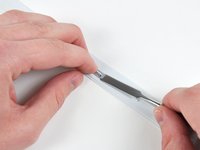
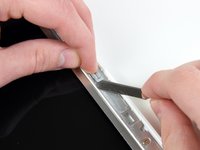
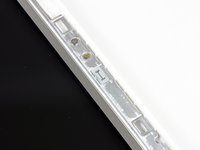
Use a thin plastic card to release the tabs and their clips holding the front display bezel to the display assembly. There are five tabs along the left side of the display bezel.
-
-
-
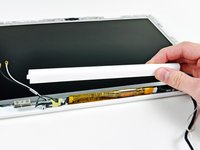
While holding the display down with one hand, use your other hand to lift the left end of the clutch cover off the clutch hinge and guide the inverter cable and AirPort cables through the gap in the clutch cover. If the cables snag on the two hooked tabs on the inside end of the clutch cover, free them carefully.
-
-
-
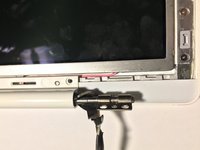
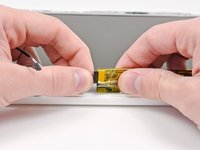
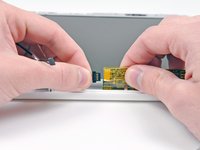
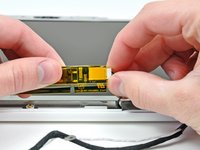
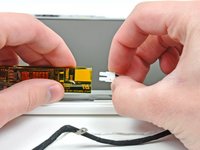
Slightly lift the newly-revealed inverter board out of its housing and disconnect the black inverter cable from the left end of the board.
-













To reassemble your device, follow these instructions in reverse order.
Cancel: I did not complete this guide.
43 other people completed this guide.


3 Guide Comments
while this is the offical way to replace an inverter, those of us at the repair depot quickly learned a much faster why that only involves removing the display bezel and clutch cover.
remove display bezel like normal.
remove the 3 screwa from the clutch cover.
pry lose the clutch cover while the lid is open and then some more when it is closed to get it to pop off.
replace inverter and then carefully replace the clutch cover in the reverse of before.
you may need to clip off the top parts of the tabs inside the clutch cover to get it to replace easier, these serve no purpose and can be safely snipped if needed
we had a few thousand macbooks on hold because we had ran out of stock on the inverters that we were forced to come up with this method to get them all repaired in 1 day when the shippment of inverters finally came in after 2 months of being out of stock. this turned a 30-45 minute fix(including our documentation) into a 5-10 minute fix
Not necessary to remove optical drive and all the cables to replace the inverter
Thanks for sharing your thoughts. This is really informative post.
