Installing Mac mini (PowerPC) Logic Board

  • Author: iRobot
  • Difficulty: Difficult
  • Add Note x
  • x 4

The main board of the machine.

Sections
Files
first image

Add Note Edit Step 1 — Upper Case  ¶ 

  • You can skip this step if you bought your putty knife from iFixit. Putty knives purchased from iFixit come with pre-ground edges.

  • You'll need a putty knife in order to open the case. A 1.5 inch thin putty knife will work well, but you'll want to grind the edge down. Rub the putty knife's short edge back and forth on a sheet of all purpose rough grit sandpaper (100 grit will work fine) until it attains a beveled edge.

first image

Add Note Edit Step 2  ¶ 

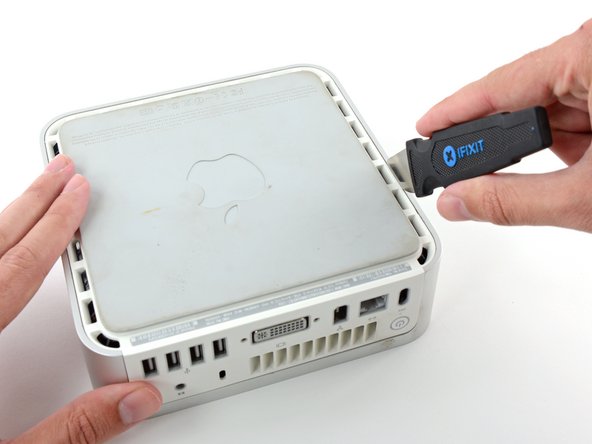
  • Place the mini upside down on a cloth and turn it so that the apple leaf faces you.

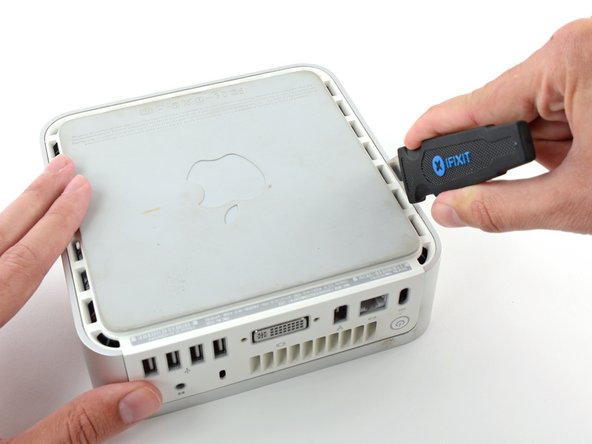
  • Insert the putty knife into the seam between silver outer case and the white plastic. If you have trouble, you can insert the putty knife at an angle or grind the knife's edge down further. Push the blade down until you meet firm resistance (roughly 3/8 of an inch).

first image

Add Note Edit Step 3  ¶ 

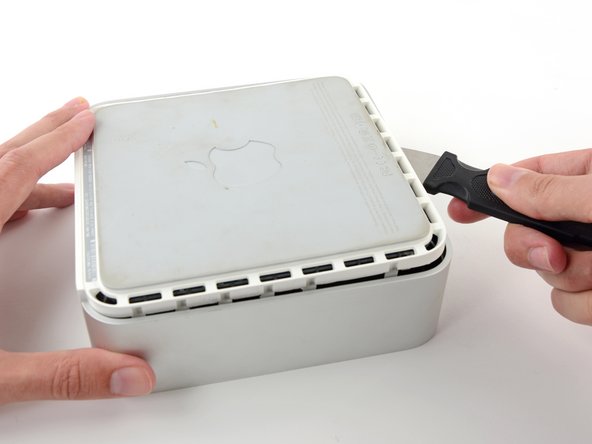
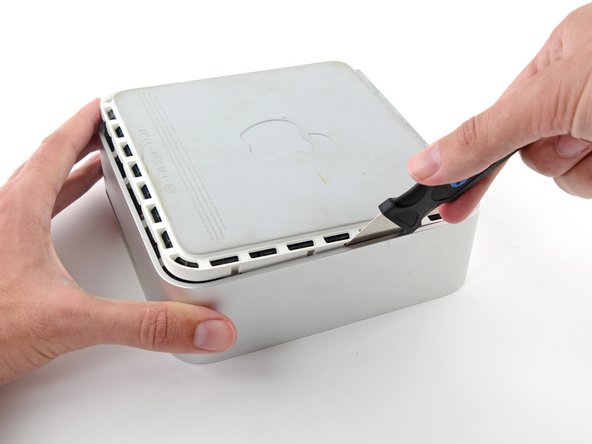
  • Pull directly back on the putty knife until the white plastics pops up. Don't worry about bending the putty knife too far or breaking the plastic tabs. Just continue to pull back on the putty knife until the case pops free.

  • Repeat this procedure on the other side.

first image

Add Note Edit Step 4  ¶ 

  • Grasp the white lower case beneath the vent and rotate it up and away from you, pulling it free of the upper case.

first image

Add Note Edit Step 5 — Mass Storage Unit  ¶ 

  • If your mini does not have Airport installed, then skip this step.

  • Grasp the Airport antenna board and lift it off of the two plastic posts holding it in place. You may need to push back the black plastic tab jutting through the lower left corner of the board.

first image

Add Note Edit Step 6  ¶ 

  • Remove the yellow tape securing the power button cable to the black plastic framework.

first image

Add Note Edit Step 7  ¶ 

  • Remove the three black Phillips screws securing the plastic framework to the logic board and lower case.

first image

Add Note Edit Step 8  ¶ 

  • Grasp the optical drive and mass storage unit in one hand and lift up enough so that you can see beneath it.

first image

Add Note Edit Step 9  ¶ 

  • If your mini has neither an Airport card nor a Bluetooth board, you can simply lift the optical drive up and away. Otherwise, you need to disconnect the Airport and/or Bluetooth antenna cables first.

  • With your free hand, pull the Bluetooth cable up from Bluetooth board and unplug the Airport antenna cable from the right of the Airport card. Caution: both of these connections are very small. When re-assembling unit after repair, you may want to remove the two screws holding the airport card to the assembly and lift the card up and out to re-attach the cables.

first image

Add Note Edit Step 10 — Modem  ¶ 

  • Remove the two silver Phillips screws from the corners of the modem board.

first image

Add Note Edit Step 11  ¶ 

  • Pull the modem up from its connector. If it sticks, just wiggle it back and forth a bit as you pull up.

first image

Add Note Edit Step 12  ¶ 

  • Disconnect the RJ-11 cable from the back of the modem.

first image

Add Note Edit Step 13 — Logic Board  ¶ 

  • Remove the two silver Phillips screws from the corners of the wireless interface board.

first image

Add Note Edit Step 14  ¶ 

  • Grasp the board at the front and back, and lift up on the front until the board pulls free of its connector.

first image

Add Note Edit Step 15  ¶ 

  • Pull back the black plastic latches on either end of the RAM chip.

first image

Add Note Edit Step 16  ¶ 

  • Grasp the RAM chip at the end opposite of the back ports, and pull directly up.

first image

Add Note Edit Step 17  ¶ 

  • Push the PRAM battery in and pull it up. You'll have to push the battery in further than you'd expect in order to get it to pop free.

  • When inserting the new battery, make sure the side with writing along the edges faces the black plastic holder. You should also insure that the metal connectors make contact with the battery (you can bend them forward if they do not).

first image

Add Note Edit Step 18  ¶ 

  • The cables you're about to remove are very fragile - do not pull directly on the wires. Instead, try to pry up the connector directly, using your fingernails or a small flathead screwdriver if necessary.

  • Disconnect the power button and sleep light cables from the logic board.

first image

Add Note Edit Step 19  ¶ 

  • Remove the single black Phillips screw from the front left corner of the logic board.

first image

Add Note Edit Step 20  ¶ 

  • Use one hand to slide a spudger underneath the logic board and the other to pull back on the black sleep light unit. Lift up the with the spudger to free the logic board from the lower case and use both hands to slide the logic board toward you.

To reassemble your device, follow these instructions in reverse order.

For more information, check out the Mac mini (PowerPC) device page.

Did you successfully follow this guide?

Notes Add Note Notes are offturn on