Introduction
Upgrade your hard drive for more storage capacity.
What you need
Video Overview
-
-
Power down your Mac mini, disconnect all of the cables, and flip it over.
-
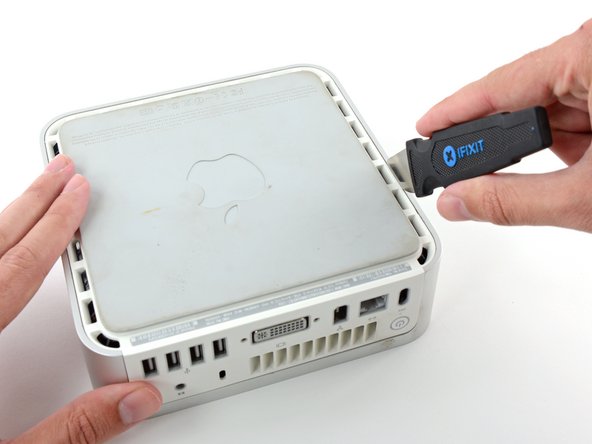
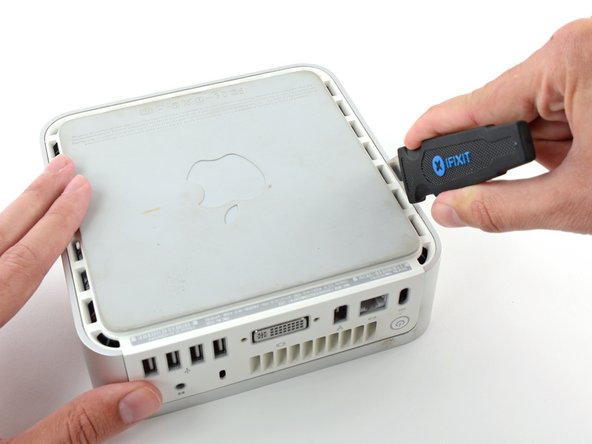
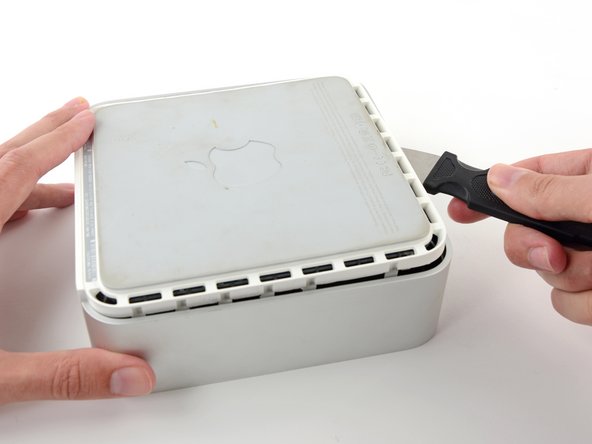
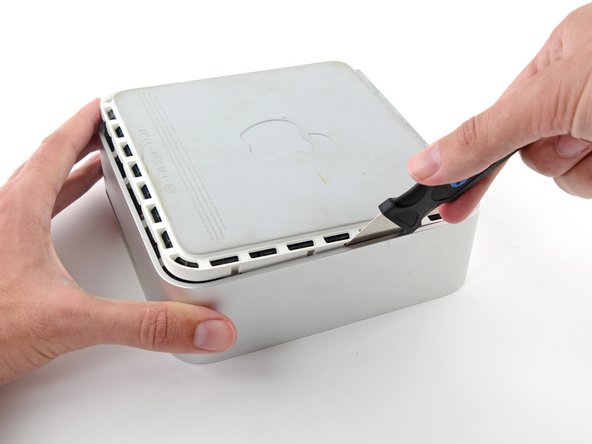
Insert the Jimmy into the crack between the aluminum top housing and the plastic lower housing.
-
The Jimmy should reach a stop about 3/8" down.
-
-
-
Slightly squeeze the two retaining arms toward each other and lift the AirPort antenna off its post.
-
-
-
-
Remove the two Phillips screws securing the side of the hard drive to the internal frame.
-






To reassemble your device, follow these instructions in reverse order.
To reassemble your device, follow these instructions in reverse order.
Cancel: I did not complete this guide.
544 other people completed this guide.


16 Comments
I seemed to succeed - until I discovered my optical drive had broken. Disks do not mount, after some tries they eject. There was a LOT of dust inside my Mini, I think some got in the optical drive. A cleaning DVD and compressed gas didn't fix it. I wonder if it would be wise to seal the opening to the optical drive -- certainly before cleaning.
This was a failure for me, even though the memory and drive change went well.
Can't fault this guide.
* if you don't have a putty knife & you don't mind some scratches, a thin butter knife will do the trick for getting the case off.
*if you plan to replace hdd with an ssd - you may need to rejig some of the internal wires that run around the edges of the hdd/ssd: after I installed the ssd, and returned the wires to the tight track around the side and socket port end of the ssd, and turned the machine back on, there was a high pitch interference noises coming out the internal speaker every time the drive was active.
The solution: make sure the speaker wire isn't where it's *supposed* to be! There are three sets of wires, include the speaker pair. I reversed the positioning of these with respect to the SSD, i.e. I moved the speaker pair to be furthest away from the SSD, and *didn't* tuck them back in under the plastic lip beside the ssd connector port. I turned it back on, and no more high frequency whining whenever the drive is active
I upgraded my 2007 A1176 Mac Mini with a 2 TB M9T drive that I broke out of Seagate Backup Plus Ext. HD and increased my RAM from 2 GB to 3 GB! Success!
Be very careful with the audio cable removal the ZIF cable lock is VERY DELICATE!!!
