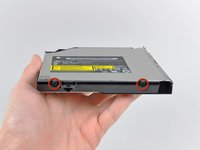
Mac mini Model A1347 Optical Drive Replacement

Replace your mini's super multi DVD rewriter.

  • Add Note x
  • x 8

Use this guide to completely replace your optical drive. Replacing the logic board requires removal of the logic board along with most other components in your mini. Also, reattaching the thermal sensors may require rubber cement.

Sections
first image
thumb image 1
thumb image 2

Add Note Edit Step 1 — Bottom Cover  ¶ 

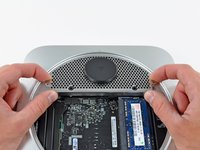
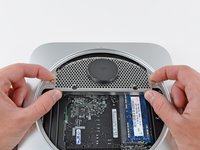
  • Place your thumbs in the depressions cut into the bottom cover.

  • Rotate the bottom cover counter-clockwise until the white dot painted on the bottom cover is aligned with the ring inscribed on the outer case.

first image

Add Note Edit Step 2  ¶ 

  • Tilt the mini enough to allow the bottom cover to fall away from the outer case.

  • Remove the bottom cover and set it aside.

first image

Add Note Edit Step 3 — Fan  ¶ 

  • Remove the two 11.3 mm T6 Torx screws securing the fan to the logic board near the antenna plate.

first image

Add Note Edit Step 4  ¶ 

  • Lift the ear of the fan nearest the RAM up off the standoff secured to the outer case.

first image

Add Note Edit Step 5  ¶ 

  • Lift the fan out of the mini for enough clearance to access its connector.

  • Carefully pull the fan cables upward to lift the fan connector up out of its socket on the logic board.

  • Remove the fan.

first image

Add Note Edit Step 6 — Cowling  ¶ 

  • Remove the single 3.5 mm T6 Torx screw securing the cowling to the heat sink.

first image

Add Note Edit Step 7  ¶ 

  • Lift the cowling from the end nearest the antenna plate.

  • Rotate the cowling away from the outer case and remove it from the mini.

first image

Add Note Edit Step 8 — Antenna Plate  ¶ 

  • Remove the following screws securing the antenna plate to the mini:

    • Two 6.6 mm T8 Torx screws

    • Two 5.0 mm T8 Torx or 2.0 mm Hex screws (either will work)

first image
thumb image 1
thumb image 2

Add Note Edit Step 9  ¶ 

  • Slightly lift the antenna plate from the end closest to the RAM.

  • Carefully pull the antenna plate straight away from the circular rim of the outer case.

  • Do not remove the antenna plate yet. It is still attached to the AirPort/ Bluetooth board.

first image

Add Note Edit Step 10  ¶ 

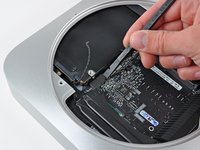
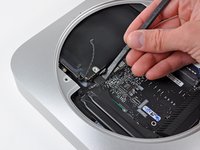
  • Use the tip of a spudger to carefully pry the antenna connector up off the AirPort/Bluetooth board.

first image

Add Note Edit Step 11  ¶ 

  • Remove the antenna plate from the mini.

first image

Add Note Edit Step 12 — Logic Board  ¶ 

  • Remove the following three screws:

    • One 5.0 mm T8 Torx or 2.0 mm Hex screw (either will work)

    • One 16.2 mm T6 Torx screw

    • One 26 mm T6 Torx standoff

first image
thumb image 1
thumb image 2

Add Note Edit Step 13  ¶ 

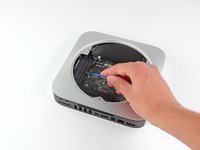
  • Carefully pull the wires for both hard drive thermal sensors upward to lift their connectors up and out of the sockets on the logic board.

first image
thumb image 1
thumb image 2

Add Note Edit Step 14  ¶ 

  • Use the flat end of a spudger to pry both the hard drive and optical drive connectors up out of their sockets on the logic board.

first image

Add Note Edit Step 15  ¶ 

  • To disconnect the optical drive thermal sensor, pinch its cables between your thumb and a spudger and pry the spudger upward to lift the connector up and out of its socket on the logic board.

first image

Add Note Edit Step 16  ¶ 

  • Use the tip of a spudger to lift the IR sensor connector up and out of its socket on the logic board.

first image
thumb image 1
thumb image 2
thumb image 3

Add Note Edit Step 17  ¶ 

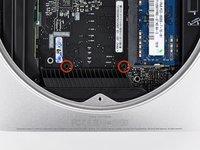
  • To remove the logic board, two cylindrical rods must be inserted into the holes highlighted in red. Inserting instruments into any logic board holes other than the ones highlighted in red may destroy the logic board.

  • Insert a Mac Mini Logic Board Removal Tool into the two holes highlighted in red. Be sure it makes contact with the outer case below the logic board before proceeding.

  • If you don't have a Logic Board Removal Tool handy, you can use two tools having a maximum diameter of 2.5 mm instead. Just insert one into each of the highlighted holes.

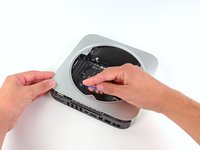
  • Carefully pull the tool toward the I/O board. The logic board and I/O board assembly should slightly slide out of the outer case.

  • Cease prying when the I/O board is visibly separated from the outer case. Remove the Mac Mini Logic Board Removal tool.

first image

Add Note Edit Step 18  ¶ 

  • Simultaneously push the two plastic clips on the far left and right sides of the I/O board toward the middle of the I/O board and pull the I/O board away from the outer case.

first image

Add Note Edit Step 19  ¶ 

  • Pull the I/O board/logic board assembly out of the outer case enough to access the power connector.

  • Use a pair of tweezers to disconnect the power cable from the logic board.

  • Pull the power cable connector toward the optical drive opening.

first image

Add Note Edit Step 20  ¶ 

  • Carefully slide the logic board assembly out of the mini, minding any cables that may get caught.

first image

Add Note Edit Step 21 — Power Supply  ¶ 

  • Remove the 7.9 mm T6 Torx screw securing the power supply and optical drive to the outer case.

first image
thumb image 1
thumb image 2

Add Note Edit Step 22  ¶ 

  • Pull the silver metal AC-In socket retainer away from the side of the outer case and remove it from the mini.

first image
thumb image 1
thumb image 2

Add Note Edit Step 23  ¶ 

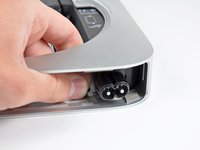
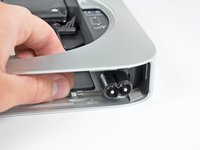
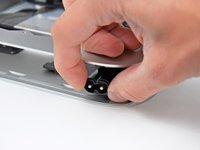
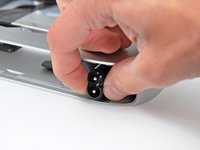
  • Rotate the AC-In connector 90 degrees counter-clockwise.

first image

Add Note Edit Step 24  ¶ 

  • Slide the power supply out of the mini, minding any cables that may get caught.

first image

Add Note Edit Step 25 — Optical Drive  ¶ 

  • Remove the hard drive from the mini, minding any cables that may get caught.

first image

Add Note Edit Step 26  ¶ 

  • Remove the 7.9 mm T6 Torx screw securing the optical drive to the outer case.

first image

Add Note Edit Step 27  ¶ 

  • Slide the optical drive out of the outer case, minding any cables that may get caught.

first image

Add Note Edit Step 28 — Optical Drive Replacement  ¶ 

  • Carefully de-route the IR sensor cables from the channel in the optical drive bracket.

first image
thumb image 1
thumb image 2

Add Note Edit Step 29  ¶ 

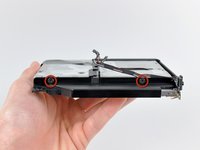
  • Remove the two 6.3 mm T6 Torx screws securing both sides of the optical drive bracket to the optical drive (four screws total).

first image

Add Note Edit Step 30  ¶ 

  • Remove the optical drive bracket from the optical drive, minding any cables that may get caught.

first image

Add Note Edit Step 31  ¶ 

  • Carefully peel the optical drive ribbon cable off the body of the optical drive.

first image

Add Note Edit Step 32  ¶ 

  • Disconnect the optical drive cable by pulling its connector away from the body of the optical drive.

first image

Add Note Edit Step 33  ¶ 

  • Peel off the strip of black tape covering the optical drive thermal sensor.

first image

Add Note Edit Step 34  ¶ 

  • Carefully pry the optical drive thermal sensor off the adhesive securing it to the optical drive.

  • It may be necessary to use a strip of tape or rubber cement to attach the thermal sensor to your new optical drive.

  • If you have a CD or any other object jammed in your optical drive, we have an optical drive repair guide.

To reassemble your device, follow these instructions in reverse order.

For more information, check out the Mac Mini Mid 2010 device page.

Did you successfully follow this guide?

This guide has been completed 8 times.

Comments Add Note Comments are offturn on