Installing iPhone 4S Display Assembly

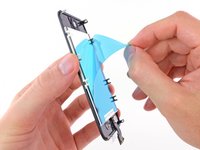
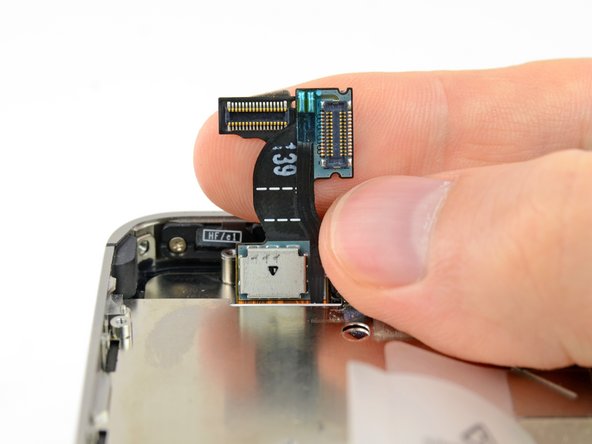
Replace a cracked front panel or a broken display on your iPhone 4S.

  • Add Note x
  • x 54

Use this guide to replace a cracked front panel or a broken LCD.

After successfully replacing the display assembly, protect your new display from scratches by installing a screen protector.

Sections
first image

Add Note Edit Step 1 — Rear Panel  ¶ 

  • Before disassembling your iPhone, be sure it is powered off.

  • Remove the two 3.6 mm Pentalobe screws next to the dock connector.

  • During reassembly, we recommend you replace the 5-point screws with equivalent Phillips screws. Our Liberation Kit provides the tools and screws needed to replace the Pentalobe screws with Phillips screws.

  • The 5-Point Screwdriver should only be used once, as it has the potential to strip the screws.

first image
thumb image 1
thumb image 2

Add Note Edit Step 2  ¶ 

  • Push the rear panel toward the top edge of the iPhone.

  • The panel will move about 2 mm.

first image

Add Note Edit Step 3  ¶ 

  • Pull the rear panel away from the back of the iPhone, being careful not to damage the plastic clips attached to the rear panel.

  • Remove the rear panel from the iPhone.

first image

Add Note Edit Step 4 — Battery  ¶ 

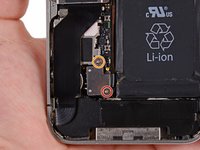
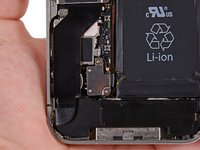
  • Remove the following screws securing the battery connector to the logic board:

    • One 1.7 mm Phillips screw

    • One 1.5 mm Phillips screw

first image

Add Note Edit Step 5  ¶ 

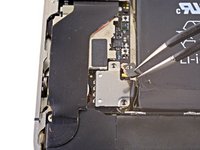
  • Use a pair of tweezers or an opening tool to remove the pressure contact near the battery connector.

  • When reinstalling the pressure contact, be sure to clean it with a degreaser such as windex or isopropyl alcohol. The oils on your fingers have the potential to create wireless interference.

first image

Add Note Edit Step 6  ¶ 

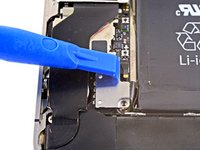
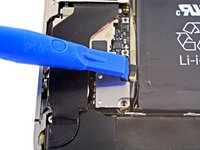
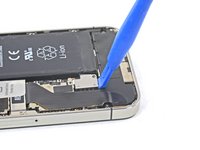
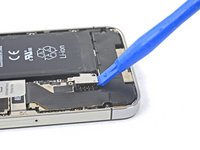
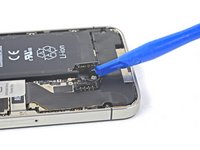
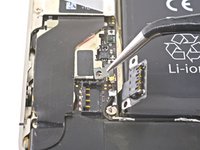
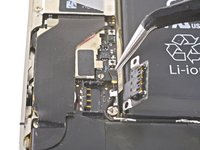
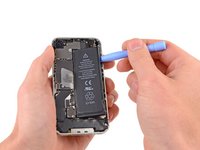
  • Use the edge of a plastic opening tool to gently pry the battery connector up from its socket on the logic board.

first image
thumb image 1
thumb image 2

Add Note Edit Step 7  ¶ 

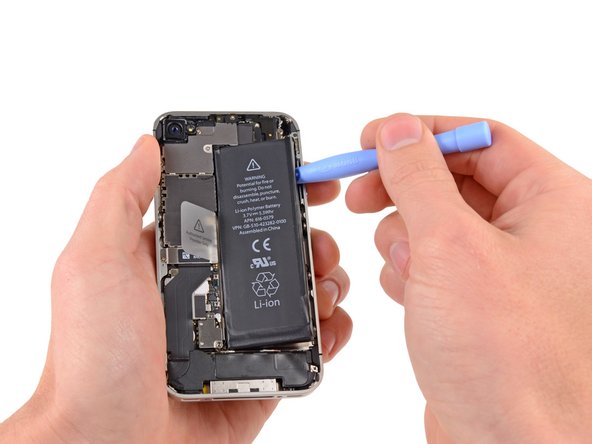
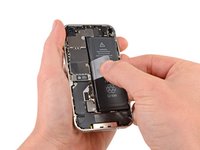
  • Insert the edge of a plastic opening tool between the battery and the outer case near the bottom left corner of the iPhone.

  • Run the plastic opening tool along the right edge of the battery and pry up at several points to completely separate it from the adhesive securing it to the outer case.

first image
thumb image 1
thumb image 2

Add Note Edit Step 8  ¶ 

  • Use the exposed clear plastic pull tab to peel the battery off the adhesive securing it to the iPhone.

  • Remove the battery.

first image
thumb image 1
thumb image 2

Add Note Edit Step 9 — Dock Connector Cable  ¶ 

  • Remove the following screws securing the dock connector cable cover to the logic board:

    • One 1.5 mm Phillips screw

    • One 1.2 mm Phillips screw

  • Remove the metal dock connector cable cover.

first image

Add Note Edit Step 10  ¶ 

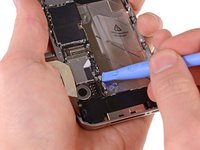
  • Use the edge of a plastic opening tool to pry the dock cable up from its socket on the logic board.

first image

Add Note Edit Step 11  ¶ 

  • Peel the dock connector cable off the adhesive securing it to the logic board and the side of the speaker enclosure.

first image
thumb image 1
thumb image 2

Add Note Edit Step 12  ¶ 

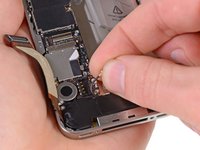
  • Use the edge of a plastic opening tool to pry the Wi-Fi antenna cable up from its socket on the logic board.

  • De-route the Wi-Fi antenna cable out from under the metal fingers attached to the logic board.

first image

Add Note Edit Step 13 — Rear Camera  ¶ 

  • If necessary, use a pair of tweezers to remove the outer plastic ring located on top of the rear camera's flash assembly.

first image

Add Note Edit Step 14  ¶ 

  • Remove the following four screws securing the cable cover to the logic board:

    • One 2.7 mm Phillips screw

    • One 2.6 mm Phillips screw

    • One 1.3 mm Phillips screw

    • One 1.2 mm Phillips screw

first image
thumb image 1
thumb image 2

Add Note Edit Step 15  ¶ 

  • Use the edge of a plastic opening tool to pry the cable cover tabs out of their slots cut into the EMI shield on the logic board.

  • Lift the cable cover from its edge nearest the top and remove it from the iPhone.

first image
thumb image 1
thumb image 2

Add Note Edit Step 16  ¶ 

  • Use the edge of a plastic opening tool to pry the rear camera connector up from its socket on the logic board.

  • Be careful not to break any components off the surrounding area on the logic board as you pry upwards.

  • Remove the rear camera from the iPhone.

first image
thumb image 1
thumb image 2

Add Note Edit Step 17 — SIM Card  ¶ 

  • Use a SIM card eject tool or a paperclip to eject the SIM card and its holder.

  • This may require a significant amount of force.

  • Remove the SIM card and its holder.

first image
thumb image 1
thumb image 2

Add Note Edit Step 18 — Logic Board  ¶ 

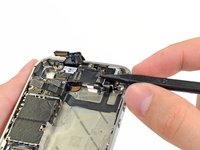
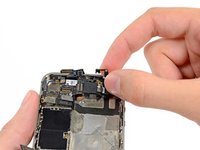
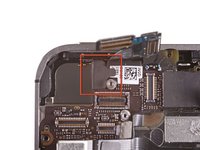
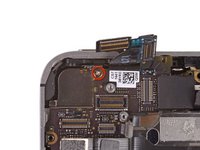
  • Remove the five cables near the top of the logic board in the following order:

    • Headphone jack/volume button cable

    • Front facing camera cable

    • Digitizer cable

    • Display data cable

    • Power button cable (located underneath the headphone jack/volume button cable as shown in the second picture.)

  • To disconnect the cables, use the edge of a plastic opening tool to gently lift their connectors up and out of the sockets on the logic board.

  • Be careful not to break any of the small and delicate surface mount components as you disconnect the cables.

first image

Add Note Edit Step 19  ¶ 

  • Remove the 1.5 mm Phillips screw securing the grounding clip to the logic board near the headphone jack.

first image

Add Note Edit Step 20  ¶ 

  • Lift the small grounding clip up off the logic board and remove it from the iPhone.

first image

Add Note Edit Step 21  ¶ 

  • Use a small flathead screwdriver to remove the 4.8 mm standoff near the headphone jack.

first image

Add Note Edit Step 22  ¶ 

  • Use the edge of a plastic opening tool to disconnect the wi-fi antenna from the logic board.

first image
thumb image 1
thumb image 2

Add Note Edit Step 23  ¶ 

  • If present, peel the piece of black tape covering the hidden screw near the power button.

  • Remove the 1.6 mm Phillips screw securing the logic board near the power button.

first image

Add Note Edit Step 24  ¶ 

  • Remove the following screws securing the logic board to the case:

    • One 2.5 mm Phillips screw near the vibrator motor

    • One 2.4 mm Phillips screw

    • One 3.6 mm standoff along the side of the logic board nearest the battery opening.

  • Use a small flathead screwdriver to remove the single 3.6 mm standoff.

first image

Add Note Edit Step 25  ¶ 

  • Carefully lift the logic board from the end closest to the speaker enclosure and slide it away from the top edge of the iPhone.

  • Remove the logic board.

  • Before reassembly, be sure to clean all metal-to-metal contact points on the logic board (not the mating halves of connectors) with a de-greaser such as windex or isopropyl alcohol. The oils on your fingers have the potential to cause grounding issues.

first image

Add Note Edit Step 26  ¶ 

  • Be sure not to lose the small grounding finger for the rear facing camera near the power button.

first image
thumb image 1
thumb image 2
thumb image 3

Add Note Edit Step 27 — Vibrator  ¶ 

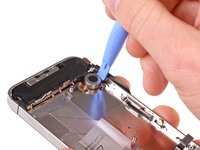
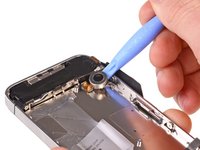
  • Wedge the plastic opening tool between the vibrator and the side of the iPhone.

  • Pry the vibrator up to release it from the adhesive securing it to the iPhone.

  • Remove the vibrator.

first image

Add Note Edit Step 28 — Speaker Enclosure Assembly  ¶ 

  • Remove the two 2.4 mm Phillips screws from the sides of the speaker enclosure assembly.

first image

Add Note Edit Step 29  ¶ 

  • Remove the small plastic bracket that was installed under the screw closest to the dock connector cable.

first image
thumb image 1
thumb image 2

Add Note Edit Step 30  ¶ 

  • Remove the speaker enclosure assembly from the iPhone.

  • Before reinstalling the speaker enclosure assembly's screws, be sure the Wi-Fi grounding fingers are installed below the lip in the iPhone's metal case as seen in the second picture.

  • Before reassembly, be sure to clean all metal-to-metal contact points between the grounding fingers of the Wi-Fi antenna and the case of the iPhone with a de-greaser such as windex or isopropyl alcohol. The oils on your fingers have the potential to cause wireless interference issues.

first image

Add Note Edit Step 31 — Display Assembly  ¶ 

  • Remove the small pieces of black tape covering the display mounting tabs.

first image

Add Note Edit Step 32  ¶ 

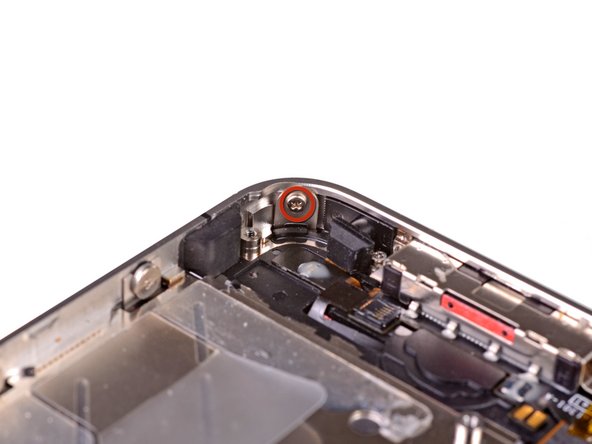
  • Remove the 1.5 mm Phillips screw securing the display assembly near the power button.

first image

Add Note Edit Step 33  ¶ 

  • Remove the 1.5 mm Phillips screw near the headphone jack.

first image

Add Note Edit Step 34  ¶ 

  • Remove the 1.5 mm Phillips screw near the lower microphone.

first image

Add Note Edit Step 35  ¶ 

  • Remove the 1.5 mm Phillips screw near the dock connector cable.

first image
thumb image 1
thumb image 2

Add Note Edit Step 36  ¶ 

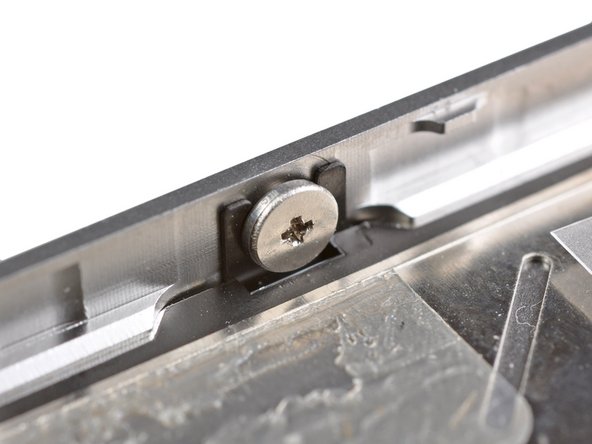
  • Loosen the three large-headed Phillips screws along the volume button side of the iPhone about one half turn.

  • It is not necessary to completely remove these screws. When reinstalling the display assembly, be sure the washers are closest to the screw head (as seen in the second picture).

first image

Add Note Edit Step 37  ¶ 

  • Loosen the three large-headed Phillips screws along the other side of the iPhone about one half turn.

first image
thumb image 1
thumb image 2

Add Note Edit Step 38  ¶ 

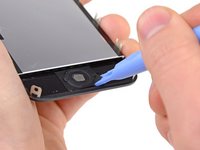
  • Use the edge of a plastic opening tool to gently pry up the display assembly around its perimeter.

  • Remove the display assembly from the iPhone.

  • When reinstalling the display assembly, be sure the digitizer and display data cables are completely pulled through the slot cut into the outer case before pressing the display assembly down into the outer case. Failure to do so will cause the digitizer cable to not reach its socket on the logic board.

  • Remember to switch the home button from your old display to the new display (most cases this is not provided)

  • After reassembly, protect your new display from any scratches by installing a new screen protector.

To reassemble your device, follow these instructions in reverse order.

For more information, check out the iPhone 4S device page.

Did you successfully follow this guide?

This guide has been completed 54 times.

Comments Add Note Comments are offturn on