Introduction
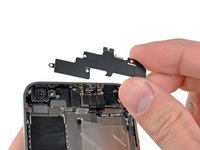
This guide will show you how to replace the wi-fi antenna which sits over the display connectors near the top of the phone.
What you need
-
-
Power off your iPhone before beginning disassembly.
-
Your iPhone 4 rear cover may have either two #000 Phillips screws or Apple's 5-Point "Pentalobe" screws (second image). Check which screws you have, and ensure you also have the correct screwdriver in order to remove them.
-
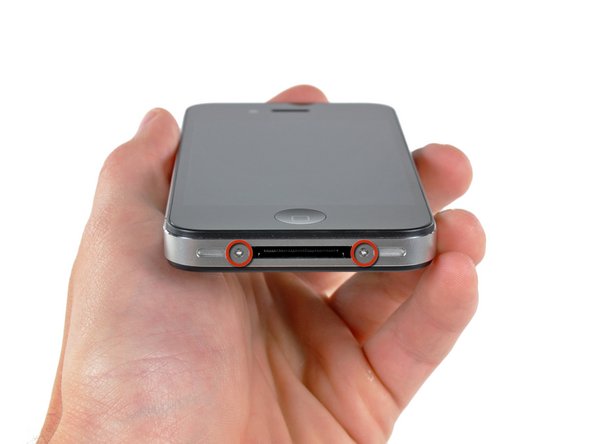
Remove the two 3.6 mm Pentalobe or Phillips #000 screws next to the dock connector.
-
-
-
-
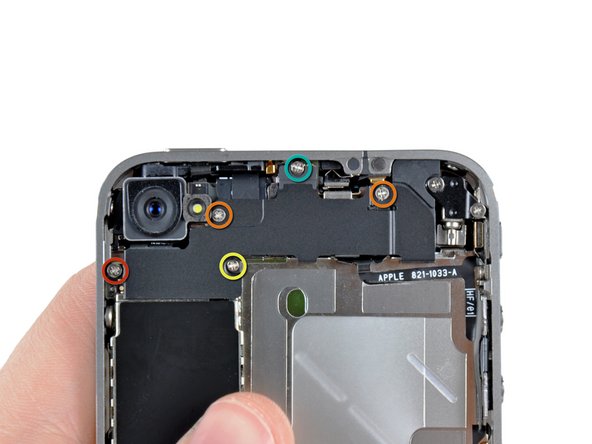
Remove the following five screws securing the wi-fi antenna to to the logic board:
-
One 2.3 mm Phillips
-
Two 1.6 mm Phillips
-
One 1.4 mm Phillips
-
One 4.8 mm Phillips
-
-
-
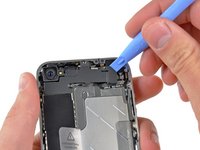
Use an iPod opening tool to slightly lift the top edge of the wi-fi antenna away from the logic board.
-
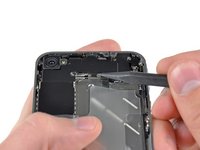
Use the tip of a spudger to pull the wi-fi retaining clips away from the inner frame.
-
Remove the wi-fi antenna from the iPhone. Make sure you don't lose the metal clips on the top of the cover where the 4.8mm screw attaches or the 4.8mm screw. That's the primary reason for abnormal Wi-Fi performance after the reassembly.
-




To reassemble your device, follow these instructions in reverse order.
Cancel: I did not complete this guide.
277 other people completed this guide.
Attached Documents



9 Guide Comments
It's doesn't work i'm sorry
I purchased an iPhone 4 GSM new/sealed from an Apple Store in July 2010
and never needed to connect to multiple Wi-Fi networks until recently.
When I would go from a known Wi-Fi connection to another one,
I would need to go into Settings to reconnect each time.
I figured that I needed to replace the Wi-Fi antenna.
When I took off the back panel, I discovered that the 4.8mm Phillips screw
that grounds the Wi-Fi antenna is not present. So, you might want to first
check that the screw is there and properly secured.
Still doesn't work ... one or two bar near a-port express / everything is in order - just one screw miss / yellow one [1.4 mm Phillips] - U think that's the reason ?? Please, help :(
Ifixit no longer sells the WiFi antennas but I found a perfectly good one on Ebay
