Page 1 of 1
Installing iPhone 4 Home Button
Removing the electronic home button and its cover.
- Author: Walter Galan
- Difficulty: Difficult
Use this guide to replace a damaged home button to regain use of your iPhone.
Sections
- Rear Panel 3 steps
- Battery 3 steps
- Logic Board 13 steps
- Speaker Enclosure Assembly 2 steps
- Display Assembly 9 steps
- Home Button 3 steps
Files
Tools
Tools (continued)
- Plastic Opening Tools

- Small Flathead Screwdriver

- Spudger

- Tweezers

- iPhone 4 5-Point Pentalobe Screwdriver (if iPhone has external pentalobe screws)

- iPhone SIM Card Eject Tool

Relevant parts
- View:
- Paginated
- Full width

Edit
Step 1
—
Rear Panel

Before disassembling your iPhone, be sure it is powered off.
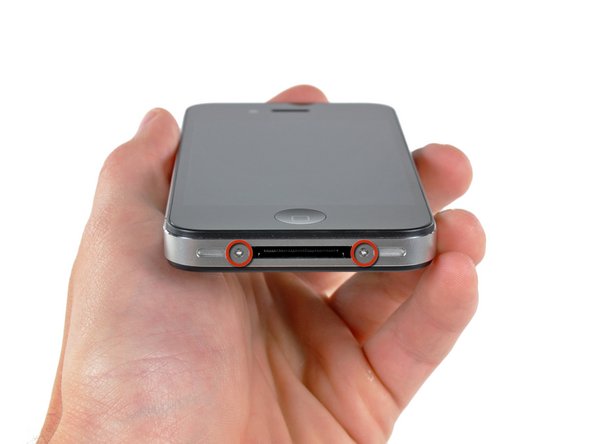
Apple has recently substituted the two Phillips screws with 5-Point "Pentalobe" screws. If your iPhone 4 has 5-Point "Pentalobe" screws instead of Phillips, please refer to the second picture.
Remove the two 3.6 mm Pentalobe screws next to the dock connector.
During reassembly, we recommend you replace the 5-point screws with equivalent Phillips screws. Our Liberation Kit provides the tools and screws needed to replace the Pentalobe screws with Phillips screws.
The 5-Point Screwdriver should only be used once, as it has the potential to strip the screws.

Edit
Step 6

Use the clear plastic pull tab to gently lift the battery out of the iPhone.
Be careful when removing the battery with the plastic pull tab. On some units, Apple uses an excessive amount of glue, making it virtually impossible to remove the battery in this fashion (with the tab possibly tearing due to excessive force).
For batteries that "stick", you could use the iPod opening tool to assist (take extra care whilst doing so).
Remove the battery.
Before reconnecting the battery connector, be sure the pressure contact (shown in red) is properly positioned next to the battery connector.
Before reassembly, be sure to clean all metal-to-metal contact points on the pressure contact as well as its contact point on the rear panel with a de-greaser such as windex. The oils on your fingers have the potential to cause wireless interference issues.

Edit
Step 8

Remove the following two screws:
One 1.2 mm Phillips
One 1.6 mm Phillips
Remove the thin steel dock connector cable cover from the iPhone.
Before reassembly, be sure to clean all metal-to-metal contact points on the dock connector cable cover with a de-greaser such as windex. The oils on your fingers have the potential to cause wireless interference issues.

Edit
Step 11

Use an iPod opening tool to pry the lower antenna connector up off its socket on the logic board.
Make sure you don't damage the blue inductor while prying the antenna connector. If you end up having no service message, double check that the blue inductor is still there and soldered properly

Edit
Step 13

Remove the following five screws securing the wi-fi antenna to to the logic board:
One 2.3 mm Phillips
Two 1.6 mm Phillips
One 1.4 mm Phillips
One 4.8 mm Phillips
When re-assembling, start off with replacing the 4.8 mm Philips screw first, then the 2.3 mm. This is to ensure there is no mix-up, and avoid rendering the LCD and digitizer useless.
Also make sure to put the long 4.8 mm Philips back in correctly when reassembling. This is the ground for the Wi-Fi antenna and is often the culprit if you are having bad wi-fi reception after reassembly.

Edit
Step 14

Use an iPod opening tool to slightly lift the top edge of the wi-fi antenna away from the logic board.
Use the tip of a spudger to pull the wi-fi retaining clips away from the inner frame.
Remove the wi-fi antenna from the iPhone. Make sure you don't lose the metal clips on the top of the cover where the 4.8mm screw attaches or the 4.8mm screw. That's the primary reason for abnormal Wi-Fi performance after the reassembly.
Before reassembly, be sure to clean all metal-to-metal contact points on the connector cover with a de-greaser such as Windex. The oils on your fingers have the potential to cause wireless interference issues. Do not clean the connectors themselves with Windex.

Edit
Step 17

Disconnect the following connectors from the top of the logic board:
Digitizer cable (From Bottom)
LCD cable (From Bottom)
Headphone jack/volume button cable (From Top)
Top Microphone/sleep button cable (From Top)
Front camera cable (From Top)
It is helpful to use the edge of an iPod opening tool to gently lift the connectors up and out of their sockets on the logic board.

Edit
Step 18

Use a small flathead screwdriver to remove the 4.8 mm standoff near the headphone jack.
When reassembling the device, this standoff sets the height of the wi-fi shield removed in step 14. If not torqued down, the shield will be above the plane of the frame and the back will not slide into place in step 2. The shield should be flush with the headphone jack.

Edit
Step 19

Carefully remove the logic board from the iPhone, minding any cables that may get caught.
Note that there is a rubber guard on the edge of the logic board where the Digitizer and LCD ribbon cables bend over the logic board. Make certain it is there before replacing the logic board during reassembly.

Edit
Step 21

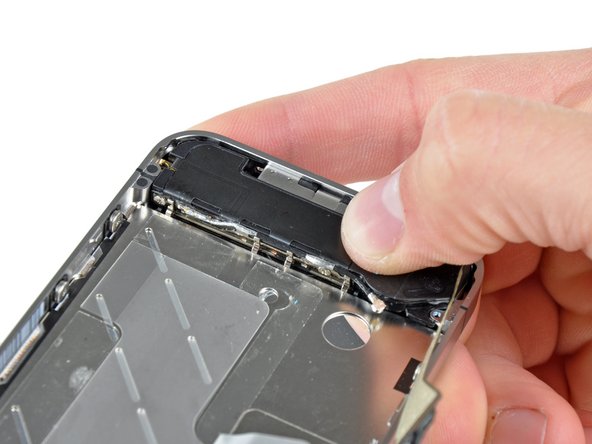
Remove the speaker enclosure from the iPhone.
Before re-fastening the speaker enclosure to the inner frame, be sure the four small EMI fingers rest below the lip of the LCD frame.
Before reassembly, be sure to clean all metal-to-metal contact points between the EMI fingers and the internal frame as well as the brass screw mounting point with a de-greaser such as Windex. The oils on your fingers have the potential to cause wireless interference issues.

Edit
Step 24

Remove the three large-headed 1.5 mm Phillips screws along the volume button side of the iPhone.
Keep track of the washers under each of the screws.
Tip: It can be tricky, but it is also possible to just loosen the large-headed 1.5 mm Phillips screws slightly, without having to remove and replace the screw-and-washer set.

Edit
Step 27

Remove the three large-headed 1.5 mm Phillips screws along the SIM card side of the iPhone.
Keep track of the washers under each of the screws.
Tip: It can be tricky, but it is also possible to just loosen the large-headed 1.5 mm Phillips screws slightly, without having to remove and replace the screw-and-washer set.
Remove the small-headed 1.5 mm Phillips screw near the sleep button.

Edit
Step 28

Carefully insert the edge of an iPod opening tool between the rubber bezel around the front glass panel and the steel inner frame.
Do not attempt to insert the tool between the glass and the rubber bezel.
Carefully pry the upper edge of the front panel assembly away from the steel inner frame.

Edit
Step 29

Slowly and gently lift the top edge of the front panel assembly away from the steel inner frame.
Continue to rotate the front panel assembly away from the steel inner frame until it slowly begins to peel off the adhesive applied below the home button area.
It may be easiest to insert a spudger at the top and work it around the edges, spreading gently as you go.
Carefully pull the lower edge of the front panel assembly away from the steel inner frame.
Be careful, if the home button sticks to the front panel you may tear the home button cable.
Do not flip the front glass completely away from the frame. Doing so may result In damage to the digitizer cable.

Edit
Step 30

De-route the digitizer and LCD cables through the steel inner frame.
Before re-fastening the front panel to the steel inner frame, be sure both the LCD and digitizer cables are not folded or pinched between the inner frame and the front panel assembly. This will result in possibly damaging the cables and not having enough slack when reconnecting them to the logic board.
When the front panel has been correctly installed both the LCD and digitizer cables should be immediately next to one another and should be the same length and should be just hanging over the steel frame.
When replacing the front panel assembly you must remember that you might have to reuse the earpiece grille and the clear plastic ring around the front facing camera from the old/damaged assembly. This will depend on where you buy the replacement part.
After reassembly, protect your new display from any scratches by installing a new screen protector.
This guide has been completed 315 times.
Page 1 of 1