Introduction
Use this guide to replace any clips broken during removal of the display assembly.
What you need
-
-
If your display glass is cracked, keep further breakage contained and prevent bodily harm during your repair by taping the glass.
-
Lay overlapping strips of clear packing tape over the iPad's display until the whole face is covered.
-
Do your best to follow the rest of the guide as described. However, once the glass is broken, it will likely continue to crack as you work, and you may need to use a metal prying tool to scoop the glass out.
-
-
-
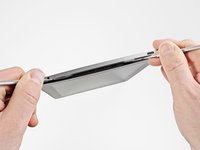
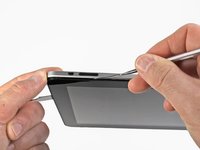
Insert a metal spudger between the top edge of the display assembly and the rear panel assembly.
-
Rotate the spudger away from you to release the tabs along the top edge of the display.
-
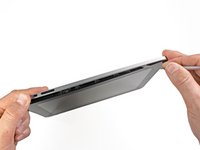
Insert a second metal spudger between the top edge of the display assembly and the rear panel assembly to keep the tabs from snapping back into place.
-
-
-
With one spudger, work your way along the right edge of the iPad.
-
The front panel is held to the aluminum back by metal clips on the top, bottom, and left sides. The right side has plastic tabs which slide into recesses in the backplate.
-
Once the clips are released, lift the left side of the front panel up and slide it to the left to clear the tabs from the aluminum backplate.
-
-
-
-
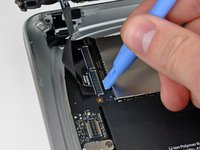
To replace a broken clip, first remove the T5 Torx screw securing the broken base of the clip to the display assembly.
-
Place a new clip on the positioning pins molded into the display frame, and reinstall the T5 Torx screw to secure the two pieces together.
-






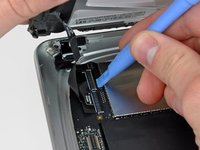
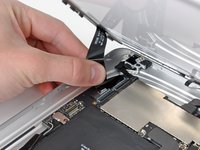


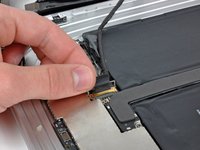
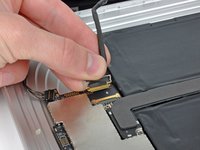


To reassemble your device, follow these instructions in reverse order.
Cancel: I did not complete this guide.
21 other people completed this guide.


1 Guide Comment
I'm fixing an ipad wifi for a friend and he managed to break the clips around the digitizer panel. These are held in place with hexalobe screws and some have EMI tape on them... Does anyone know where I could find replacement mounting clips?
