Installing iMac Intel 24" EMC 2111 CPU Fan

Replace the CPU fan on your iMac Intel 24" EMC 2111.

  • Add Note x

Use this guide to replace the large fan that cools the CPU and GPU heat sinks.

Sections
Tools
first image
thumb image 1
thumb image 2

Add Note Edit Step 1 — Access Door  ¶ 

  • Loosen the two Phillips screws securing the access door to your iMac.

  • Both screws remain captive within the access door.

  • Remove the access door.

first image

Add Note Edit Step 2 — Front Bezel  ¶ 

  • Remove the following screws along the lower edge of your iMac:

    • Three 6 mm T8 Torx screws

    • One 8 mm T8 Torx screw

first image
thumb image 1
thumb image 2

Add Note Edit Step 3  ¶ 

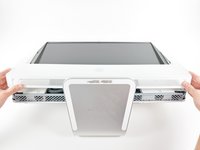
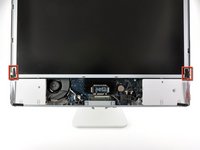
  • Lay your iMac stand-side down on a flat surface.

  • To lift the front bezel off the iMac, simultaneously:

    • Use your thumbs to press in the RAM arms and hold the iMac down.

    • Use your index fingers to pull the small bridge of material on the front bezel toward yourself.

    • Pull the front bezel up with your index fingers.

  • Once the small bridge of material has cleared the RAM arms, lift the front bezel by its lower edge just enough to clear the bottom edge of the rear case.

first image
thumb image 1
thumb image 2
thumb image 3

Add Note Edit Step 4  ¶ 

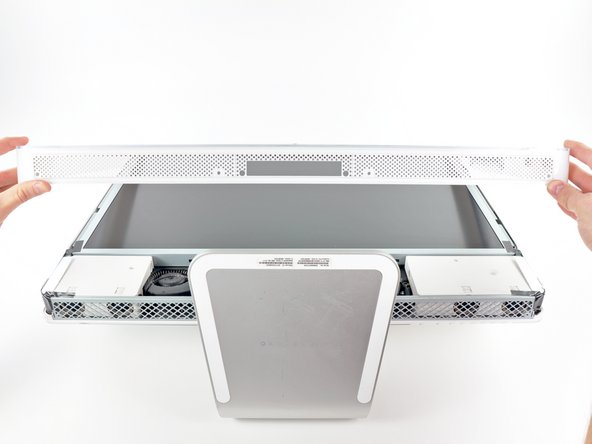
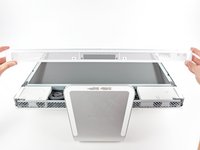
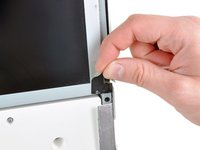
  • Lift the front bezel off the rear case and rotate it away from the bottom edge of the iMac, minding the camera and microphone cables still attached to its upper edge.

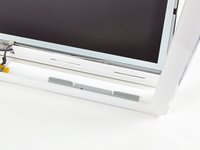
  • The third picture shows the top front bezel brackets and their slots cut into the top edge of the iMac's rear case.

  • Do not completely remove the front bezel, as it is still attached by the camera/microphone cables.

first image

Add Note Edit Step 5  ¶ 

  • If necessary, remove the strip of tape covering the microphone cable connector.

  • The microphone connector is located near the inside of top edge of your iMac.

first image
thumb image 1
thumb image 2
thumb image 3

Add Note Edit Step 6  ¶ 

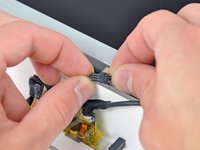
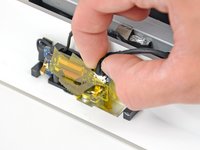
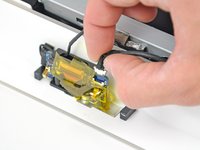
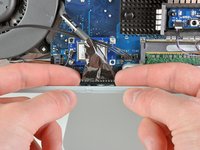
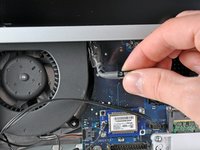
  • Disconnect the microphone cable.

  • Disconnect the camera cable by pulling its connector away from the socket on the camera board.

  • The camera cable connector and socket are delicate and easily bent. Remove with caution.

first image
thumb image 1
thumb image 2

Add Note Edit Step 7 — Display Assembly  ¶ 

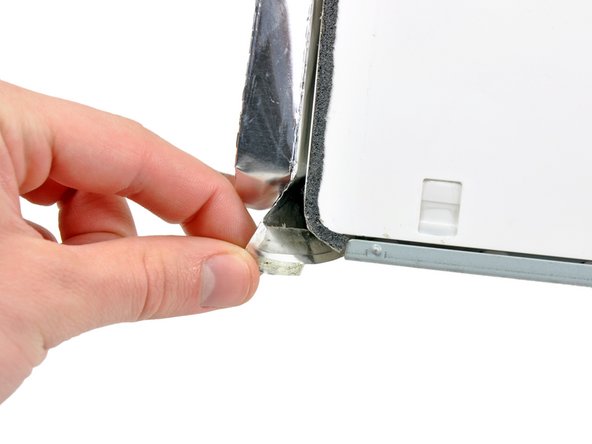
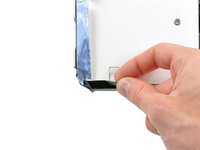
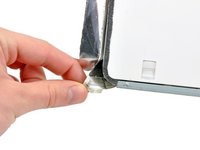
  • Peel the two highlighted EMI shield tabs off the frame of the LCD.

first image

Add Note Edit Step 8  ¶ 

  • Remove the two T6 Torx screws securing the display data cable to the logic board.

first image

Add Note Edit Step 9  ¶ 

  • Pull the black plastic tab attached to the display data cable connector to disconnect it from the logic board.

first image
thumb image 1
thumb image 2

Add Note Edit Step 10  ¶ 

  • Use your fingertips to pull both sides of the wide inverter cable connector out of its socket on the logic board.

  • De-route the inverter cable from its location next to the CPU fan.

first image

Add Note Edit Step 11  ¶ 

  • Before attempting this step, we recommend laying your iMac stand-side down on a table to avoid the display falling down.

  • Remove the eight T8 Torx screws securing the display assembly to the rear case.

  • It is helpful to use a thin magnetized screwdriver to remove these screws.

first image

Add Note Edit Step 12  ¶ 

  • Remove the display assembly from the iMac.

first image
thumb image 1
thumb image 2

Add Note Edit Step 13 — CPU Fan  ¶ 

  • Peel back the piece of EMI tape covering the bottom edge of the left speaker.

  • Also peel back the tape stuck to the curved side of the left speaker.

first image

Add Note Edit Step 14  ¶ 

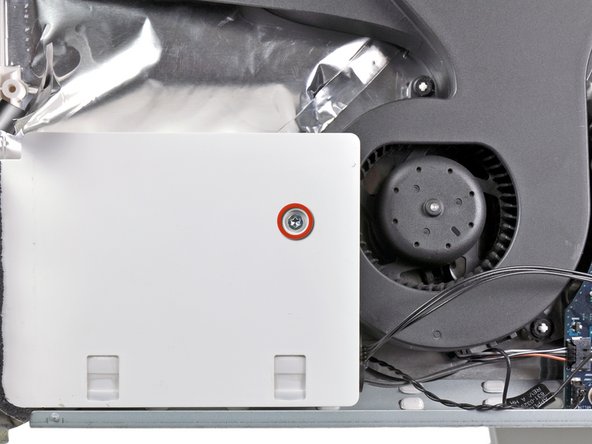
  • Remove the single 38 mm T10 Torx screw securing the left speaker to the rear case.

first image

Add Note Edit Step 15  ¶ 

  • Carefully pull the left speaker out from the rear case.

first image

Add Note Edit Step 16  ¶ 

  • Pull the CPU fan cable toward the left side of the iMac to disconnect it from the logic board.

first image

Add Note Edit Step 17  ¶ 

  • Pull the CPU fan off the plastic mounting posts molded into the rear case.

  • Remove the CPU fan.

To reassemble your device, follow these instructions in reverse order.

For more information, check out the iMac Intel 24" EMC 2111 device page.

Did you successfully follow this guide?

This guide has been completed 2 times.

Comments Add Note Comments are offturn on