Installing MacBook Pro 17" Unibody Optical Drive Replacement

Replace a burned-out optical drive on your MacBook Pro 17" Unibody.

  • Add Note x
  • x 13

Use this guide to replace your MacBook Pro's optical drive. The Bluetooth board and optical drive cable are not included with a new optical drive.

first image

Add Note Edit Step 1 — Lower Case  ¶ 

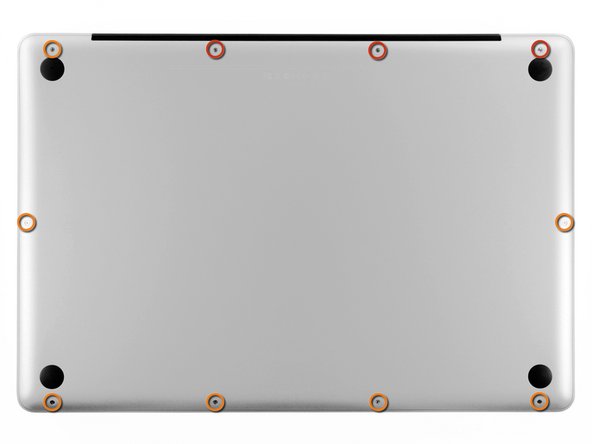
  • Remove the following ten screws securing the lower case to the upper case:

    • Three 13.5 mm Phillips screws.

    • Seven 3 mm Phillips screws.

first image
thumb image 1
thumb image 2

Add Note Edit Step 2  ¶ 

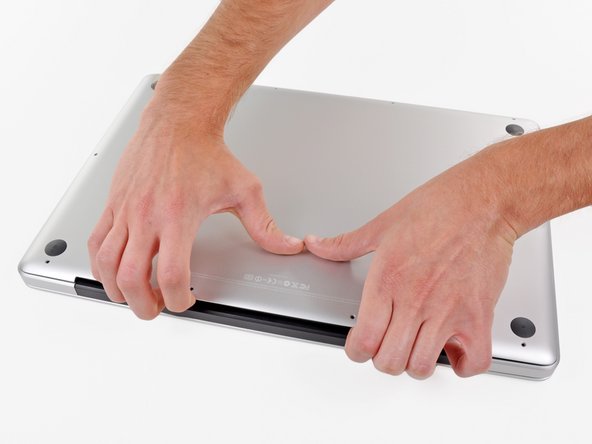
  • Wedge your fingers between the lower case and the vent, and lift upward to release the clips holding the lower case to the upper case.

  • Remove the lower case.

first image
thumb image 1
thumb image 2

Add Note Edit Step 3 — Battery  ¶ 

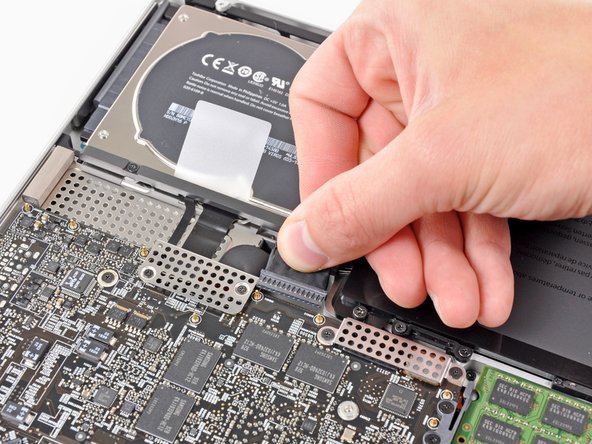
  • Whenever working near the logic board, it is always wise to first disconnect the battery to avoid short circuits.

  • Grab the plastic tab attached to the battery connector and pull it toward the front edge of the device.

  • Pull the tab parallel to the face of the logic board.

first image

Add Note Edit Step 4 — Optical Drive  ¶ 

  • Before disconnecting the camera cable, a small plastic retainer stuck to the logic board must first be moved out of the way.

  • Use the tip of a spudger to push the small plastic cable retainer away from the camera cable socket for enough clearance to remove the camera cable.

first image

Add Note Edit Step 5  ¶ 

  • Pull the camera cable toward the optical drive opening to disconnect it from the logic board.

  • The camera cable socket is very fragile. Do not apply any upward force to this socket, as it may break off the logic board. Pull the camera cable parallel to the face of the logic board.

first image

Add Note Edit Step 6  ¶ 

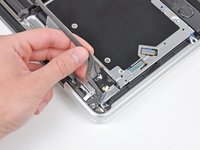
  • Carefully pull the Bluetooth cable toward the fans to disconnect it from the Bluetooth board.

  • Pull the cable parallel to the face of the optical drive.

first image

Add Note Edit Step 7  ¶ 

  • Use the flat end of a spudger to peel the thin plastic cover off the top and sides of the Bluetooth board housing.

first image

Add Note Edit Step 8  ¶ 

  • Use the flat end of a spudger to pry the Bluetooth antenna connector up and off its socket on the Bluetooth board.

first image
thumb image 1
thumb image 2

Add Note Edit Step 9  ¶ 

  • If present, remove the small piece of EMI foam near the Bluetooth board.

  • De-route the camera cable from the slot molded into the Bluetooth board housing.

first image

Add Note Edit Step 10  ¶ 

  • Use the flat end of a spudger to pry the optical drive connector up and out of its socket on the logic board.

first image

Add Note Edit Step 11  ¶ 

  • Remove the three 3.5 mm Phillips screws securing the optical drive to the upper case.

  • To remove the screw closest to the battery, it may be helpful to use a T6 Torx screwdriver to first remove the upper case bracket directly above it.

first image

Add Note Edit Step 12  ¶ 

  • Remove the optical drive from the upper case, minding any cables that may get caught.

first image
thumb image 1
thumb image 2

Add Note Edit Step 13 — Optical Drive Replacement  ¶ 

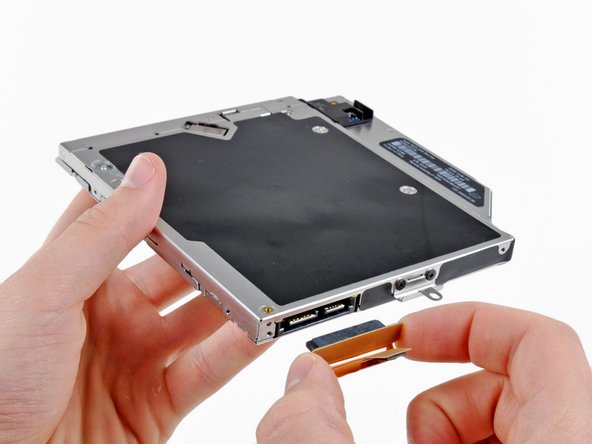
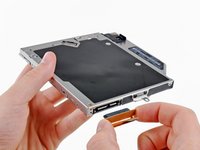
  • Grab the optical drive cable by its connector and pull it away from the body of the hard drive.

  • Pulling on anything but the connector may damage the optical drive cable.

first image

Add Note Edit Step 14  ¶ 

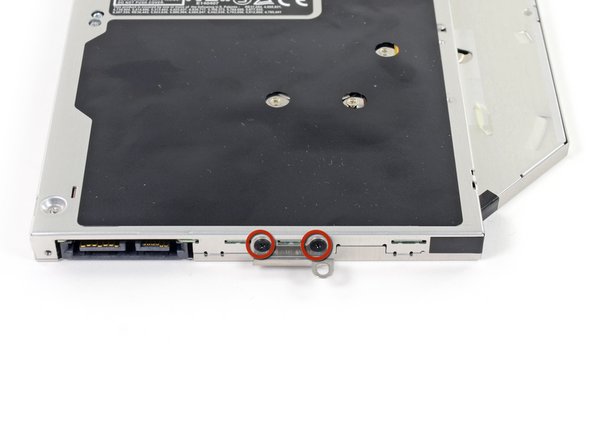
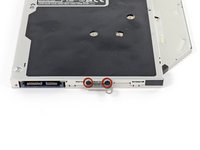
  • Remove the two 2.2 mm Phillips screws securing the Bluetooth board to the side of the optical drive.

first image

Add Note Edit Step 15  ¶ 

  • Remove the Bluetooth board from the optical drive.

  • Optical drive remains.

To reassemble your device, follow these instructions in reverse order.

For more information, check out the MacBook Pro 17" Unibody device page.

Did you successfully follow this guide?

This guide has been completed 13 times.

Comments Add Note Comments are offturn on