Introduction
Use this guide to replace just the LCD rather than the entire display assembly.
What you need
-
-
Use your fingers to push both battery release tabs away from the battery and lift the battery out of the computer.
-
-
-
Remove the four identical Phillips 3.4 mm screws from the memory door. These screws have 4 mm diameter heads rather than the 3 mm heads on the body screws.
-
-
-
Remove the three Phillips screws in the battery compartment near the latch. Apple was nice enough to tilt these screws at a slight angle to make them easier to remove. On the A1261 these screws have 4 mm diameter heads rather than the 3 mm heads on the body screws.
-
-
-
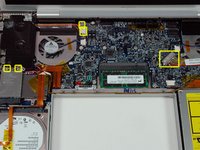
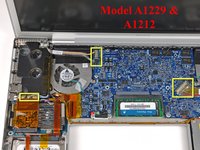
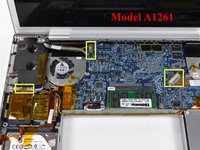
Disconnect the two antenna cables from the AirPort Extreme card, the iSight and inverter cables from the left side of the logic board, and the display data cable from the right side of the logic board. Be careful to slide the connectors as they may become damaged otherwise.
-
Carefully peel the iSight and inverter cables off the top of the left fan and de-route the AirPort antenna cables from the channel in the left speaker.
-
-
-
-
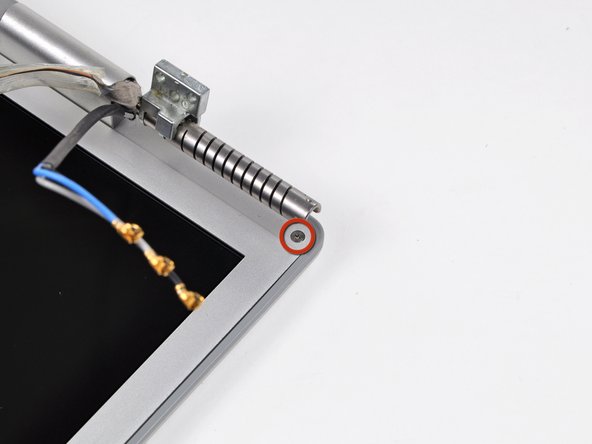
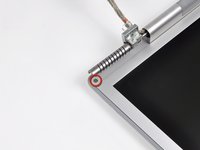
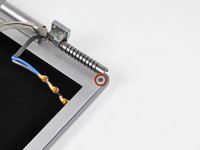
Remove the Phillips screws from the lower left and right corners of the display (two screws total).
-
-
-
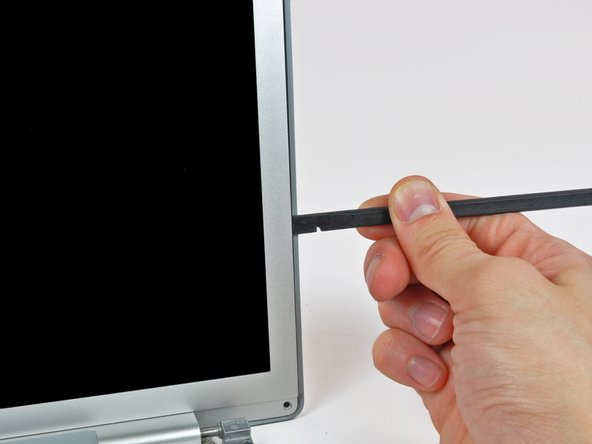
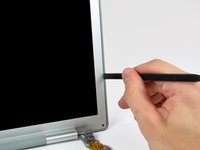
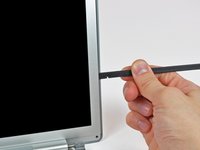
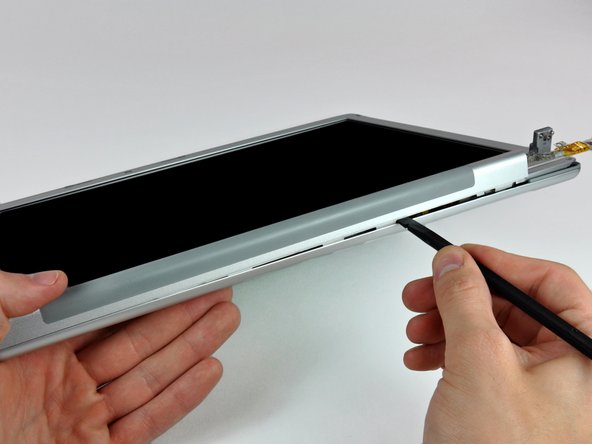
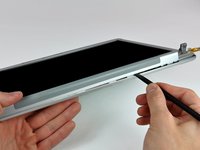
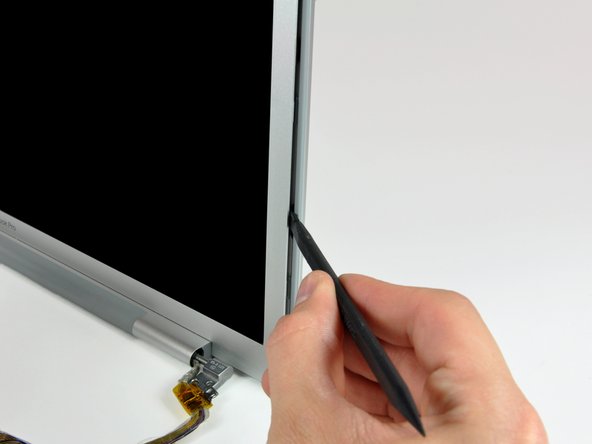
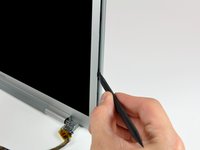
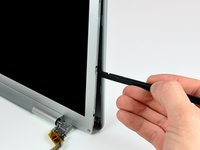
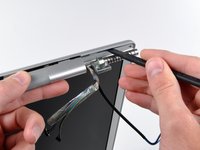
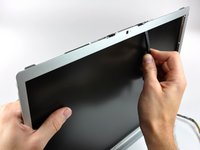
Insert the flat end of a spudger perpendicular to the face of the display between the plastic strip attached to the rear bezel and the front bezel.
-
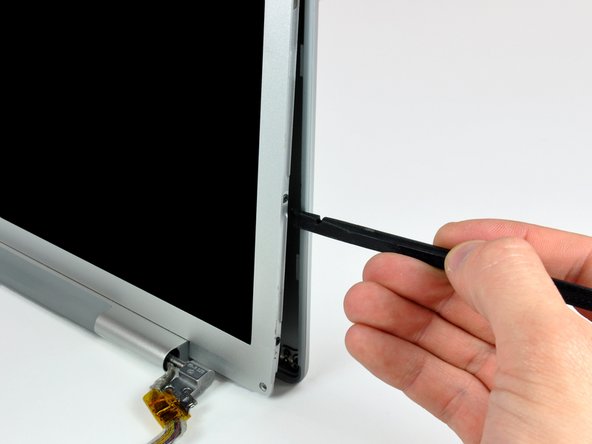
With the spudger still inserted, rotate it away from the display to separate the front and rear bezels.
-
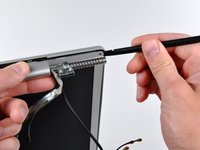
Work along the right edge of the display until the rear bezel is evenly separated from the front bezel.
-
-
-
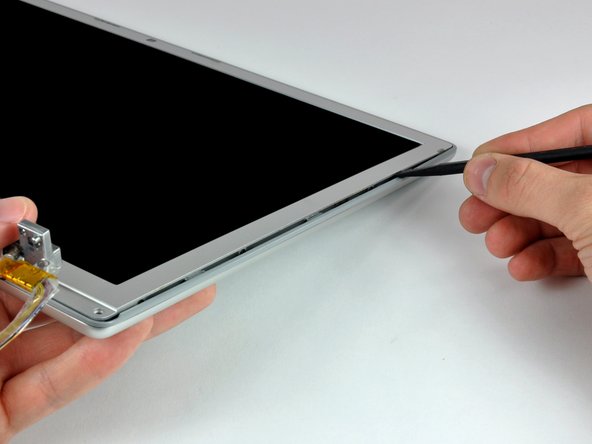
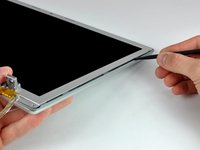
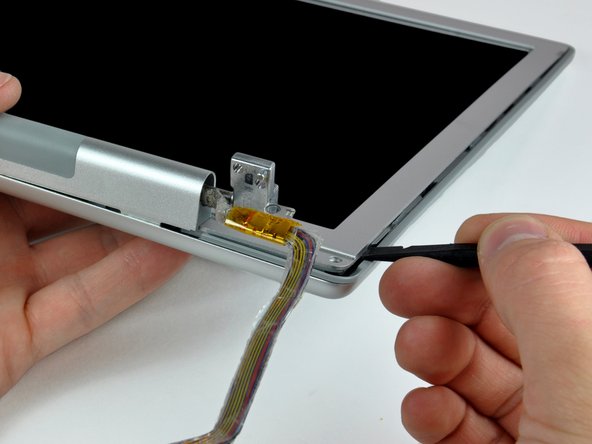
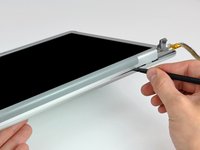
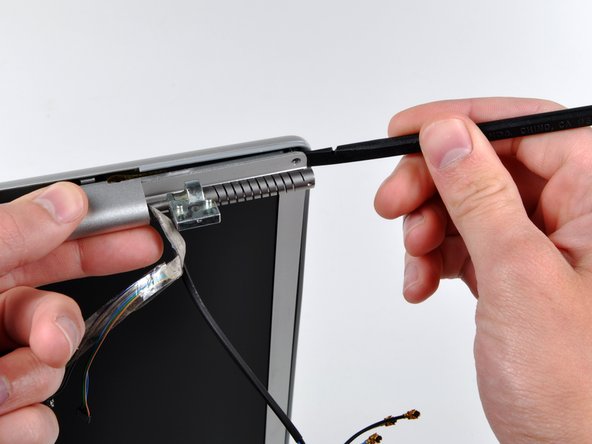
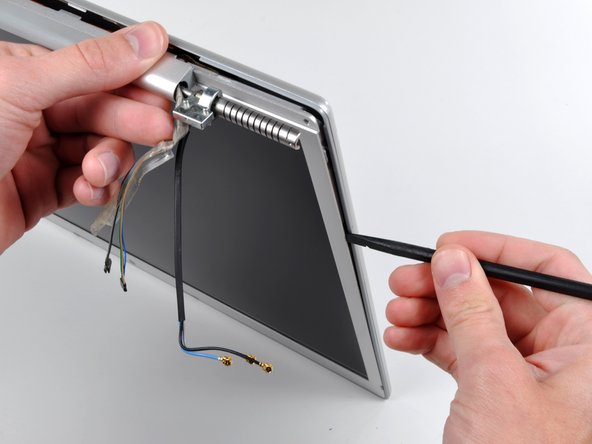
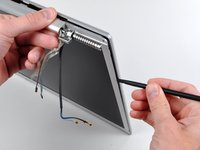
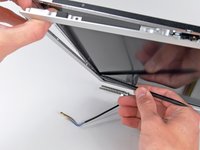
Insert the flat end of a spudger into the gap between the rear display bezel and the clutch cover.
-
Twist the spudger to separate the lower edge of the rear display bezel from the clutch cover.
-
Work along the lower edge of the rear bezel until it is evenly separated from the clutch cover.
-
-
-
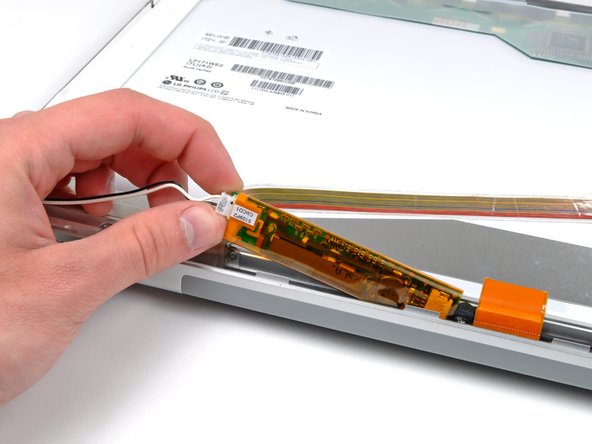
Remove the strip of tape covering the backlight leads.
-
Carefully lift the inverter out of the clutch cover enough to reach the backlight connector.
-
-
-
Use the tip of a spudger or your fingernail to flip up the ZIF retaining flap on the camera cable socket at the edge of the camera board near the top center of the front display bezel.
-
Pull the camera cable out of its socket.
-
Peel the camera cable off the foam tape along the top edge of the display.
-






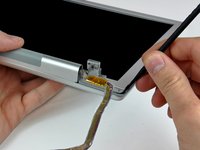
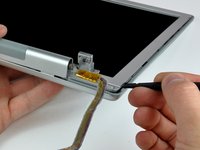





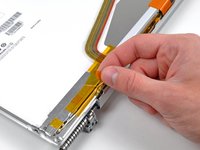
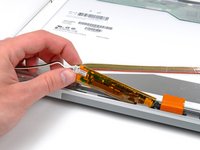


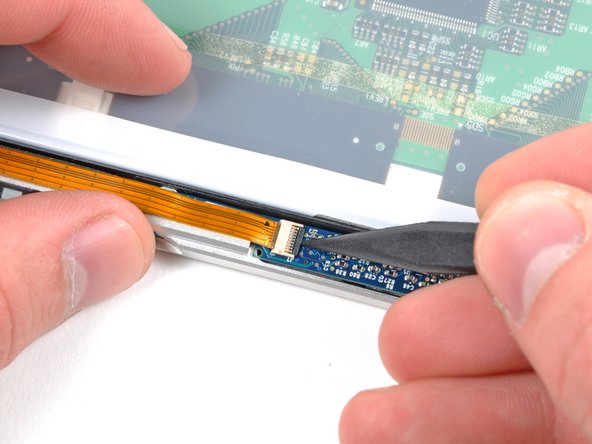
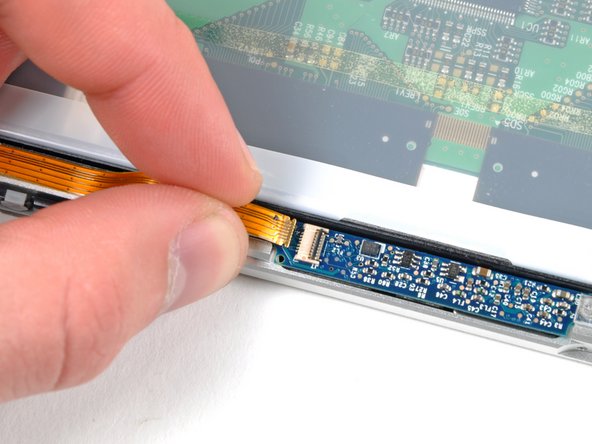
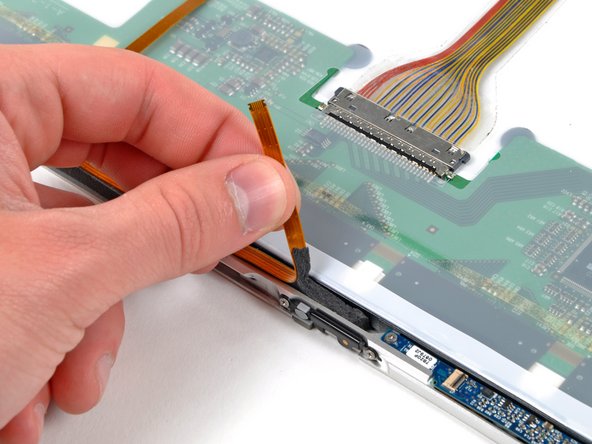
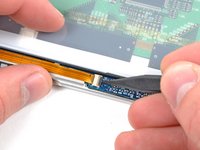
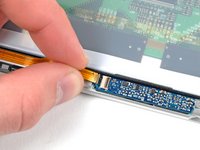
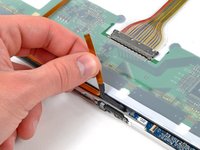


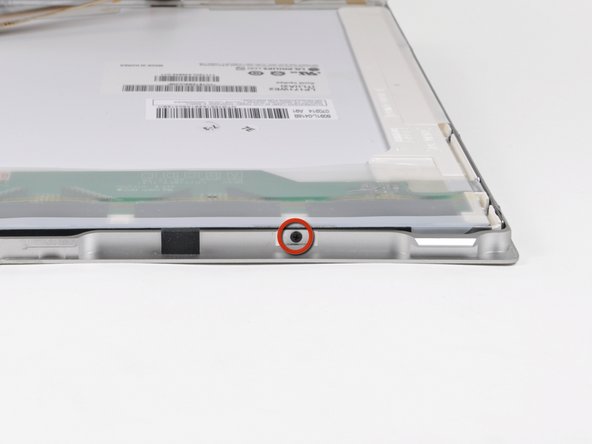
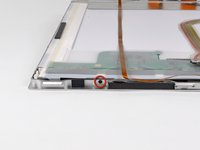
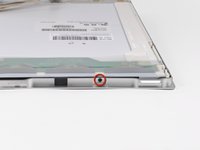


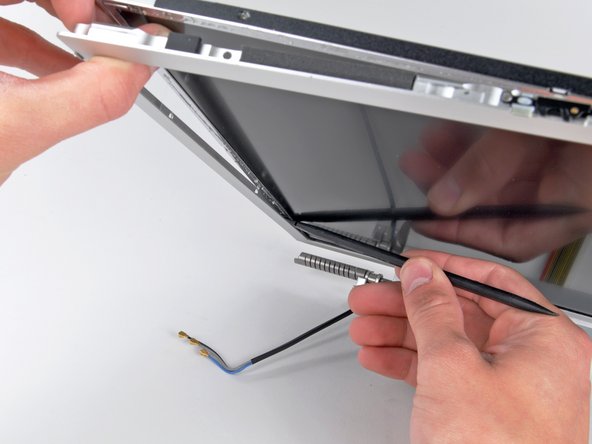


To reassemble your device, follow these instructions in reverse order.
Cancel: I did not complete this guide.
50 other people completed this guide.


2 Guide Comments
If you don't mind downgrading the resolution from 1680x1050 to 1440x900, you can use another LCD Panel used for 17" Toshiba laptops: LTN170X2-L02. It's almost the same size and spec-wise, except for the lower res...and can be found much cheaper ($50 to $80). The only caveat is that the backlight cable comes out in a slightly different place, and you have to dremel away some of the lid so it doesn't pinch the backlight cable. I was interested to see if the Mac would recognize it, as 1440x900 was not one of the official resolutions mentioned in the original MacBook specs, but it worked!
