Introduction
Use this guide to replace a broken front display glass panel. Removal of the front display glass is required to access the LCD. Although it is not technically necessary to remove the display to access the front display glass, it greatly simplifies the task. This guide is not applicable for anti-glare displays.
What you need
-
-
Remove the following ten screws securing the lower case to the upper case:
-
Three 13.5 mm (14.1 mm) Phillips screws.
-
Seven 3 mm Phillips screws.
-
-
-
Remove the two 7.4 mm Tri-point screws securing the battery to the upper case.
-
Note: For certain repairs (e.g. hard drive), removing the battery is not necessary but it prevents any accidental shorting of electronics on the motherboard. If you do not remove the battery, please be careful as parts of the motherboard might be electrified.
-
-
-
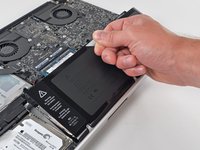
Tilt the battery away from the logic board enough to access the battery cable connector.
-
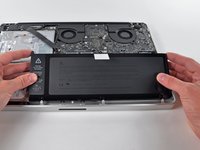
Pull the battery cable connector away from its socket on the logic board and remove the battery from the upper case.
-
Charge it to 100%, and then keep charging it for at least 2 more hours. Next, unplug and use it normally to drain the battery. When you see the low battery warning, save your work, and keep your laptop on until it goes to sleep due to low battery. Wait at least 5 hours, then charge your laptop uninterrupted to 100%.
-
If you notice any unusual behavior or problems after installing your new battery, you may need to reset your MacBook's SMC.
-
-
-
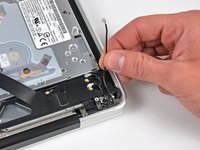
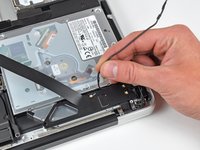
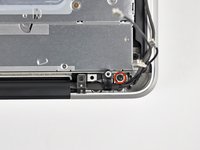
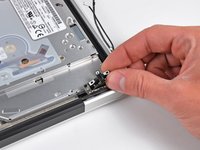
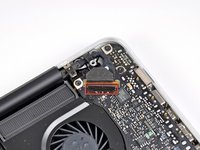
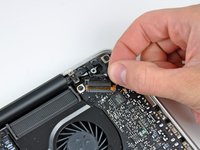
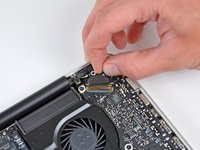
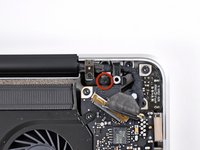
Use the flat end of a spudger to carefully pry the AirPort/Bluetooth ribbon cable up off its socket on the logic board.
-
-
-
-
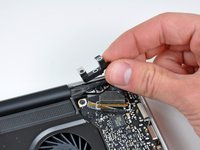
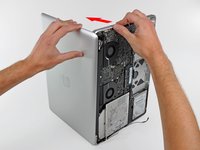
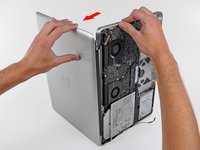
Grab the upper case with your right hand and rotate it slightly toward the top of the display so the upper display bracket clears the edge of the upper case.
-
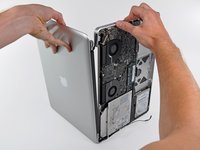
Rotate the display slightly away from the upper case.
-
Lift the display up and away from the upper case, minding any brackets or cables that may get caught.
-
-
-
Before starting, be sure to clean the display glass with lint-free cloth moistened with a mild solution; it will make the suction cup adhere better, and will make checking for dust on reassembly easier
-
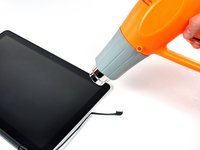
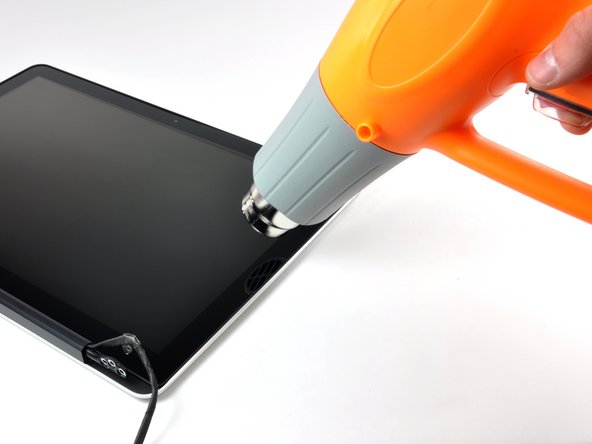
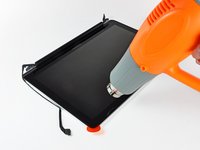
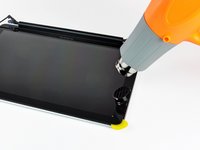
With the heat gun set to low, start by heating the outer black border near the upper right corner of the glass panel.
-
-
-
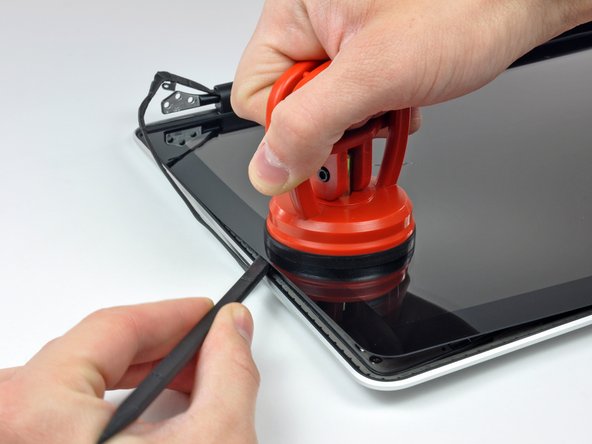
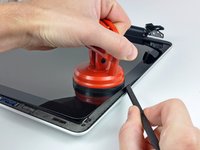
Gently lift the corner of the display glass enough to insert a spudger between it and the display assembly.
-
Use the flat end of a spudger to gently pry up the adhesive securing the front glass to the display.
-
Pry up the glass panel a few inches away from the upper right corner along the top and right edges of the display.
-
-
-
Use a heat gun to soften the adhesive under the black strip along the right side of the front glass panel.
-
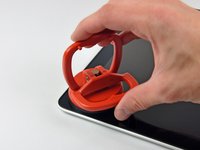
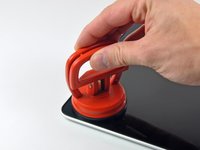
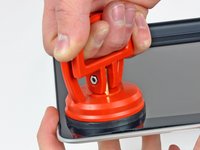
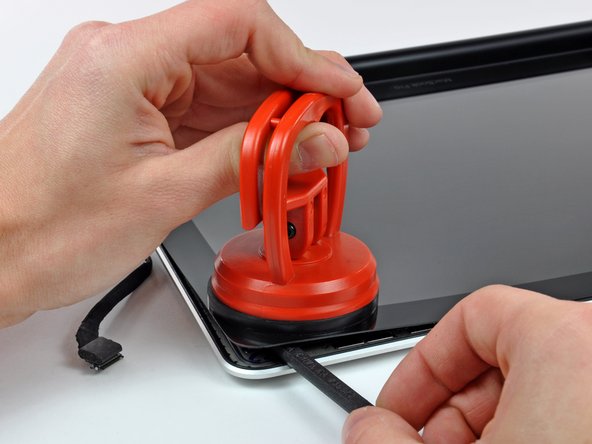
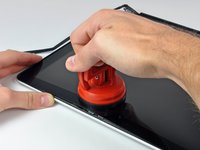
Attach a suction cup along the right side of the front glass panel.
-
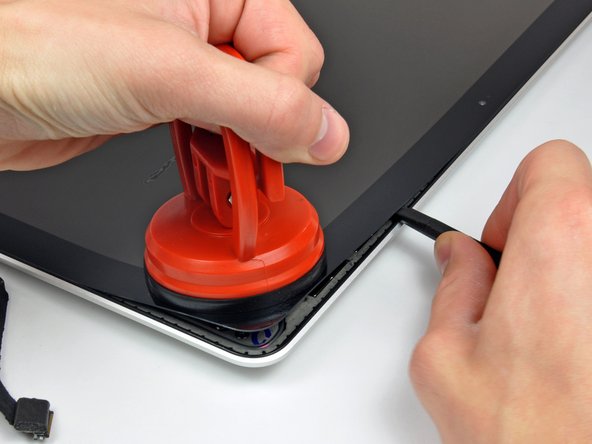
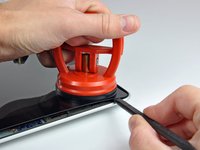
Pull up on the glass panel while you use the flat end of a spudger to separate it from the rest of the display assembly.
-
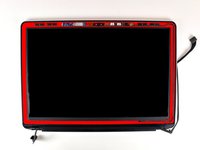
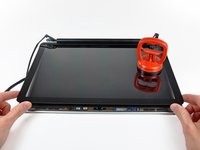
Continue working along the right edge of the front display glass until it is separated from the display.
-
-
-
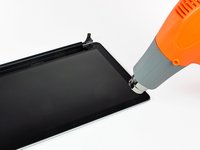
Use your heat gun to soften the adhesive under the black strip along the top edge of the glass display panel.
-
Attach a suction cup near the top edge of the glass display panel and use it to pull the glass panel up off the display.
-
Work along the top edge of the glass panel, carefully using the flat end of a spudger to separate the adhesive if necessary.
-
-
-
Use a heat gun to soften the adhesive under the black strip near the upper left corner of the glass display panel.
-
Attach a suction cup near the upper left corner of the glass display panel.
-
Pull up on the suction cup and use the flat end of a spudger to carefully pry the glass display panel out of the display assembly.
-
-
-
Use a heat gun to soften the adhesive under the black strip along the left side of the front glass panel.
-
Attach a suction cup along the left side of the front glass panel.
-
Pull up on the glass panel while you use the flat end of a spudger to separate it from the rest of the display assembly.
-
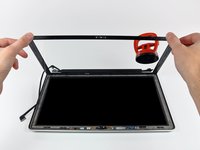
Continue working along the left edge of the front display glass until it is separated from the display.
-
-
-
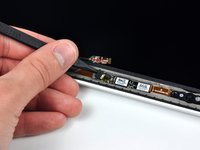
To reconnect the cable, first use the tip of a spudger to remove the piece of foam tape over the camera cable ZIF socket.
-
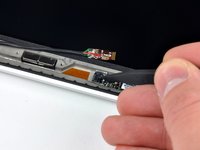
Use the tip of a spudger to flip up the ZIF cable retainer on the camera cable socket.
-
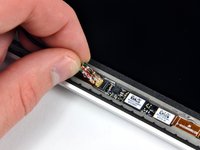
Insert the camera cable into its socket on the camera board and use the tip of a spudger to snap down the ZIF cable retainer, locking the cable in place.
-

























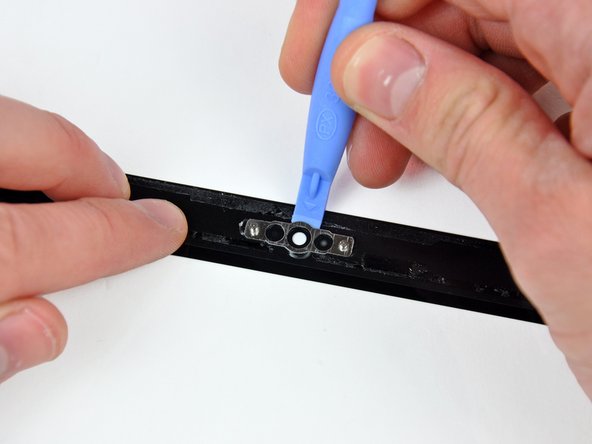
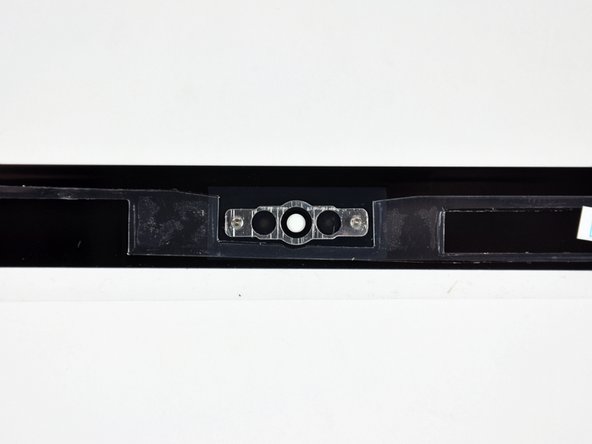


To reassemble your device, follow these instructions in reverse order.
Cancel: I did not complete this guide.
21 other people completed this guide.


6 Guide Comments
It is easier to start in one of the lower corners. The glass is not held by the rubber bushing.
Is it really necessary to remove the display from the uppercase? Why can't you just start from step 21?
I was wondering the same, is absolutely necessary to disassemble the screen to change the glass? Can I jump to step 21?
No you don't need to remove the Top or Display to replace the glass.
I'm under the presumption that this method would be similar for other unibody versions such as the early / late 2011?
