Introduction
Use this guide to replace a worn-out battery.
What you need
-
-
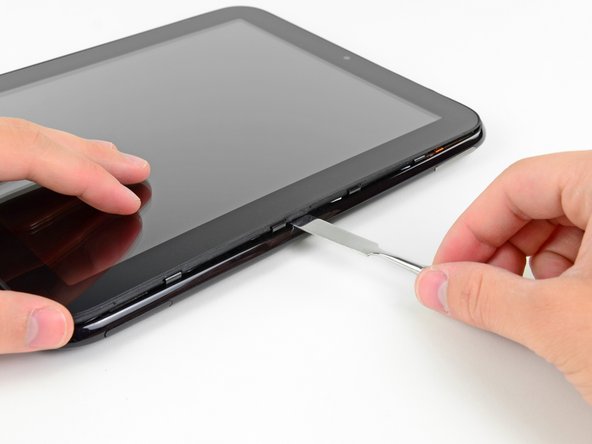
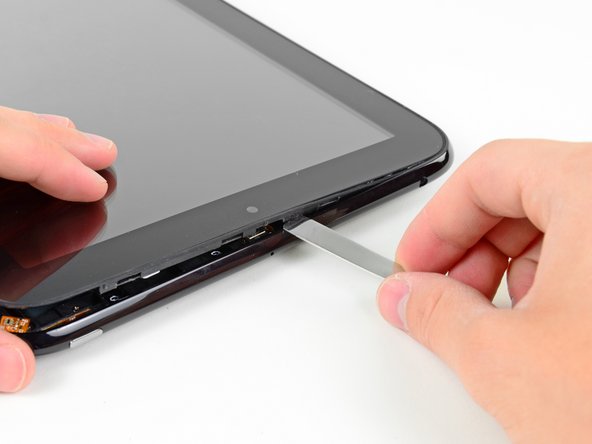
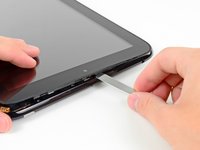
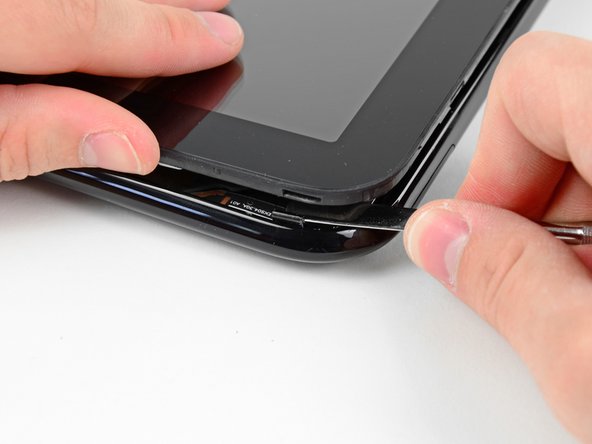
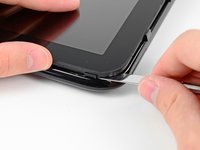
In the following steps, you will use a metal spudger to lift the front panel out from the rear case of your TouchPad.
-
-
-
-
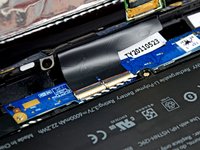
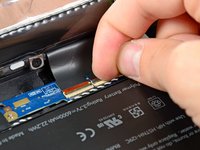
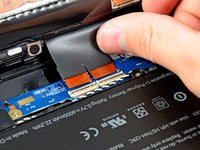
Use the edge of a plastic opening tool to peel up the two pieces of copper tape covering the USB connector board near the battery and the motherboard.
-
-
-
Pull the vibrator motor connector straight away from its socket on the USB connector board.
-
Remove the USB connector board from the TouchPad.
-
NOTE: First verify that there is a connector before pulling! The vibrator motor may be soldered directly to the USB Board requiring the motor to be pried up and removed together with the board.
-











To reassemble your device, follow these instructions in reverse order.
Cancel: I did not complete this guide.
58 other people completed this guide.


8 Guide Comments
Removing the screen is easily the most difficult, time consuming and frustrating part of the whole process. Once removed, the rest, while tedious, is not particularly difficult.
Replaced the battery, and still not powering up. Is there some sort of step missing to activate the battery? I have two devices which has the same issue, and can't power them up again after replacing the battery which is fully charged.
A little late, but you can Google:
tpdebrick-v004
Procedure to slap everything back into a slightly corrupted touchpad so it will start taking a charge if not below critical voltage.
Very well done! I could have used a little more “here is a clip that holds the screen frame to the body frame…” because I was gently prying the screen out of its own frame. But luckily never snapped it.
i have 2 units, 1 of which went below battery critical and is in that protective state now where it won’t take a charge. Going to take the battery from the other unit so I can power this one on and the flash the battery system firmware to reset and hopefully initiate the charging capabilities.
i honestly can’t believe this was built back in 2011 because they did a pretty good job.
And I just happened to see an original charging barrel at my friends house while visiting in another state. He was just charging his iPhone with it so I begged him to trade me for a wall wart that I had. Super lucky find.
thanks again for posting this guide.
And to anyone still reading, the newest nightly builds will crash your touchpad for sure.
Written 4/3/2019
james
