Installing iPhone 4 Volume Button

Replace the metal portion of the volume buttons on your iPhone 4.

  • Add Note x
  • x 30

This guide is for replacing the metal portion of the volume buttons, not the electronic switches.

Sections
Files
Tools
Tools (continued)
Relevant Parts
Image #1 Image #2

Add Note Edit Step 1 — Rear Panel  ¶ 

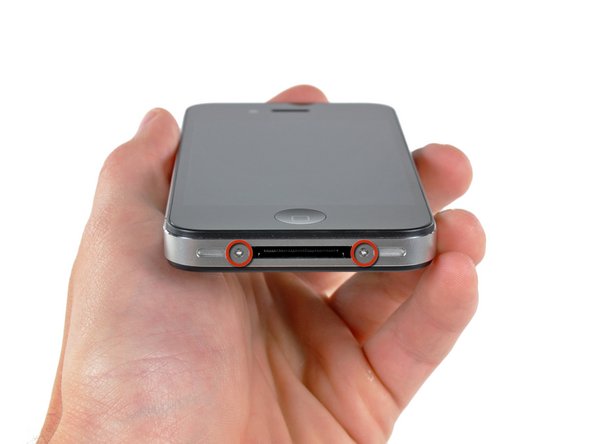
  • Your iPhone 4 rear cover may have either two #000 Phillips screws or Apple's 5-Point "Pentalobe" screws (second image). Check which screws you have, and ensure you also have the correct screwdriver in order to remove them.

  • Remove the two 3.6 mm Pentalobe or Phillips #000 screws next to the dock connector.

  • During reassembly, we recommend you replace the 5-point screws with equivalent Phillips screws. Our Liberation Kit provides the tools and screws needed to replace the Pentalobe screws with Phillips screws.

Image #1 Image #2

Add Note Edit Step 2  ¶ 

  • Push the rear panel toward the top edge of the iPhone.

  • The panel will move about 2 mm.

Image #1

Add Note Edit Step 3  ¶ 

  • Pinch the rear panel with your fingers and lift it away from the iPhone.

Image #1 Image #2

Add Note Edit Step 4 — Battery  ¶ 

  • Remove the single 2.5 mm Phillips screw securing the battery connector to the logic board.

    • Some devices may have two screws, one of which holds down the contact pad which is located above the screw indicated in red in the photo.

  • Use a plastic opening tool to gently disconnect the battery connector from its socket.

Image #1 Image #2 Image #3

Add Note Edit Step 5  ¶ 

  • Use the clear plastic pull tab to gently lift the battery out of the iPhone.

  • Be careful when removing the battery with the plastic pull tab. On some units, Apple uses an excessive amount of glue, making it virtually impossible to remove the battery in this fashion (with the tab possibly tearing due to excessive force).

  • For batteries that "stick", you could use the iPod opening tool to assist (take extra care whilst doing so).

  • You might find it easier to pry the battery out from the right-hand side because no glue is used on this side.

  • Remove the battery.

  • Before reconnecting the battery connector, be sure the pressure contact (shown in red) is properly positioned next to the battery connector.

  • Before reassembly, be sure to clean all metal-to-metal contact points on the pressure contact as well as its contact point on the rear panel with a de-greaser such as Windex (96% ethanol alcohol works well too, but make sure that contacts are dry when done). The oils on your fingers have the potential to cause wireless interference issues.

Image #1

Add Note Edit Step 6 — Volume Button  ¶ 

  • Use a pair of tweezers to remove the small strip of tape covering the back of the volume buttons.

  • Be sure to peel the tape starting from nearest the top of the phone.

Image #1

Add Note Edit Step 7  ¶ 

  • Remove the three Phillips screws securing the volume button bracket to the outer case.

Image #1

Add Note Edit Step 8  ¶ 

  • Use a pair of tweezers to gently pull the volume button bracket slightly away from the outer case.

Next » « Previous

Required Tools

Phillips #00 Screwdriver

$4.95 · 50+ In stock

Plastic Opening Tools

$2.95 · 50+ In stock

Phillips #000 Screwdriver

$9.95 · 50+ In stock

iPhone 5-Point Pentalobe Screwdriver

$12.95 · 50+ In stock

Related Products

iPhone 4 and 4S Volume Button

$4.95 · 40 In stock

Recommended Tools

Universal Drive Adaptor

$29.95 · 50+ In stock

iFixit Lock Pick Set

$29.95 · 27 In stock

Inspection Scope

$39.95 · 40 In stock

Frictionless Ratchet

$24.95 · 49 In stock

Portable Anti-Static Mat

$24.95 · 19 In stock

Comments Add Note Comments are offturn on