Introduction
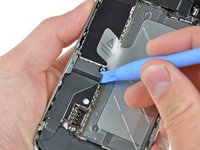
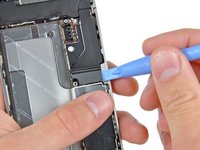
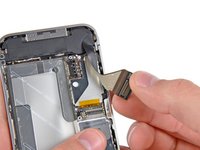
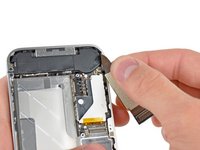
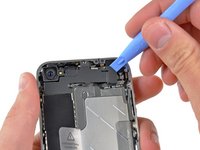
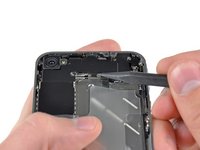
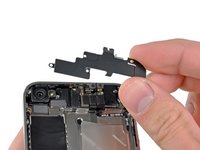
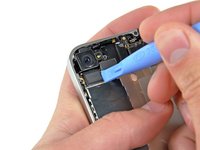
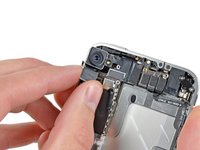
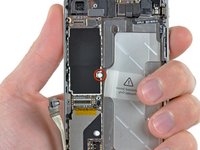
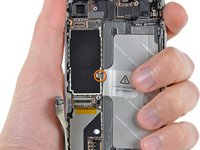
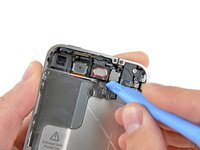
This part contains the proximity sensor, ambient light sensor, power cable and second microphone used for noise canceling.
What you need
-
-
Power off your iPhone before beginning disassembly.
-
Your iPhone 4 rear cover may have either two #000 Phillips screws or Apple's 5-Point "Pentalobe" screws (second image). Check which screws you have, and ensure you also have the correct screwdriver in order to remove them.
-
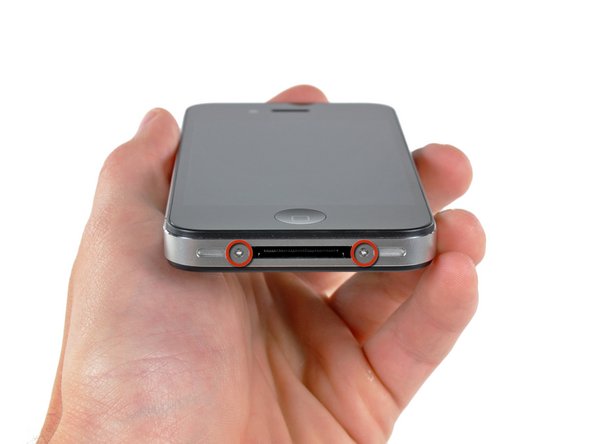
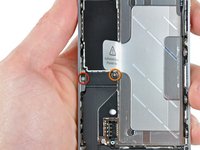
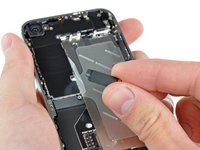
Remove the two 3.6 mm Pentalobe or Phillips #000 screws next to the dock connector.
-
-
-
Remove the single 2.5 mm Phillips screw securing the battery connector to the logic board.
-
-
-
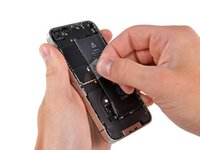
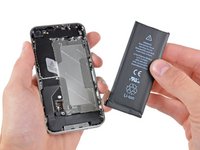
Use the clear plastic pull tab to gently lift the battery out of the iPhone.
-
If there's any alcohol solution remaining in the phone, carefully wipe it off or allow it to air dry before installing your new battery.
-
Before reconnecting the battery connector, be sure the contact clip (shown in red) is properly positioned next to the battery connector.
-
-
-
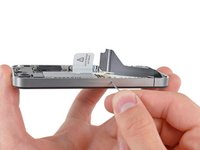
Use a SIM card eject tool or a paperclip to eject the SIM card and its holder.
-
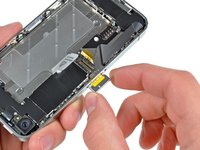
Remove the SIM card and its holder.
-
-
-
-
Use an iPod opening tool to slightly lift the top edge of the Wi-Fi antenna away from the logic board.
-
Use the tip of a spudger to pull the Wi-Fi retaining clips away from the inner frame.
-
Remove the Wi-Fi antenna from the iPhone. Make sure you don't lose the metal clips on the top of the cover where the 4.8mm screw attaches or the 4.8mm screw. That's the primary reason for abnormal Wi-Fi performance after the reassembly.
-
-
-
Use the edge of a plastic opening tool to gently pry the following connectors up and out of their sockets on the logic board:
-
Digitizer cable (pry from bottom)
-
LCD cable (pry from bottom)
-
Headphone jack/volume button cable (pry from top)
-
Top Microphone/sleep button cable (pry from top)
-
Front camera cable (pry from top)
-
-
-
Use the edge of a plastic opening tool to lift the thin steel front camera retainer off the front camera.
-
Remove the front camera retainer.
-
-
-
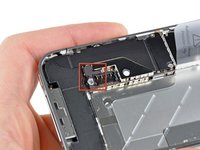
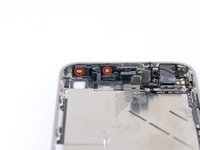
Remove the following two screws securing the vibrator to the inner frame:
-
One 6 mm Phillips
-
One 1.4 mm Phillips
-
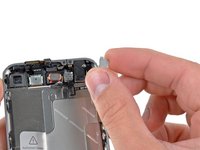
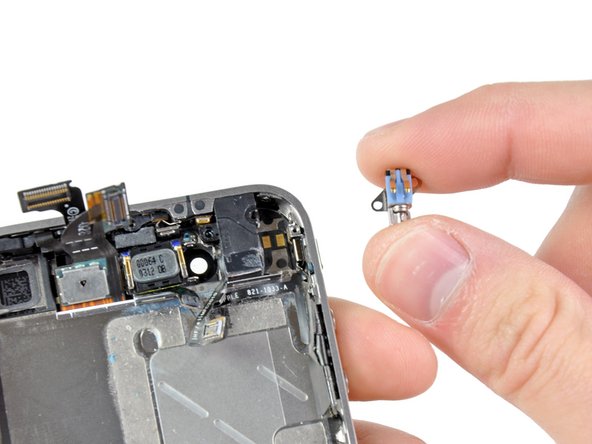
Remove the vibrator from the inner case.
-
























To reassemble your device, follow these instructions in reverse order.
Cancel: I did not complete this guide.
509 other people completed this guide.
Attached Documents


24 Guide Comments
I replaced the Home button and the Power & Sensor cable, along with battery. Let me explain some caveats with ifixit's parts (OEM Apple parts):
-The power-sensor part does not include a new gasket/filter for the sensor- recommend tweezers and care.
-The power-sensor cable needs the foam pad transferred with the adhesive- extreme care with removal.
-IF the power button isn't working it is likely the cable, not the button.
-I used a small ice cube tray.
-It took me an hour (I had to get up and walk away...frustration factor high with the delicate flex cables and adhesive). Lit magnifier is welcome. Definitely use a spudge stick.
-I broke 2 of the 4 shield/antenna tabs that you need to tuck down from the speaker on re-assembly. I didn't force them, but so easy to press too hard in seating the speaker.
- I do repairs on a grounded-ESD mat and wore wriststrap.
-Right screw on the power button brace is PITA to access...careful pressing on the display flex cables to access the tiny screw. Magnetize your bit!
Great guide and perfect web site. It is extremely easy to find what you are looking for and order the components you need.
