Installing iMac Intel 27" EMC 2429 Dual Hard Drive Kit

Featured Guide

Featured Guide

This guide has been found to be exceptionally cool by the iFixit staff.

Install the dual hard drive kit in an iMac Intel 27" EMC 2429.

  • Add Note x
  • x 71

This guide will help you install the dual hard drive kit.

Sections
Image #1 Image #2

Add Note Edit Step 1 — Access Door  ¶ 

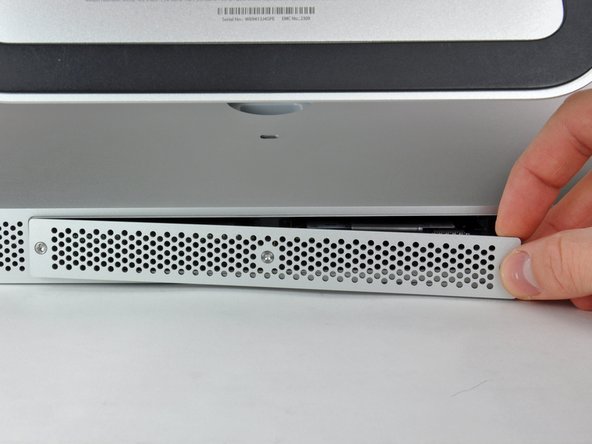
  • Loosen the three Phillips screws securing the access door to the bottom edge of your iMac.

  • These screws will remain captive in the access door.

  • Remove the access door from your iMac.

  • During reassembly, fasten the access door loosely and align it with the pocket cut into the outer case of the iMac before fully tightening the screws.

Image #1

Add Note Edit Step 2 — RAM  ¶ 

  • Use your fingers or the tip of a spudger to slide the black plastic RAM tray pull tab out of the RAM slot.

Image #1 Image #2

Add Note Edit Step 3  ¶ 

  • Pull the black plastic tab away from the iMac to eject the RAM chip from its socket.

    • The RAM modules are firmly seated and may require a fair amount of force to remove.

  • Use your fingers to slide the RAM chip out of its socket.

  • If necessary, repeat this process for the other RAM module(s).

Image #1 Image #2 Image #3

Add Note Edit Step 4 — Glass Panel  ¶ 

  • Stick a suction cup near each of the two top corners of the glass panel.

  • To attach the suction cups we sell, first position the suction cup with the movable handle parallel to the face of the glass panel (as highlighted in the first and second pictures).

  • While lightly holding the suction cup against the glass, raise the movable handle until it is parallel with the other handle (as highlighted by the third picture).

  • If your suction cups refuse to stick, try cleaning both the glass panel and the suction cup with a mild solvent.

Image #1 Image #2 Image #3

Add Note Edit Step 5  ¶ 

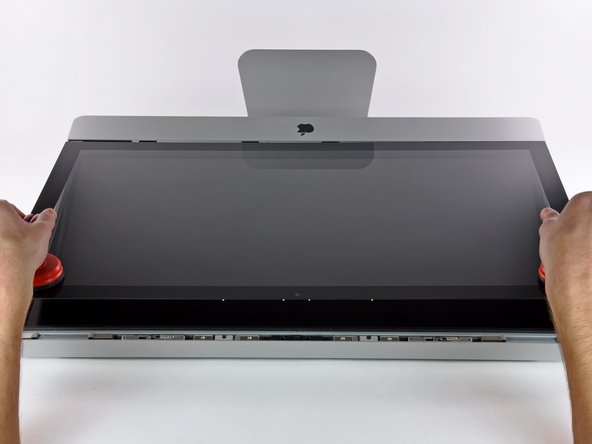
  • Gently lift the glass panel perpendicular to the face of the LCD enough to clear the steel mounting pins attached along the underside of the top edge of the glass panel.

  • Pull the glass panel away from the lower edge of the iMac and carefully set it aside.

  • During reinstallation, be sure to meticulously clean the inside of the glass panel and the face of the LCD as any dust or fingerprints trapped inside will be annoyingly visible when the machine is turned on.

Image #1

Add Note Edit Step 6 — Display  ¶ 

  • Remove the eight T10 Torx screws securing the LCD to the outer case.

Image #1 Image #2 Image #3

Add Note Edit Step 7  ¶ 

  • Carefully lay the iMac stand-side down on a flat surface.

  • Due to tight tolerances, you will have to use a thin hooked tool to lift the display out of the outer case. As seen in the first picture, we made one out of a bent paperclip.

    • Alternatively, our Dual Hard Drive Kit includes a pair of tweezers with an angled tip that are great for this task.

  • Use a thin hooked tool to lift one side of the top edge of the display by its steel outer frame.

  • After lifting the top edge of the display on one side, hold it out of the outer case while you use a hooked tool to lift the other side.

  • Raise and hold the display high enough to access the cables.

  • Do not lift the top edge of the display out of the outer case too far, as several short ribbon cables still connect the two components.

Image #1

Add Note Edit Step 8  ¶ 

  • Disconnect the vertical sync cable in the upper left corner of the screen. Use the tip of a spudger to push on the connector's side tabs.

Image #1

Add Note Edit Step 9  ¶ 

  • Disconnect the LED back light driver cable with your hand by pressing the tab down and sliding it towards the bottom of the display.

Image #1 Image #2

Add Note Edit Step 10  ¶ 

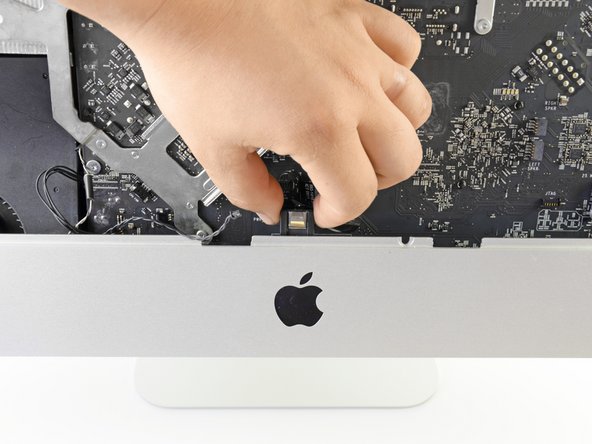
  • Pull the black tab straight up to disconnect the latch on the display data cable ZIF connector.

  • Do not pull up too hard or you will damage the connector and socket.

  • Continue to pull the black tab up toward the top of the device, to detach the display data cable.

Image #1

Add Note Edit Step 11  ¶ 

  • Use the tip of a spudger to disconnect the display power cable next to the display data cable.

Image #1

Add Note Edit Step 12  ¶ 

  • Carefully pull the display toward the top edge of your iMac and lift it out of the iMac case.

Image #1

Add Note Edit Step 13 — Optical Drive  ¶ 

  • Use the flat end of a spudger to pull the optical drive data cable out of the optical drive.

Image #1

Add Note Edit Step 14  ¶ 

  • Use the tip of a spudger to pull the optical drive thermal sensor connector out of its socket.

Image #1

Add Note Edit Step 15  ¶ 

  • Remove the four T10 Torx screws securing the optical drive to the iMac case.

Image #1 Image #2

Add Note Edit Step 16  ¶ 

  • Slightly lift the left edge of the optical drive and then pull it to the side to release the centering pins.

  • Be careful not to rip the thermal sensor cable as you remove the optical drive.

Image #1

Add Note Edit Step 17 — Dual Hard Drive Kit  ¶ 

  • Use the flat end of a spudger to pull the optical drive fan connector out of its socket.

Image #1

Add Note Edit Step 18  ¶ 

  • Use the tip of a spudger to pull the SD board data cable connector out of its socket.

Image #1

Add Note Edit Step 19  ¶ 

  • Use the flat end of a spudger to push the I/O cable connector out of its socket.

  • Alternate pushing on the tabs on the side of the connector to "walk" the connector out of its socket.

Image #1

Add Note Edit Step 20  ¶ 

  • Use the flat end of the spudger to pull the microphone cable connector free of its socket.

Image #1 Image #2

Add Note Edit Step 21  ¶ 

  • Release the right and left speaker connectors from their sockets using the flat end of a spudger.

Image #1 Image #2

Add Note Edit Step 22  ¶ 

  • Locate the AirPort card at the top center of the logic board and just below the hard drive.

  • Use the flat end of a spudger to gently pry each of the antenna cables off their sockets.

    • Do not disconnect the antennas by pulling on the cables as this may damage the cables, connectors, or sockets.

    • The antennas have markings to help you identify their order. The antenna with no marks goes to "CH0", the antenna with one mark goes to "CH1", and the antenna with two marks goes to "CH2".

Image #1

Add Note Edit Step 23  ¶ 

  • Use the flat edge of a spudger to push the camera/Bluetooth/ambient light sensor connector out of its socket.

Image #1

Add Note Edit Step 24  ¶ 

  • Release the hard drive fan connector from its socket by pushing on its tabs using the flat end of a spudger.

Image #1

Add Note Edit Step 25  ¶ 

  • Push the thermal sensor connector out of its socket with the flat end of a spudger.

Image #1

Add Note Edit Step 26  ¶ 

  • Use the flat edge of a spudger to release the CPU fan cable

Image #1

Add Note Edit Step 27  ¶ 

  • Use the flat end of the spudger to push the ambient temperature sensor connector out of its socket.

Image #1

Add Note Edit Step 28  ¶ 

  • Use the flat edge of a spudger to pull the power button connector free of its socket.

Image #1 Image #2

Add Note Edit Step 29  ¶ 

  • Locate the IR sensor located behind the black apple logo.

  • Remove the IR sensor by pulling it straight up and out of the case.

  • Do not attempt to completely remove the IR sensor from the case as it is still attached to the logic board.

Image #1

Add Note Edit Step 30  ¶ 

  • Remove the eight T10 Torx screws securing the logic board and heat sink assembly to the iMac case.

Image #1 Image #2

Add Note Edit Step 31  ¶ 

  • Simultaneously lift and rotate the logic board and heat sink assembly away from the iMac case until you can easily access the back side of the logic board.

Image #1 Image #2

Add Note Edit Step 32  ¶ 

  • Locate the secondary SATA socket, next to the primary SATA socket.

  • Plug in the included SATA data/power cable.

  • The hard drive cable side with only one connector goes into the logic board connector.

Image #1 Image #2

Add Note Edit Step 33  ¶ 

  • Route the new SATA cable through the indentation that the primary SATA cable goes through and into the optical drive bay.

  • Set the logic board back into place, being careful not to catch, cover, or pinch any cables.

  • Be sure that the SATA cable has as much slack as possible and that it is not tangled with any other cables.

Image #1 Image #2 Image #3

Add Note Edit Step 34  ¶ 

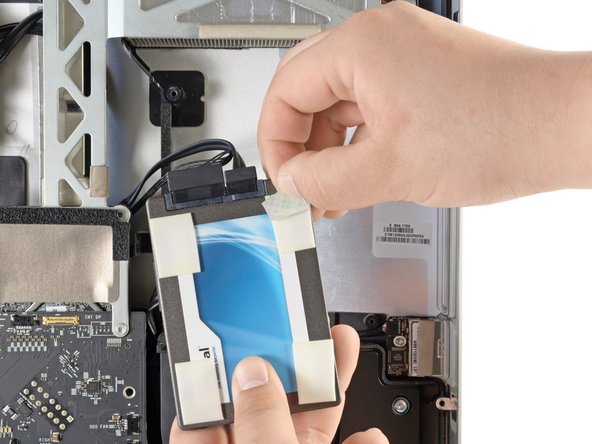
  • To secure your new drive in your iMac, you will need to place high strength double-sided tape at the four corners on the side of the drive with the SATA connectors.

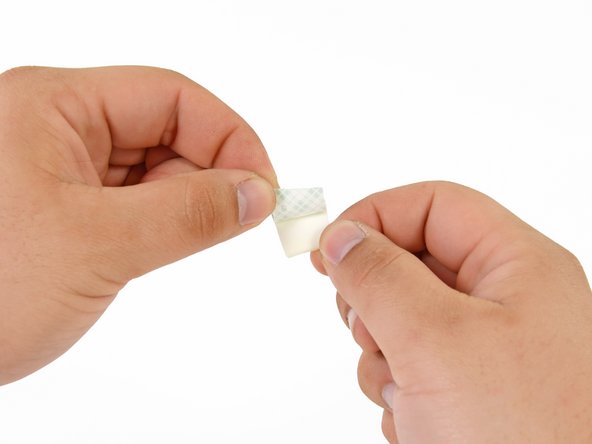
  • Peel the backing off one side of the double sided tape.

  • Press the exposed adhesive side of the double sided tape to the corner of the SSD.

  • Be sure not to cover the SATA connectors with the double sided tape.

  • Repeat the above process for the remaining 3 corners.

Image #1 Image #2 Image #3

Add Note Edit Step 35  ¶ 

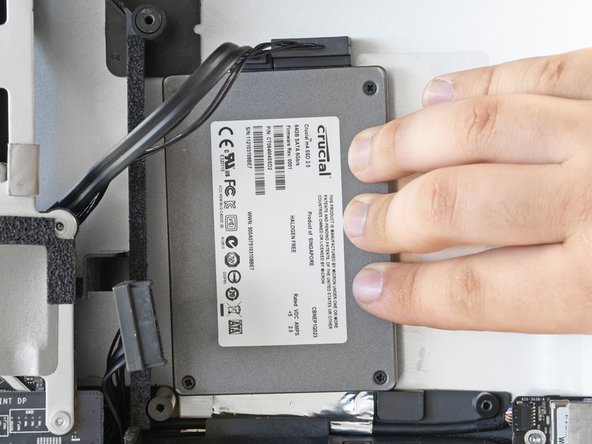
  • Connect both the SATA data and SATA power connectors to their respective sockets on the SSD.

  • Peel the backing off of the double sided tape.

  • Carefully set the SSD into the iMac optical bay as close to the lower left corner as possible.

  • Do not to repeatedly stick and un-stick the tape, as the adhesive will become weaker.

  • Once you are happy with the SSD's placement, firmly press down along its edges to ensure full adhesion.

  • When re-installing the optical drive, the SATA cable will be sandwiched between the foam padding and the optical drive.

Required Tools

Popular Products

iPad 3rd Gen Front Panel Assembly

$119.95 · 7 In stock

54 Bit Driver Kit

$24.95 · 50+ In stock

Illuminated Magnifier Table Lamp

$29.95 · 3 In stock

Tri-wing Y1 Screwdriver

$9.95 · 50+ In stock

Soldering Tip Cleaning Ball

$9.95 · 40 In stock

Comments Add Note Comments are offturn on