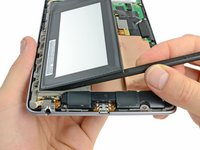
Installing Nexus 7 Battery

Featured Guide

Featured Guide

This guide has been found to be exceptionally cool by the iFixit staff.

Replace the battery in your Nexus 7.

  • Add Note x
  • x 9

This guide will help you replace the battery.

Image #1

Add Note Edit Step 1 — Rear Panel  ¶ 

  • In the following steps you will release the clips (highlighted in red) along the perimeter of the Nexus 7's rear panel.

  • Do not use excessive force while prying the clips. They can be easily broken.

Image #1 Image #2

Add Note Edit Step 2  ¶ 

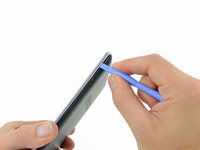
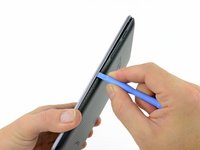
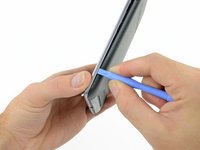
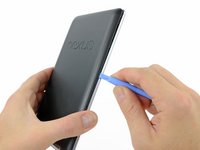
  • Gently insert a plastic opening tool near the top of the Nexus 7 between the rear panel and the front panel assembly.

  • Carefully run the plastic opening tool along the top edge to pry the rear panel away from the front panel assembly of the Nexus 7.

Image #1 Image #2 Image #3

Add Note Edit Step 3  ¶ 

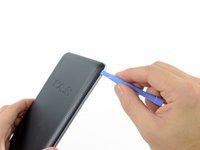
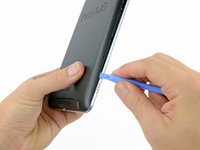
  • Insert the plastic opening tool between the rear panel and the front panel assembly near the power button and pry up at several points along the right edge of the Nexus 7.

Image #1 Image #2 Image #3

Add Note Edit Step 4  ¶ 

  • Pry up the rear panel along the left edge using the method described in previous steps.

Image #1 Image #2

Add Note Edit Step 5  ¶ 

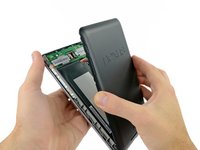
  • Gently lift and remove the rear panel up off the front panel assembly.

Image #1 Image #2

Add Note Edit Step 6 — Battery Cable  ¶ 

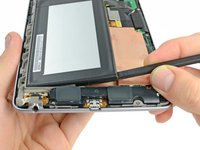
  • Using the tip of a spudger, push first on one side then the other to "walk" the battery cable straight out of its socket on the motherboard.

Image #1

Add Note Edit Step 7 — Battery  ¶ 

  • Wedge the flat end of a spudger inbetween the battery and the front panel assembly.

  • Run the flat end of a spudger along the top edge of the battery to separate it from the adhesive securing it to the front panel assembly.

  • Do not excessively bend the battery connector board. Be especially careful when prying up around the top left edge of the battery.

Image #1 Image #2

Add Note Edit Step 8  ¶ 

  • Wedge the flat end of a spudger between the bottom right corner of the battery and the front panel assembly.

  • Carefully run the spudger along the bottom edge of the battery while slowly lifting the battery to completely separate it from the adhesive securing it to the front panel assembly.

Image #1

Add Note Edit Step 9  ¶ 

  • Grasp the lower right corner of the battery and rotate it upwards to remove it from the front panel assembly.

  • If you encounter any resistance from the remaining adhesive, simply use the flat end of a spudger to remove the excess adhesive.

Required Tools

Spudger

$2.95 · 50+ In stock

Plastic Opening Tools

$2.95 · 50+ In stock

Popular Products

iPad 4th Gen Front Panel Assembly

$134.95 · 31 In stock

Spudger

$2.95 · 50+ In stock

Phillips #00 Screwdriver

$4.95 · 50+ In stock

Magnetizer/Demagnetizer

$4.95 · 50+ In stock

Comments Add Note Comments are offturn on