Introduction
This guide will show you how to remove the heat sink and apply better thermal paste in your MacBook Pro 13" 2010.
What you need
-
-
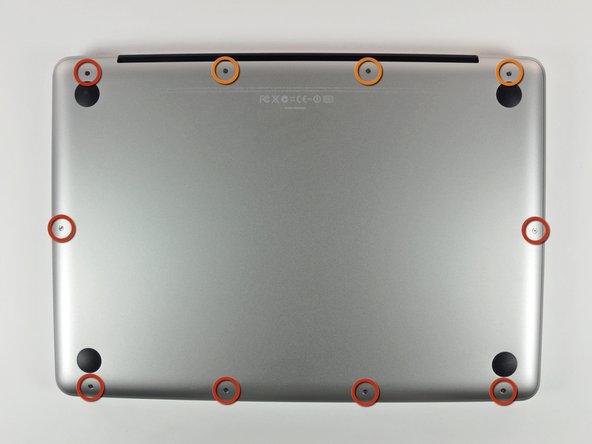
Remove the following 10 screws securing the lower case to the MacBook Pro 13" Unibody:
-
Seven 3 mm Phillips screws.
-
Three 13.5 mm Phillips screws.
-
-
-
Slightly lift the lower case and push it toward the rear of the computer to free the mounting tabs.
-
-
-
Use the flat end of a spudger to lift the battery connector up out of its socket on the logic board.
-
-
-
Grab the plastic pull tab secured to the display data cable lock and rotate it toward the DC-In side of the computer.
-
Gently pull the display data cable connector away parallel to the board.
-
-
-
-
Remove the four 8.5 mm Phillips screws securing the heat sink to the logic board.
-


To reassemble your device, follow these instructions in reverse order.
To reassemble your device, follow these instructions in reverse order.
Cancel: I did not complete this guide.
62 other people completed this guide.


5 Comments
I enjoyed the process and the fixit guides are great. But I had one potentially fatal issue with the heat sink replacement guide (to apply thermal paste ). The guide says to "Pull the display data cable connector straight away from its socket" when it should say "gently pull it to the right in order to dislodge it from the socket, never pull upwards". I pulled it upwards because I did not realize that it was a "sideways" socket, and almost broke the socket and had a blank screen on startup (gently righting the bent socket with a tweezers fixed it).
Very glad you're able to fix the connector :)
Thank you for this write up. I was able to change out a bad logic board on my mid 2010 macbook pro that my ex wife had ruined with a spill of a soft drink. The heat sink on the new-used logic board was in worse shape than the original heat sink, so I had to swap them out. Wouldn’t have been able to do that without this guide. Once again, many thanks on helping to get new life into my 10 year old macbook pro :D
having difficulties after changing my thermal paste, unable to get the MacBook to boot up. Tinkered around a bit and it booted up for one go then a few keys were not working so I had to reconnect the cable again then the laptop went off again. Please help.
Last night, I did the thermal paste on an Early 2011, 17" and had no trouble. Now, I just did the thermal paste for this one, Mid 2010, 13", but the machine won't turn back on.
The battery indicator works on the outside of the machine works. I tried connecting the magsafe and its light did not turn on. I took the bottom case off, looked at the connectors, then tried the magsafe again. Now the magsafe seems to be working properly (green at first, then amber). I tried resetting SMC, got nothing.
I'm wondering if I damaged the hard drive cable. Would that cause the machine to be unresponsive? Is it safe to say the logic board is fine if the battery indicator is working?
Any other ideas? Thank you
