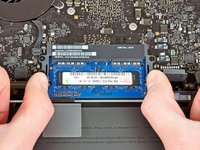
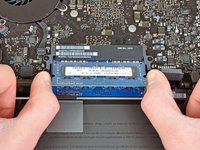
Installing MacBook Pro 13" Unibody Early 2011 RAM

Featured Guide

Featured Guide

This guide has been found to be exceptionally cool by the iFixit staff.

Upgrade the RAM in your Early 2011 MacBook Pro 13" Unibody.

  • Add Note x
  • x 76

Upgrade your RAM for a noticeable increase in speed.

Image #1

Add Note Edit Step 1 — Lower Case  ¶ 

  • Remove the following ten screws:

    • Three 14.4 mm Phillips #00 screws

    • Three 3.5 mm Phillips #00 screws

    • Four 3.5 mm shouldered Phillips #00 screws

Image #1 Image #2

Add Note Edit Step 2  ¶ 

  • Use your fingers to pry the lower case away from the body of the MacBook near the vent.

  • Remove the lower case.

Image #1 Image #2

Add Note Edit Step 3 — Battery Connection  ¶ 

  • Use the edge of a spudger to pry the battery connector upwards from its socket on the logic board.

  • It is useful to pry upward on both short sides of the connector to "walk" it out of its socket. Be careful with the corners of the connectors, they can be easily broken off.

Image #1

Add Note Edit Step 4  ¶ 

  • Bend the battery cable slightly away from its socket on the logic board so it does not accidentally connect itself while you work.

Image #1 Image #2

Add Note Edit Step 5 — RAM  ¶ 

  • Pull the two RAM retaining arms away from the center of the RAM chip.

  • The RAM chip should "pop" up slightly from its socket.

Image #1

Add Note Edit Step 6  ¶ 

  • Pull the RAM stick out of its socket.

  • Repeat this process to remove the second RAM chip.

Required Tools

Spudger

$2.95 · 50+ In stock

Phillips #00 Screwdriver

$4.95 · 50+ In stock

Related Products

PC3-10600 2 GB RAM Chip

$29.95 · 50+ In stock

PC3-10600 4 GB RAM Chip

$99.95 · 3 In stock

Recommended Tools

Universal Drive Adaptor

$29.95 · 50+ In stock

iFixit Lock Pick Set

$29.95 · 13 In stock

Inspection Scope

$39.95 · 37 In stock

Frictionless Ratchet

$24.95 · 47 In stock

Portable Anti-Static Mat

$24.95 · 16 In stock

Comments Add Note Comments are offturn on