Introduction
Use this guide to replace a noisy fan.
What you need
-
-
Remove the following ten screws:
-
Two 8 mm 5-point Pentalobe screws
-
Eight 2.5 mm 5-point Pentalobe screws
-
-
-
Use the flat end of a spudger to pry both short sides of the battery connector upward to disconnect it from its socket on the logic board.
-
Bend the battery cable slightly away from the logic board so the connector will not accidentally contact its socket.
-
-
-
Remove the single 2.9 mm T5 Torx screw securing the SSD to the logic board.
-
-
-
-
Use the flat end of a spudger to pry the I/O board cable up from its socket on the I/O board.
-
-
-
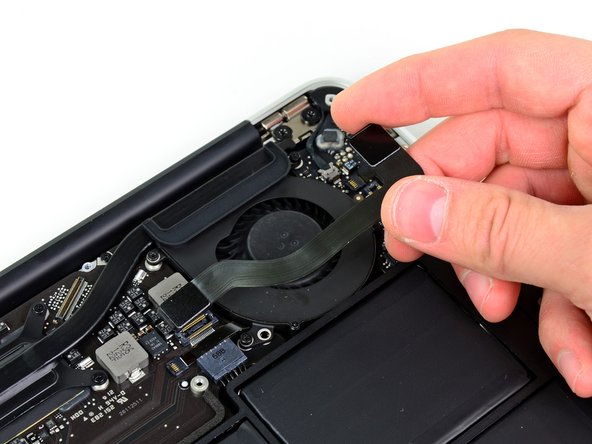
Use the tip of a spudger to carefully flip up the retaining flap on the fan cable ZIF socket.
-




To reassemble your device, follow these instructions in reverse order.
To reassemble your device, follow these instructions in reverse order.
Cancel: I did not complete this guide.
26 other people completed this guide.


3 Comments
I did the same. What to do?
EW
I too broke the socket of trying to pry open the retaining flap. Yes there is a warning “Be sure you are prying up on the hinged retaining flap, not the socket itself.” But there needs to be a much better picture/description of how to DO this on step 9. Without a reference on what/where the retaining flap is, there is a big danger of breaking it. Now my computer is toast.
